
This article explains what happens when you first connect DataGroomr to your Salesforce org, from initial setup through your first deduplication scan.
First Login
When you sign in for the first time, DataGroomr prompts you to select which Salesforce objects to analyze. Default options include Accounts, Contacts, and Leads.
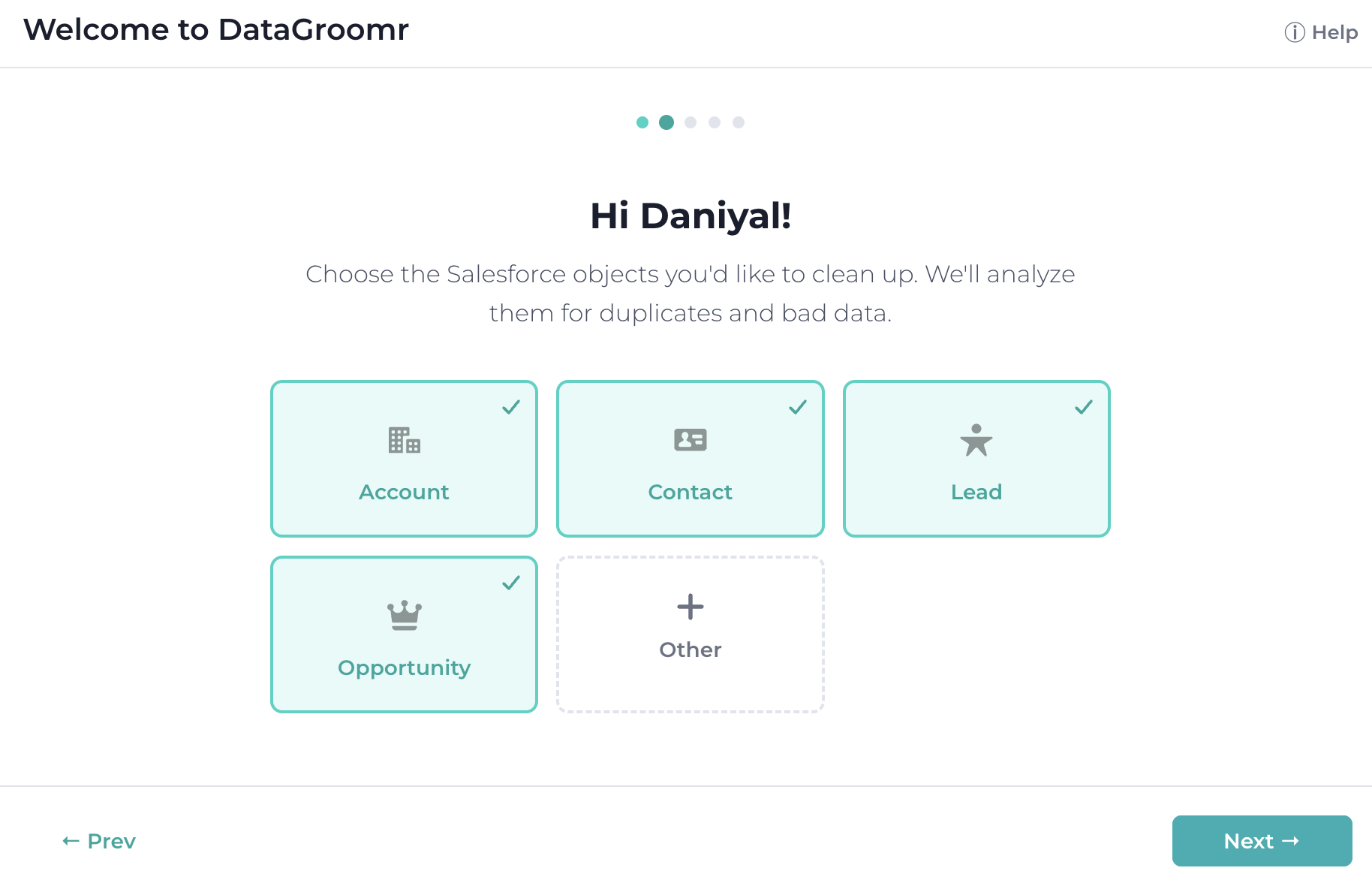
To add custom objects, select +Other to open a searchable list of all objects in your org.
Adding Other Standard or Custom Objects
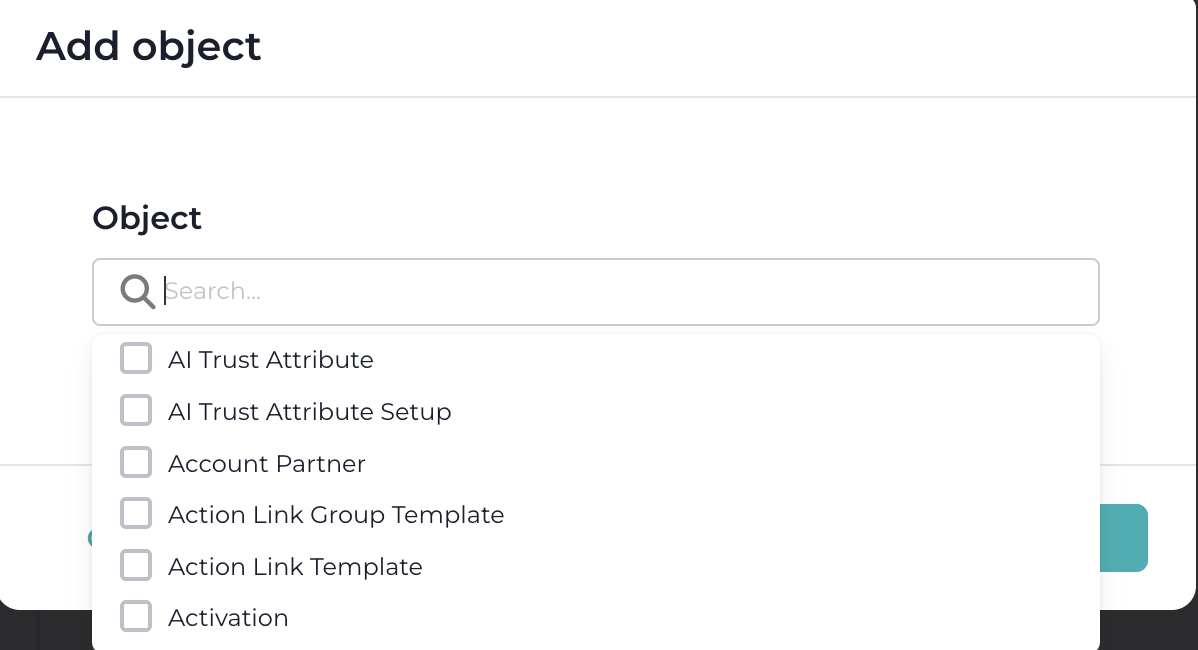
If you want to clean additional Salesforce objects, select +Other. A searchable list of all available objects in your org appears, letting you include standard and custom data types.
AI Profiling and Setup
Once you’ve selected objects, DataGroomr’s AI starts profiling your data. This step:
Analyzes metadata and field structures
Creates matching models within Dedupe module.
Creates data quality models within Cleanse module.
Prepares datasets for both duplicate detection and data quality checks.
NOTE: DataGroomr does not require manual configuration from the user. Based on the profiling exercise, matching and cleaning rules are generated automatically based on your existing data.
Matching and data quality models
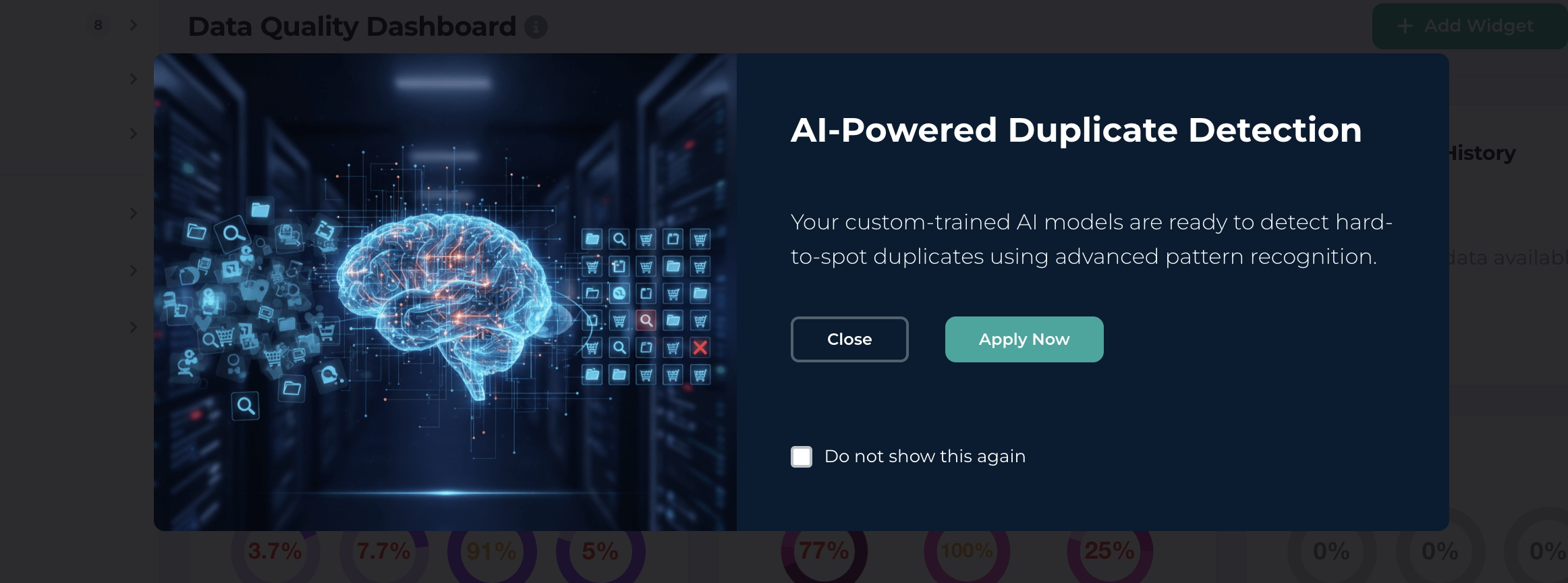
Matching models will be built based on the profile of your data. For each object two duplicate detection models will be generated by the system, the Classic model and AI-based model. After AI-based model finished generating, you'll receive an email, and system will offer you to activate AI models.
DataGroomr will build two data quality models for each of the selected objects: Completeness and Consistency. These models score all records in your org how complete they are and if countries, states/provinces, zip/postal codes, and phone numbers are consistently formatted. All records will be scored on the scale of 0 to 100.
Data quality metrics will be available in the Cleanse module.
First Deduplication Scan
DataGroomr runs an initial deduplication scan on your selected objects, and you'll receive an email when the scan completes.
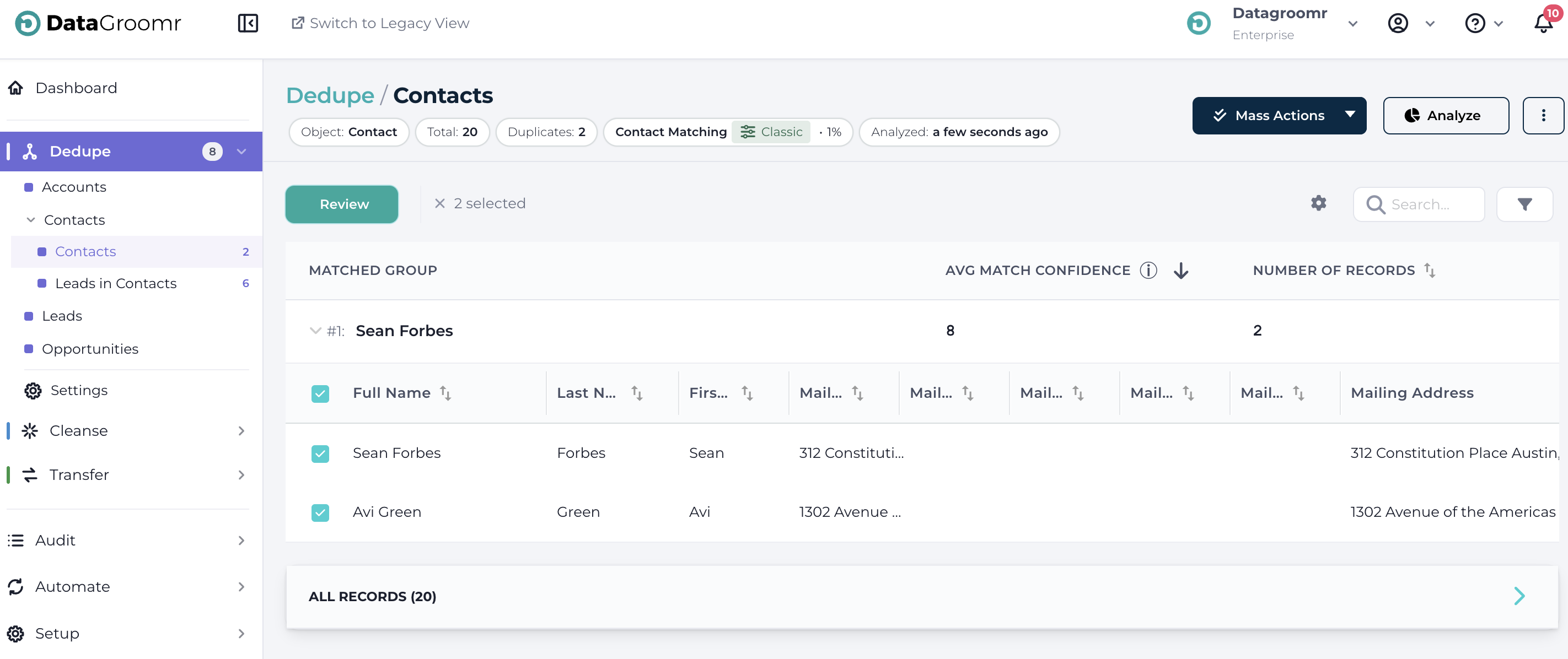
To view results, navigate to Dedupe. Each duplicate group displays:
- Matched records
- Match confidence score
- Number of records in the group
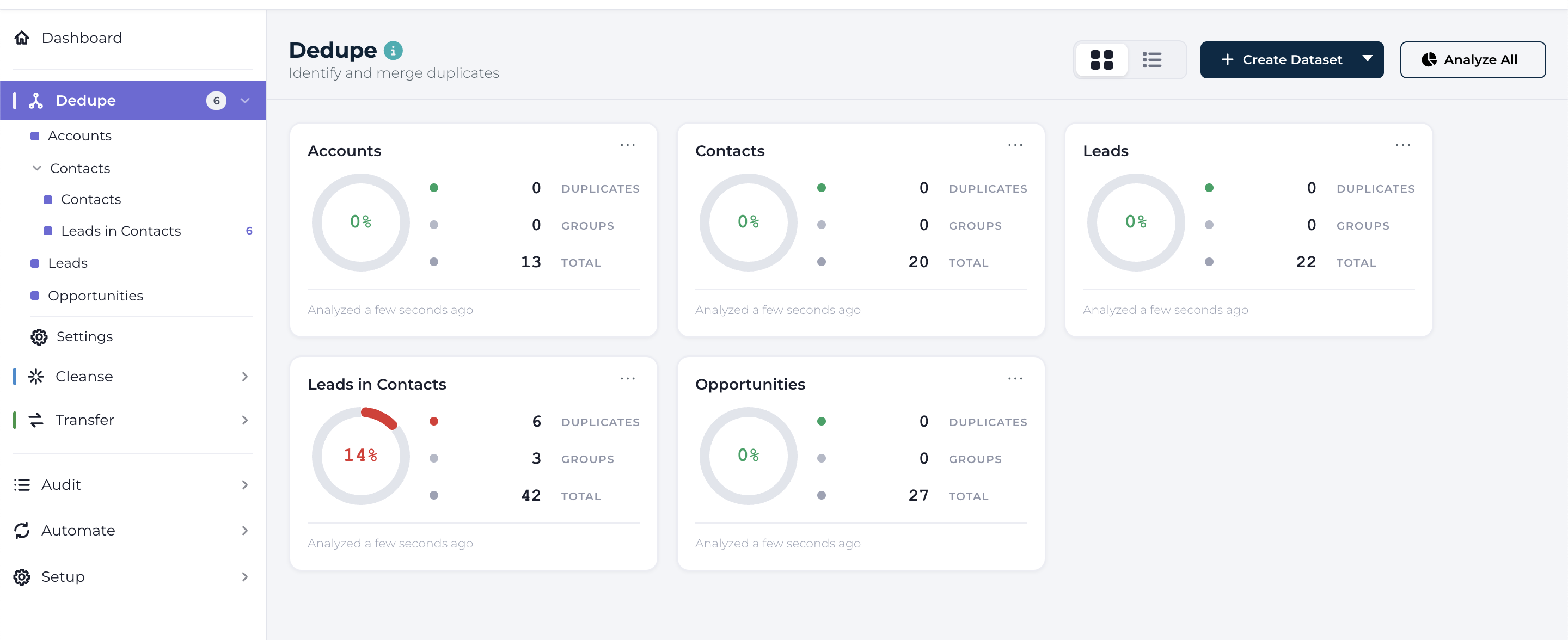
You can review duplicates individually or perform a Mass Merge using Mass Actions function.
Data Quality Review
The Cleanse module shows completeness and consistency metrics for your records. From here you can identify data quality issues and configure transform rules to fix these issues.
Available Modules
The following modules are available:
Dedupe – Duplicate detection and merging
Cleanse – Data quality check, verification and standardization
Transfer – Import and move data
Audit – Change tracking and audit trail
Automate – Scheduled jobs and real-time triggers