
Once a CSV file is analyzed, you have many options to work with the data in DataGroomr.
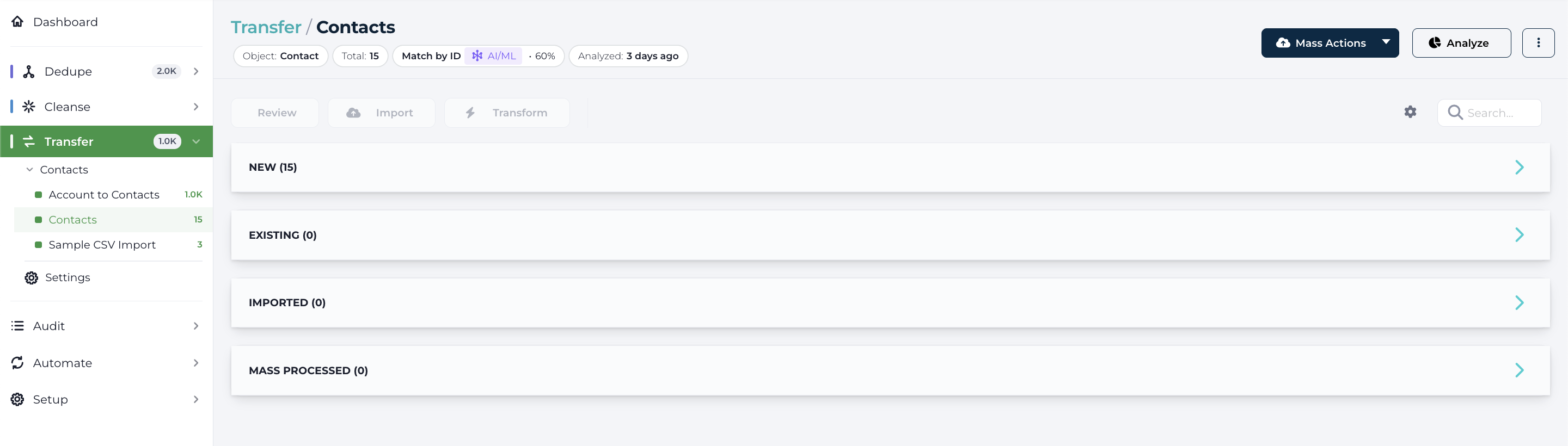
DataGroomr will create four buckets for each import.
- Unmatched Records - records that are not duplicates
- Matched Records - records that already have a duplicate in Salesforce
- Imported Records – any records imported into Salesforce will move to this bucket
- Mass Processed Records - records updated into Salesforce via an automation or a manual trigger of a mass update of Salesforce appear in this section
Data Integrity Check
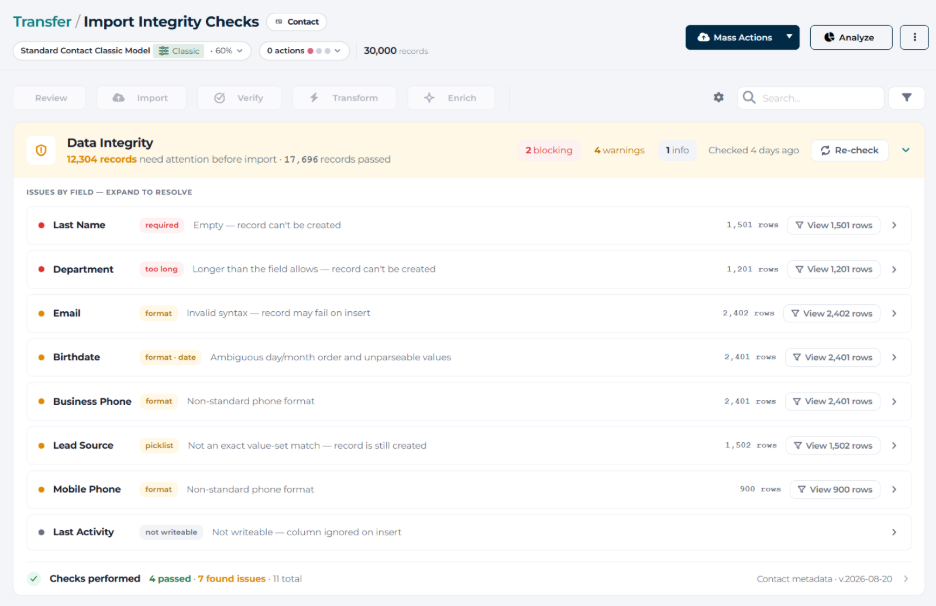
After a file is imported and staged — and before records are pushed to Salesforce — DataGroomr validates the staged rows against the destination object’s metadata. The results appear in a collapsible Data Integrity panel at the top of the import dataset, summarizing every detected problem grouped by severity (blocking, warnings, info). Blocking issues must be resolved before the push can proceed.
Learn more: Import Data Integrity Check — the full list of checks and how to resolve each type of issue.
Unmatched Records
Unmatched records can be imported individually or en masse. To individually import records, select them and then press REVIEW button and then the IMPORT button to perform the actual import.
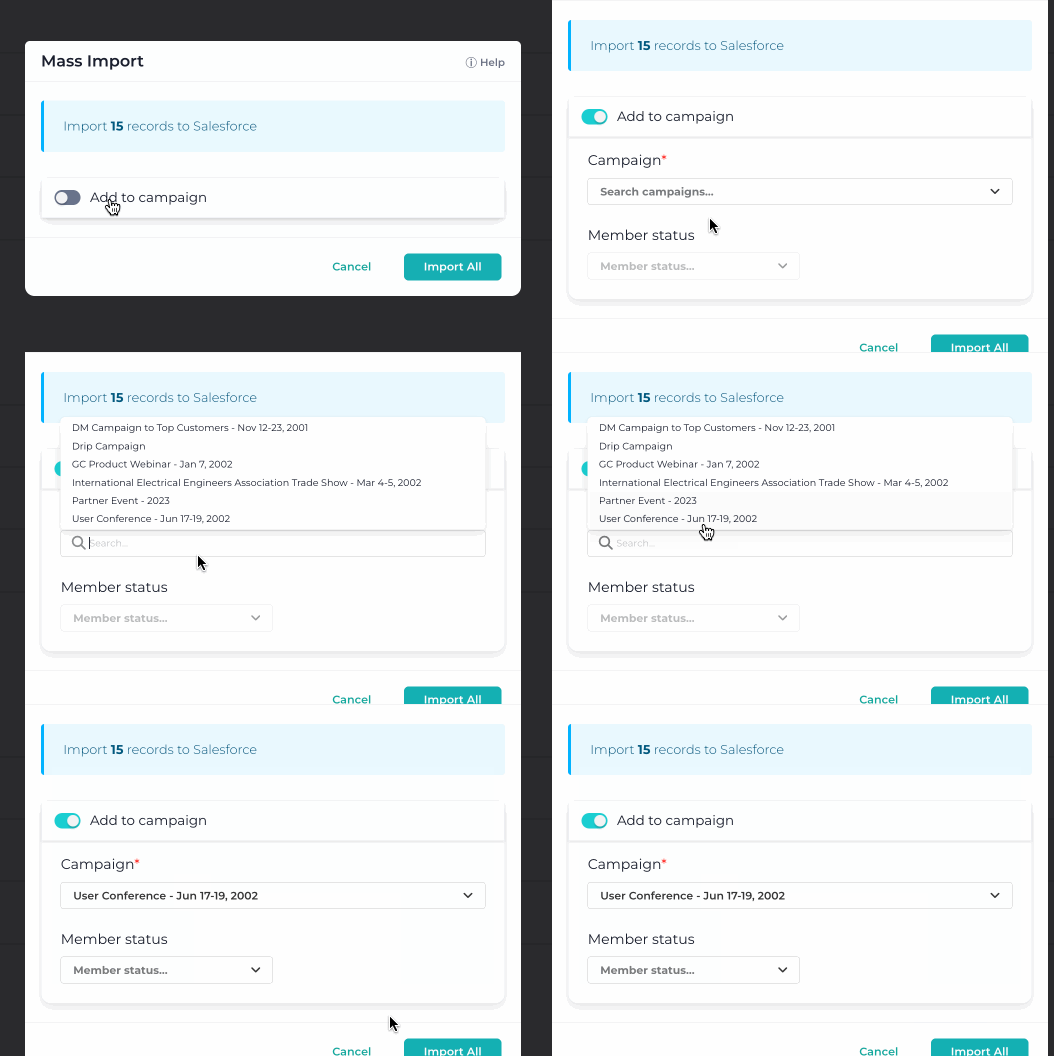
To mass import the unmatched records into Salesforce, click the MASS IMPORT button. You may also assign imported Leads or Contacts to a campaign by selecting the Assign to campaign check box and selecting an available campaign from the drop-down list.
Matched Records
You can still work with data in the Matched Records bucket. To do this, follow the same procedure as used in Dedupe (see Duplicate Group Review).
Clicking a matched group in the list opens the review popup directly, mirroring the behavior in Dedupe datasets.
- Update – click any field in the CSV record to copy the value to the corresponding field in the Salesforce record. Press the Update button to update the Salesforce record.
- Import – occasionally you may still want to import the duplicate record. To do this, press the Import button.
You may also update any duplicate salesforce records en masse. To do this, press the MASS UPDATE button.
Read more:
- Mass update records in Salesforce from CSV
Datasets with Related Objects
A dataset loaded with related objects (see Import Data from CSV files) is one dataset with one tile. An object switcher above the record sections has a tab for each object with its counts, for example Accounts: 296 existing · 116 new. Filters, Review, Verify, AI Review and Transform act on the selected object only.
On a child object's tab, for example Contacts, the Account column shows how each row links to its parent:
- Existing – the row's Account matched a Salesforce Account at or above the Account minimum match confidence, and the score is shown. The row is linked to that Account.
- New – the Account is not in Salesforce yet. It is created on import and the row is linked to it. Rows with the same Account values share one new Account.
- Missing – the row has no Account to link to: it has no company values, or no Account matched and the import links only to existing Accounts. The row is held and not imported.

Click a status to open that Account on the Accounts tab. Use the Account filter to show rows by status and score range, so weak links can be reviewed before import.
MASS IMPORT on a child tab first lists every write, for example the Accounts to create, the Contacts to create and the Contacts held. On confirm, the missing Accounts are created first, then the Contacts are created and linked to them. To import held Contacts anyway, turn on Import held Contacts without an Account (not available when Salesforce requires the link). Importing a single Contact from the Review window also creates its new Account first. MASS IMPORT on the parent tab imports only the Accounts; their Contacts then show the Account as Existing.

When a Contact already exists in Salesforce but its company is new, the Contact is listed with the matched records and the new Account is offered as a field change in the Review window. The Account is created only if you accept that change.
Note: Upload More and Retry are not available for datasets with related objects.
Editing Data in A Review Panel
All data in the review panel can be edited prior to import. Mass Transform actions on CSV imports now complete reliably without errors.

Read More:
Transform Records in CSV
Verify Record Fields
DataGroomr has the ability to verify certain fields including phone numbers, emails and mailing addresses (requires Credits - see Manage Credits). To do this, select one or more records and press the REVIEW button. You may verify the entire row or data within an individual cell by clicking on the label. When toggling the ‘Display all fields’ option, CSV configuration correctly respects field limits, preventing errors from excessive field counts. AI Review is now available in Transfer datasets (CSV and cross-object). AI can suggest whether to import, update, or skip records, with inline explanations for each action.
Validity filters for the verify fields are available in the dataset, letting you focus on records by their verification status. When you apply a mass action, the same filters are shown at the bottom of the corresponding dialog so you can review exactly which records the action will affect.