
Dedupe dashboards provide an overview of your datasets. Initially, DataGroomr will create and configure datasets for each of the objects you added via the welcome wizard. You can create new datasets by pressing the Create Dataset button.
More about creation and configuration of a dataset can be found here:
Configuring Dedupe Datasets
Compare Datasets for Duplicates - Cross Object Datasets
Dataset
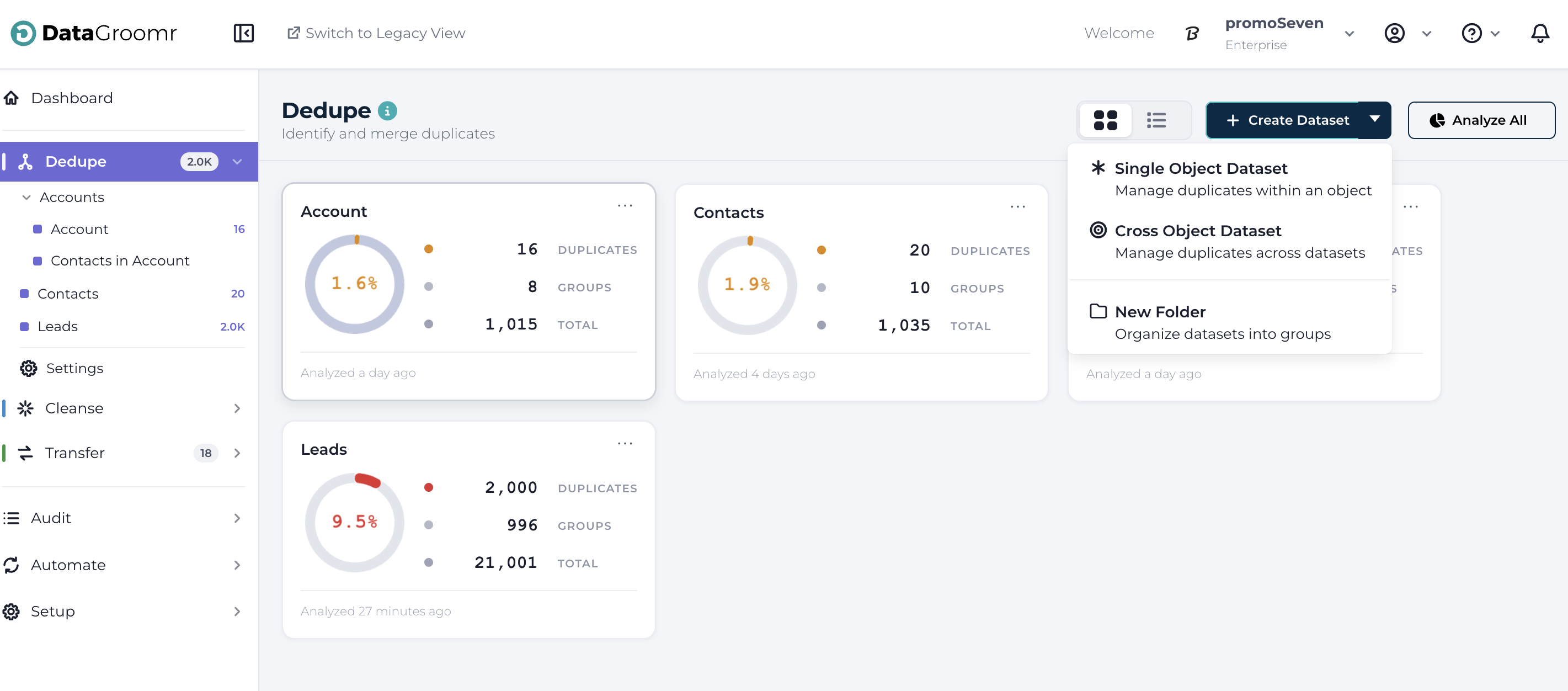
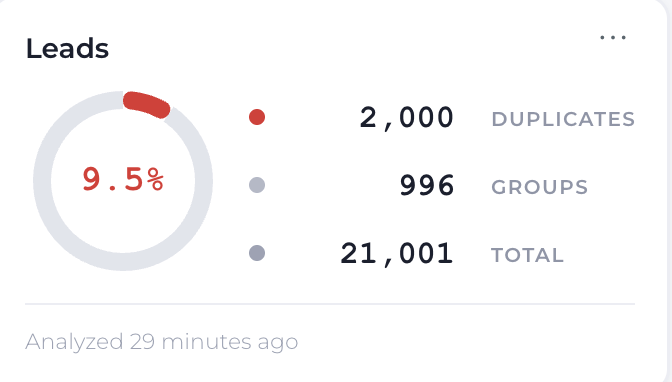
Within each dataset, you will see an overview of the number of duplicate records (1), the number of clustered/groups of duplicates (2) and the total number records within the dataset (3). An important property is the last analysis date indicator (4). Because datasets are collections of Salesforce records that are always changing or increasing, the last analysis date should ideally be kept as low as possible. A Automate Job can be created to keep datasets updated regularly.
Analyze All
Pressing this button will re-initiate the analysis of all the datasets in the Dedupe module.
NOTE: Data analysis can take anywhere from 30 seconds to an extended period of time, depending predominately on the number of records being analyzed and the number and complexity of the matching models
Open a Dataset
To work with a specific dataset, select it on the dashboard or from the Navigation menu.
Toggle Between Dataset Views
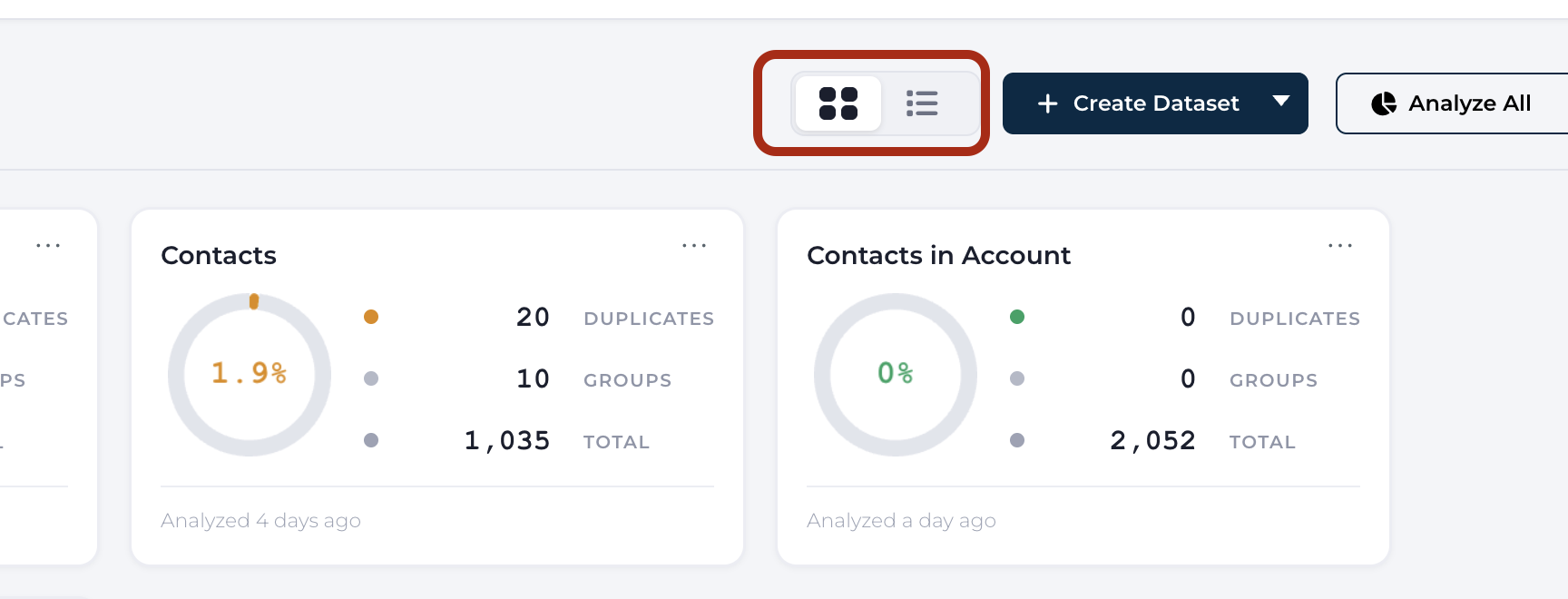
Customize how datasets are displayed, toggle between Tile or List views:
Tile View
List View
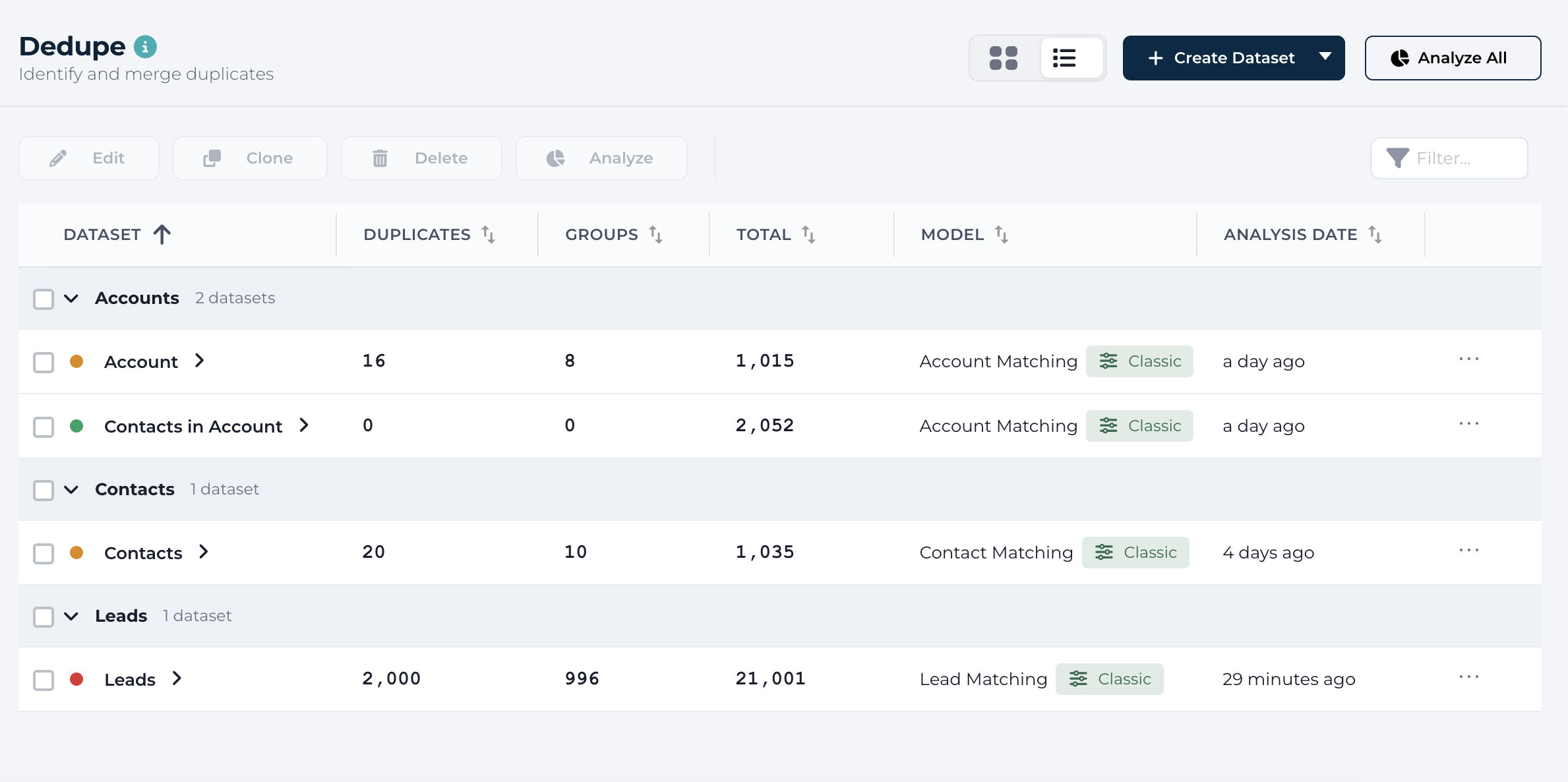
Within the Dataset list view, common actions are additionally displayed in a new horizontal navigation bar. Edit, Clone, Delete or Re-Analyze your datasets using these buttons. Select groups of datasets to trigger analysis or deletions by clicking on the vertical check boxes listed next to each dataset.
Next to each dataset, you will see an overview of the number of total records (1), number of duplicates (2), the number of clustered/groups of duplicates (3) and the Matching Model associated to each dataset (4). An important property is the last analysis date indicator (not seen).