
DataGroomr allows a user to compare and detect duplicates between different objects or datasets (sometimes known as cross-object compare). Some common scenarios are to compare Leads to Contacts or Leads to Accounts. You may also create your own custom "cross-object datasets".
Read more: Converting Leads
Create "Cross object dataset"
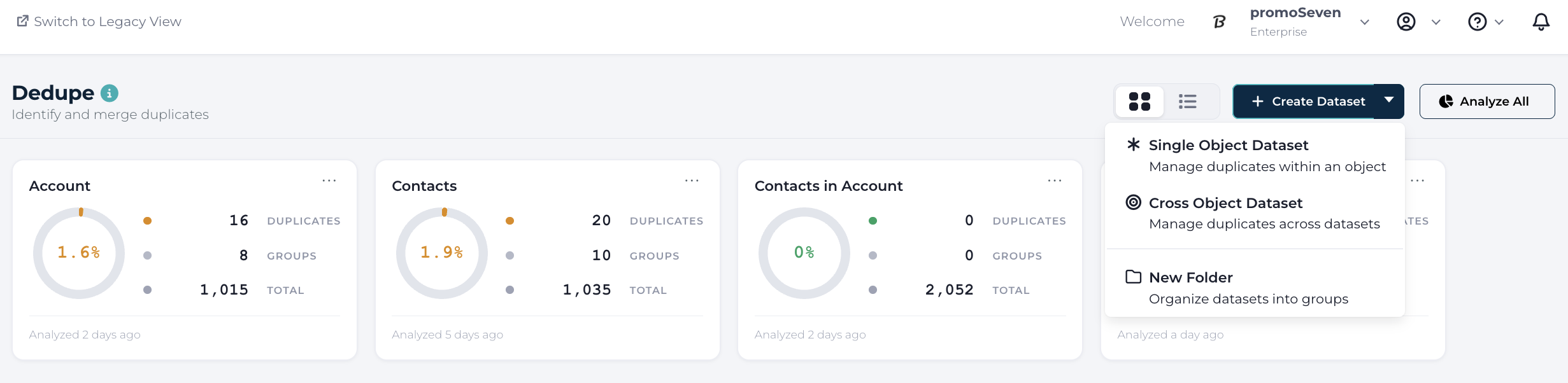
The first step is to create a special "Cross object dataset" that will identify which two datasets/objects will be analyzed for duplicates. To do this, select the ADD > Cross object dataset option in Dedupe Dashboard.
The dataset dialogue consists of 4 tabs:
- General Tab - this section is used to name the dataset, select parent object/dataset (see NOTE below), child object/dataset and Minimum confidence level that is displayed to the user.
NOTE: In a Cross Object Dataset, the parent dataset/object will always be retained (master data record) when performing a merge.
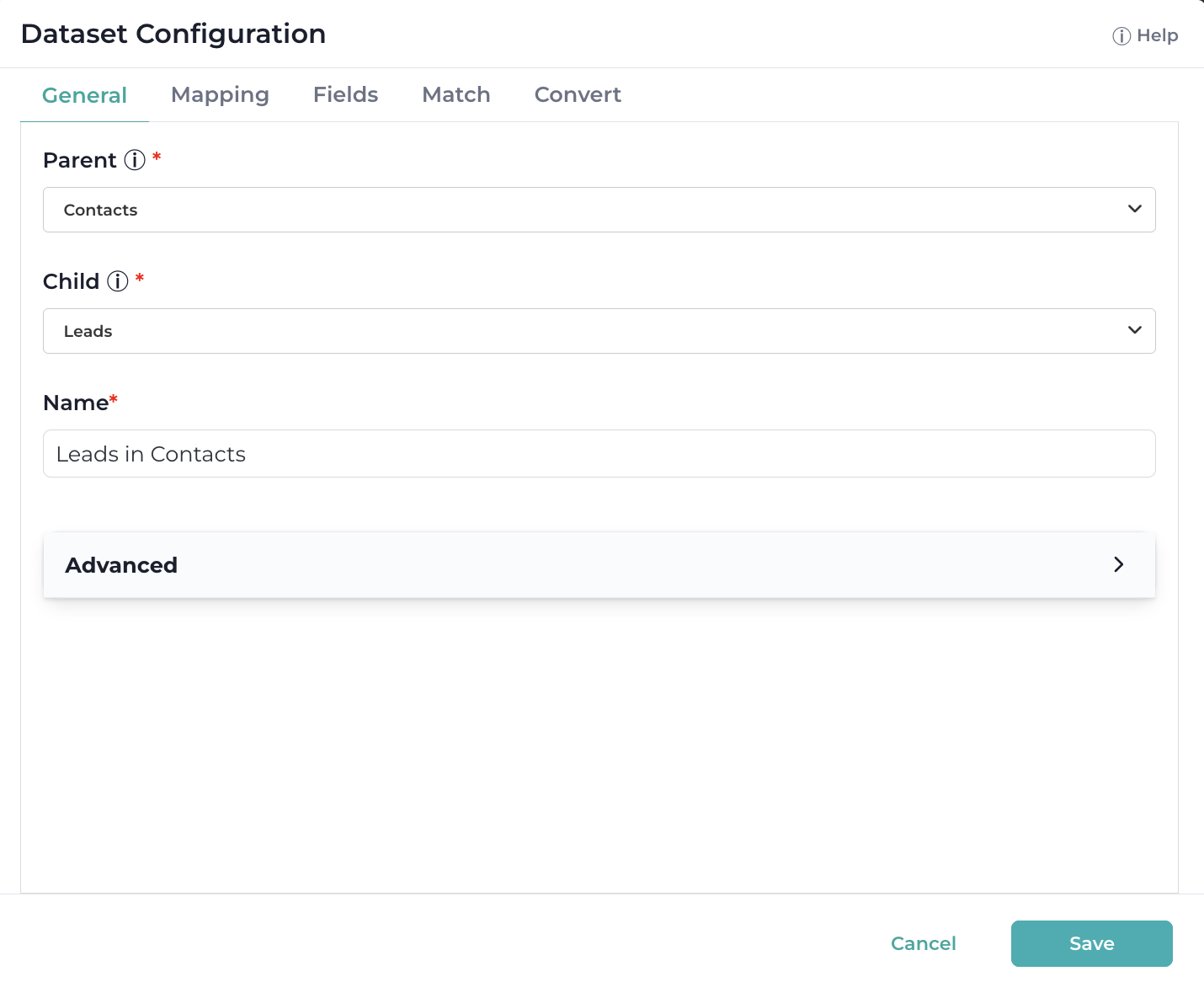
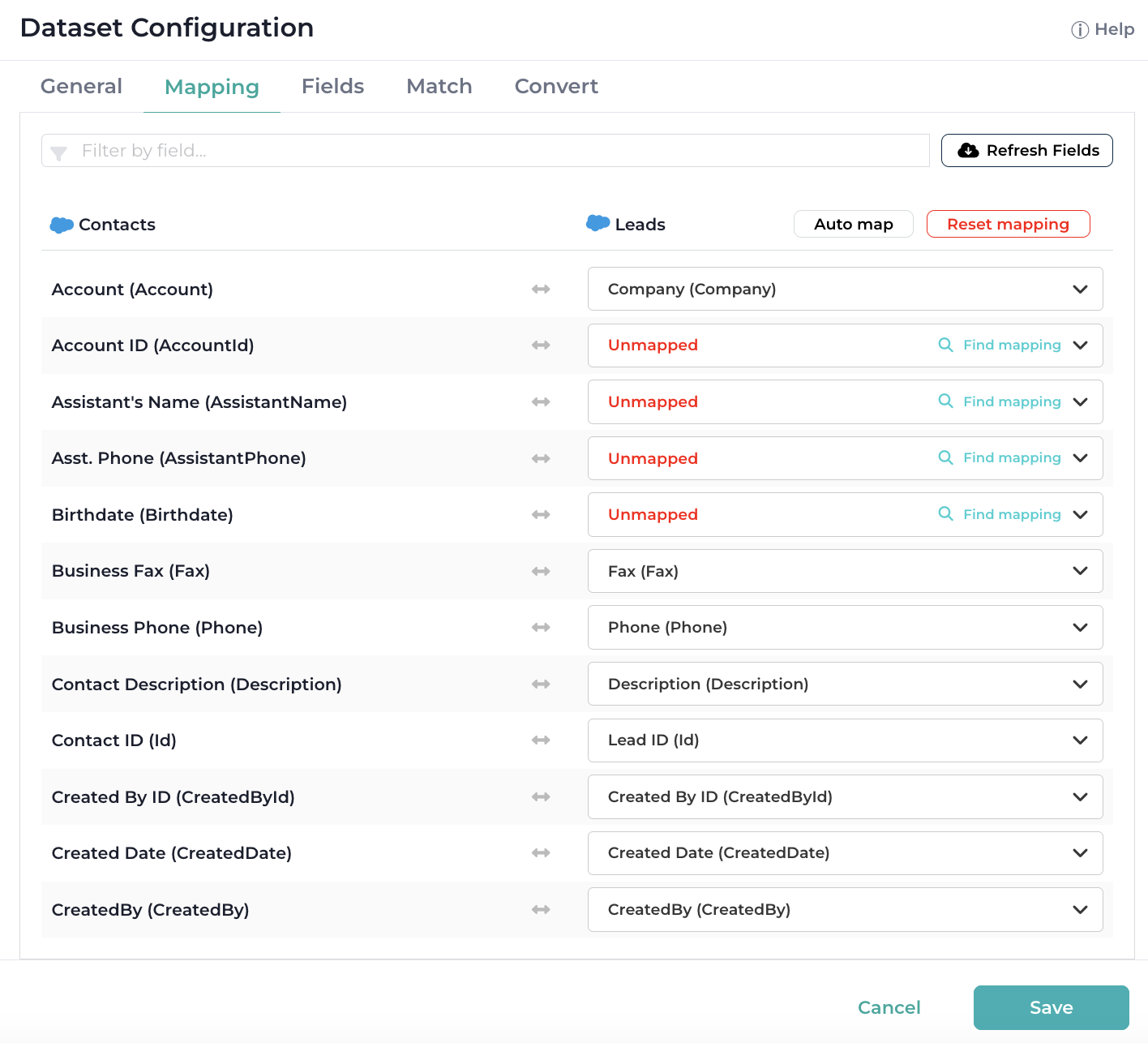
Good to know: For common scenarios of comparing Leads to Contacts or Leads to Accounts, the app will automatically populate the Title. A user may override this title with a different one.- Mapping Tab - Dedupe will match the field names across the selected datasets. Any unmapped fields will be marked in red and will not be compared. However, you can change mapping of the fields using the drop-down list.
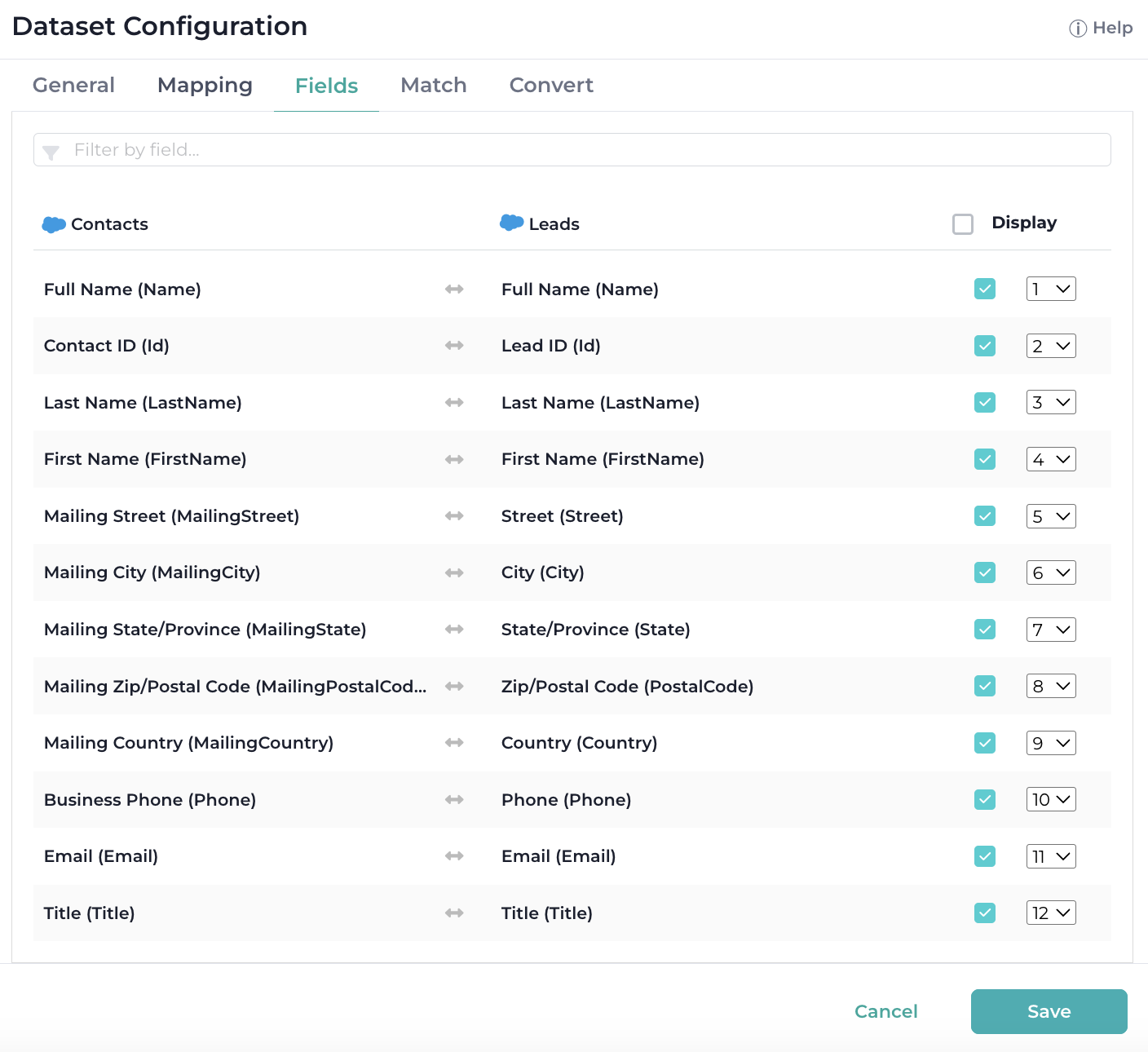
- Fields tab - Use this tab to choose which fields will be visible during the deduplication process.
Fields can be reordered via dropdown to change how they're displayed in side-by-side comparisons.
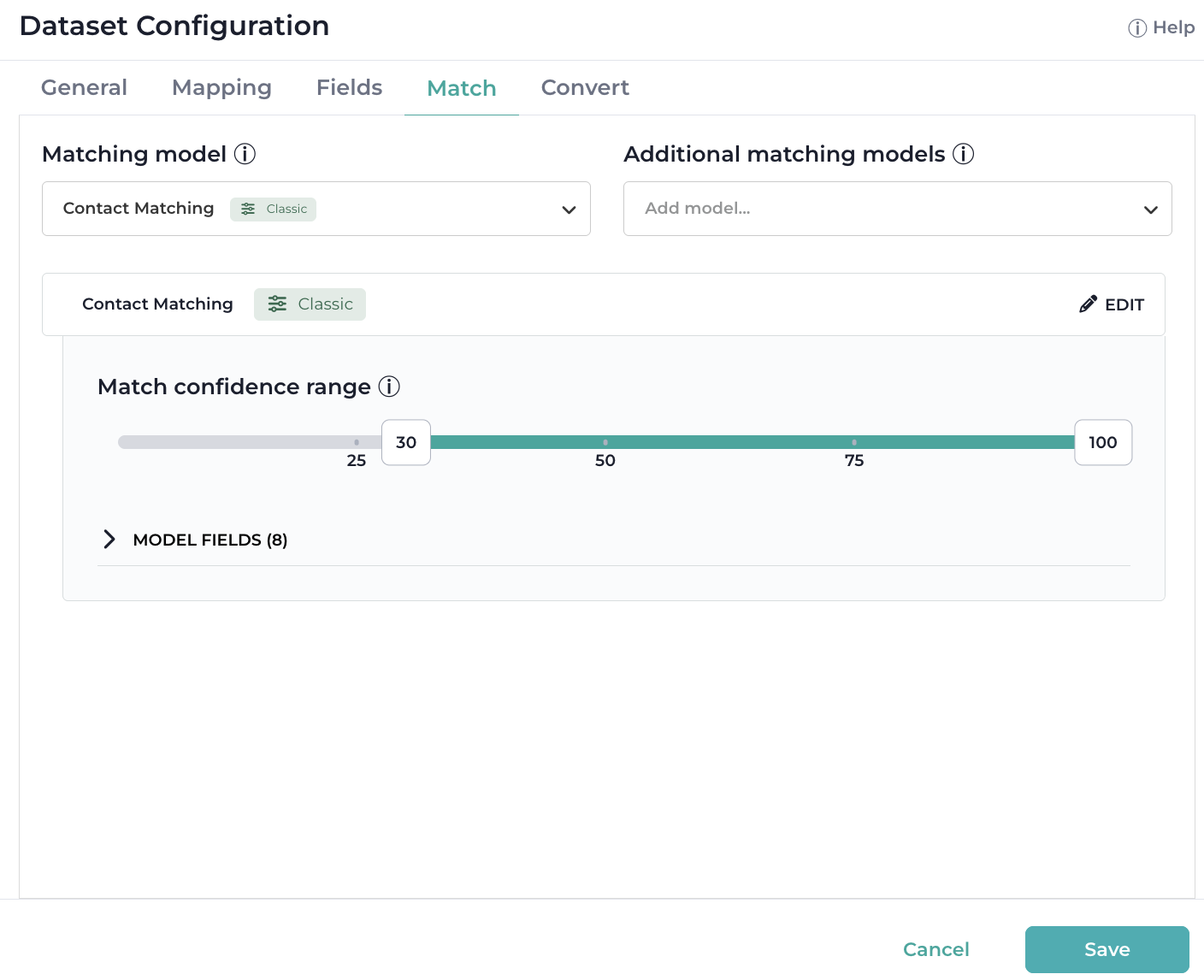
- Match tab - Matching Models are algorithms used to detect duplicate records. You can select one or multiple models to match records. DataGroomr provides two options for duplicate detection, machine learning based model and classic matching model.
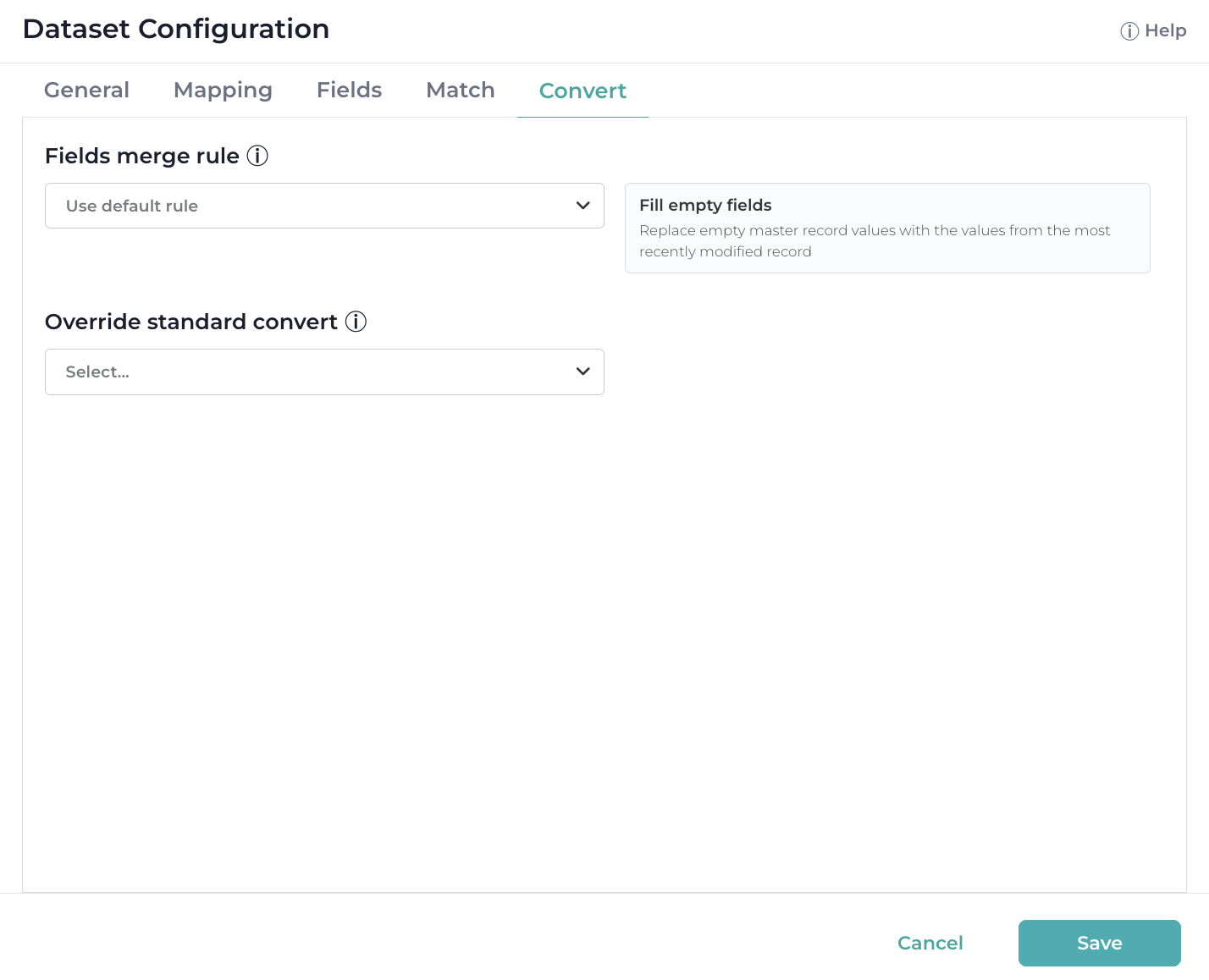
- Merge/Convert tab - these rules determine how fields will be merged. By default, Salesforce merge retains only the data in the Master record. This feature will allow users to customize the merge process to retain other data.
Once created, Dedupe will run an analysis on the new data and show the results in the in the Dedupe menu and dashboard.
Review Duplicates
Once an analysis is complete duplicates will be placed in Matched Groups, where they can be reviewed and processed similar to other Dedupe datasets. You can read more about processing duplicates in Duplicate Group Review article.
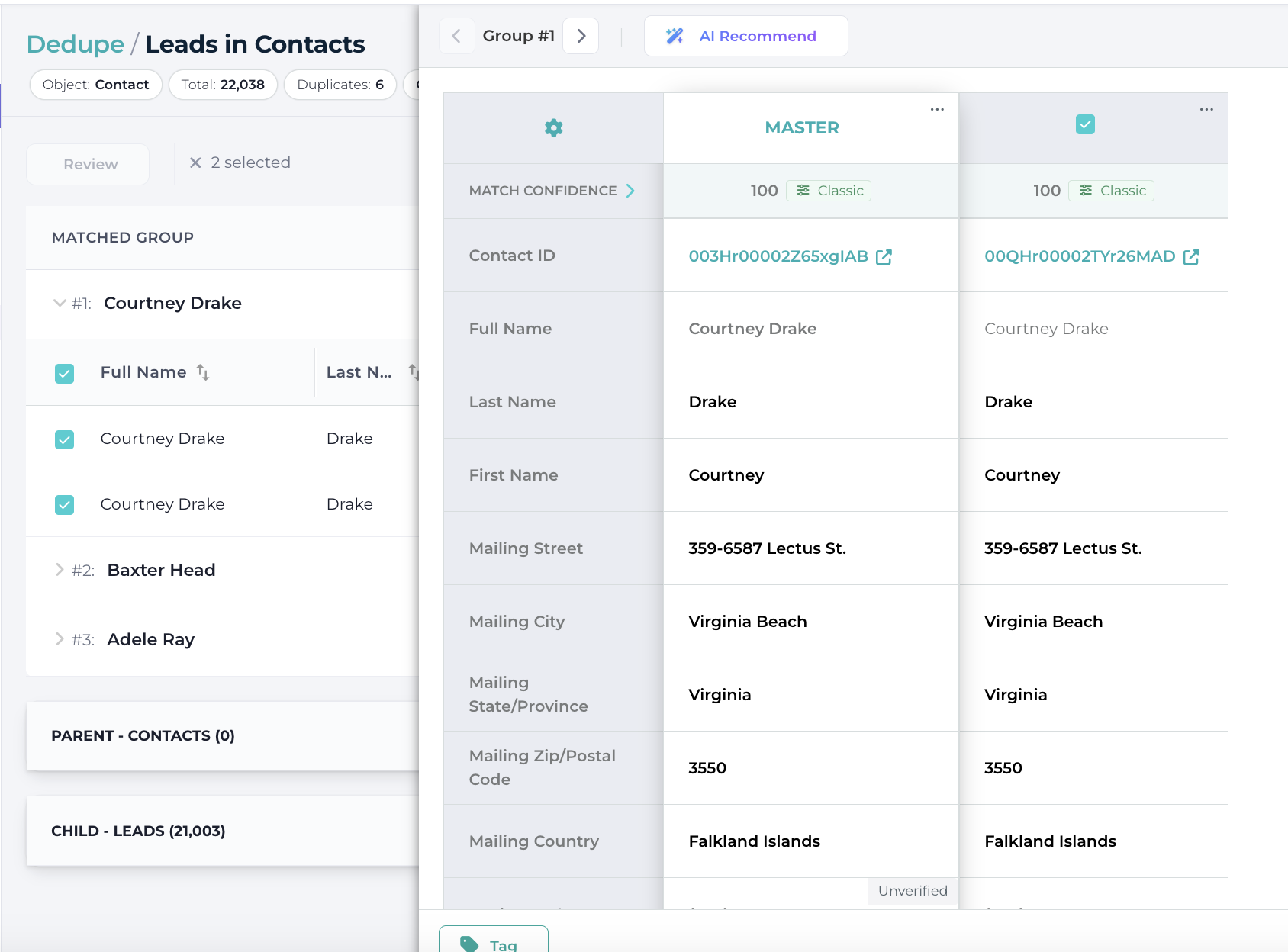
There is one major difference in processing duplicates when comparing Leads to Contacts or Leads to Accounts, the Convert button replaces the traditional Merge button.
Good to know: What happens when a Lead is converted into an existing Contact?
- Empty Contact fields will be populated from the matching Lead field.
- Any campaign members will be moved to the contact
= All open and closed activities from the lead are attached to the contact
- Lead-to-Contact and Lead-to-Account datasets allow you to set a custom converted status for - - Leads directly in the dataset settings.
- You can also specify the record owner for converted records in the dataset settings.
Good to know: What happens when a Lead is converted into an existing Account?
- The Lead will be Converted into a new Contact.  TIP: this may create a duplicate Contact if one already exists. To avoid this issue, it is recommended to execute a Lead to Contact analysis first.
- Empty Account fields will be populated from the matching Lead field.
- All open and closed activities from the lead are attached to the account
NPSP Merger Support
For organizations with the Salesforce Nonprofit Success Pack (NPSP) installed, NPSP Merger can be enabled for cross-object datasets in the dataset configuration. When a merge is executed from a cross-object dataset with NPSP Merger enabled, NPSP-specific relationships (Household Accounts, Affiliations, Relationships, Contact Point Emails and Phones) are re-parented correctly in addition to the standard cross-object merge logic. The Parent record of the cross-object pair is treated as the master record for NPSP re-parenting purposes.