
Open a matching model to choose how each of its fields is compared, weighted and prepared before comparison. To create, clone, delete or assign models, see Manage Matching Models.
Opening a Model
To Edit an existing model, select it and then press the Open button.
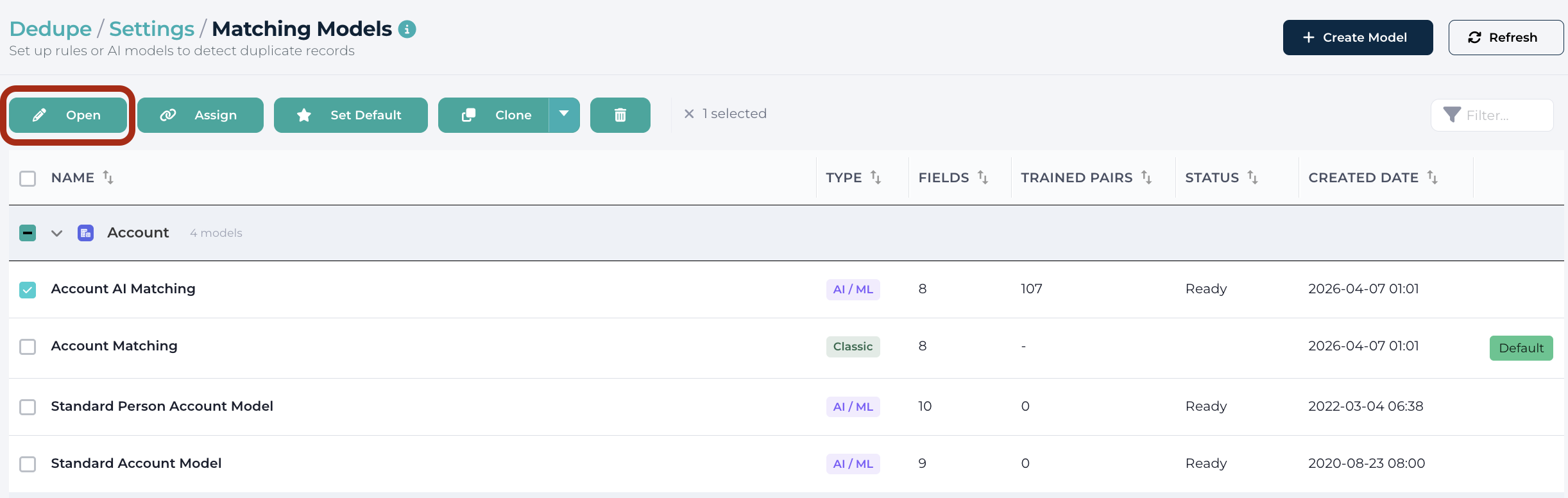
Classic matching model can be edited at any time.
Machine learning models can be edited only while it's in a Draft state. Once Trained it can be cloned, and that model can be retrained.
Learn more: Training a machine learning model
Basic Fields Configuration


The Edit Matching Model dialog has a header with two rows and a field list below it:
- Name - the model name (with an AI-generate button) and a pill showing the model type and the number of fields, for example Classic · 5 fields.
- Weights - a distribution bar for Classic models showing each field's share and the total (for example 100% / 100%). Hover a segment to highlight its field; click a segment to open that field's settings.
- Field list - one row per field with a drag handle, the field label and any setting tags, the field type icon and API name, the Comparison dropdown, the Weight input (Classic only) and a chevron. Click anywhere on a row to open the field settings panel. A trash icon appears on hover to remove the field.
The prefilled matching type is auto selected by DataGroomr based on the type of field.
The following comparison types are available for Classic Models:
- Exact - matches if values are exactly the same
- Similar - matches if values are similar. Similar is available for text, date, date/time, number, currency, percent and geolocation fields. Each Similar field has a tolerance that controls how close two values must be (see Minimum similarity and Tolerance below).
The following comparison types are available for ML models:
- Text - compares text values. Default comparison type;
- Short Text - compares short text values, faster than text, good examples to use it are City names and Zip Codes;
- Long Text - compares long text values like Description, preselected for TextArea field types;
- Name - compares person or company names;
- List - compares values in a list, preselected for Picklists;
- Date/Time - compares values as date and time, preselected for Date and DateTime field types;
- Number - compares numbers, preselected for price and number field types;
- Exact - checks if values are exactly the same;
Note: DataGroomr will perform basic data cleansing on all field types, including:
- text fields are converted to lowercase and all special characters are removed
- phone numbers cleaned up to contain only digits
- emails are converted to lowercase
- websites are normalized to exclude protocol and leading www
This cleansing is controlled per field by the Basic clean toggle in the field settings panel.
In addition to the settings mentioned above, classic models allow to specify Field Weights. Type a whole number from 1 to 100 into the Weight input of each row to set the importance of that field. The higher the weight, the greater the influence of matches between record fields will have against the match confidence score.
Weights must total exactly 100% to save the model. The total in the Weights bar updates as you type; when it is not 100% the total turns amber, the footer shows Weights must total 100%. and Save is disabled. Press Balance to 100% next to the total to fix it automatically: the field you edited last keeps its value and the other fields are scaled proportionally so the weights add up to 100.
Note: In a Classic model, records are grouped when the sum of the weights for all matched fields meets or exceeds the dataset’s minimum confidence threshold. By raising or lowering individual field weights (and/or the threshold), you can make matching behave more like a broad OR (looser) or a strict AND (tighter) condition. For example,Using the example model above will generate groups where records - matching on all fields will have 100% match confidence; - matching on Full Name and Business Phone will have 70% match confidence; - matching on Full Name, Phone and Email will have 90% match confidence; - matching on Full Name and Email will have 60% match confidence; - and so forth as long as group match confidence is more than the minimum confidence selected in a dataset.
Field Settings Panel
Click a field row (or a segment of the Weights bar) to open the field settings panel. It slides in from the right and the field list stays visible, so you can click another row to switch fields without closing the panel. The panel header shows the field label and type, a trash icon to remove the field and a close (×) button.
Settings are grouped into Match rules (Comparison, Minimum similarity or Tolerance, Must match, When a value is blank, Compare across fields) and Before comparing (Basic clean, Transform, Synonyms, Ignore words, First N characters). Every setting has a (?) help tooltip. Settings that differ from the default are shown as tags next to the field label in the list, for example Blanks · No match, Ignore words · Company suffixes, Min 80% similar or Tolerance (±) 2 hours.
Minimum similarity (%) / Tolerance (±)
Shown when Comparison is Similar. For text fields, Minimum similarity (%) sets how alike two values must be (default 65). For number, currency and percent fields, Tolerance (±) is the largest difference that still counts as a match. For date fields it is a number of days; for date/time fields you choose the unit (minutes, hours or days), for example 2 hours. For geolocation fields, Within radius sets the distance within which two locations match. This lets you build models such as "Opportunities with the same Name created within 5 minutes of each other" with a single Classic model.
Comparison
Same options as the Comparison dropdown in the row; changing one updates the other.
1. Blank Values (When a value is blank)
Matching behavior on blank values can be customized to allow blank values to be considered as matches. Users can specify whether or not to match records if both fields or either field is blank or if blank values should be disregarded entirely from the process. Match confidence values are impacted by this setting.
Note: DataGroomr treates next text values as blank values:
            "null"
            "none"
            "nan"
            "-nan"
            "np.nan"
            "n/a"
            "#n/a"
            "#n/a n/a"
            "#na"
            "-1.#ind"
            "-1.#qnan"
            "1.#ind"
            "1.#qnan"
2. Group Name (Compare across fields)
Fields can be assigned to a Group, which tells DataGroomr to treat them as interchangeable when looking for duplicates. Instead of comparing each field in isolation, the engine will compare all fields within the same group against one another. This is especially useful when the same type of data might be stored in different places — for example, the same phone number could appear in multiple phone fields (work phone, home phone, business phone). By giving those fields the same Group Name, DataGroomr can cross-compare them and detect duplicates even if the data is entered in different fields.
Good to know: Most commonly used groups for Phone and Email fields are pre-created.
3. Required Match (Must match)
When enabled, this setting enforces a rule in the matching model that requires records to match on a specific field in order to be considered duplicates. In other words, even if other fields indicate similarity, records will not be flagged as duplicates unless they also match on the required field.
When a field is in a group or has Must match enabled, its blank-value setting is fixed to Don't count as a match.
4. Transform
Apply custom transformation to a field before comparing. It can be used to clean or format or extract data from fields — such as extracting domain names from emails, suffixes and so forth.
5. Synonyms
When selected, words contained within a dictionary list are considered to be the same word. A common example would be the contact name Robert which might be alternately be entered as Rob, Bob or Robbie.
6. Ignore Words
When selected, words contained within a dictionary list are ignored, therefore field value similarities between two records being compared are ignored. Ie. Corporation, Corp, Incorporated or Inc.
Add additional words into your list of synonyms and ignore words by Supervisr: Dictionaries
7. First N Characters
First N Characters setting allows users to specify a defined number of first characters in a field value instead of the entire text. This feature might be used to compare only area codes within a phone number field or the prefix numbers within a zip code.
Adding and Removing Fields
Press Add field below the field list to open the field chooser inside the same dialog. The current model fields are pre-checked and listed first; search for and check the fields you want to add (up to 16 fields per model), then press Done. Press Cancel to return without changes.

Fields you keep retain their settings and weights, fields you uncheck are removed together with their settings, and new fields are added with default settings for their type. To remove a single field, hover its row and click the trash icon, or use the trash icon in the field settings panel.
Note: Changing a tolerance, comparison type or any other matching setting changes how records are matched. Datasets using Live Dedupe will mark their index as stale until the next analysis.