
Once an account admin has published an MCP server, each person connects their own AI client to it. This article covers Claude Code, claude.ai, the Claude API and other MCP clients. For Salesforce agents, see Connect Agentforce to an MCP Server.
Before You Start
- An account admin must have published the server. See MCP Servers for how to create one.
- You need access to Setup in DataGroomr.
- Everything the AI client does runs as you, with your own DataGroomr permissions. It can only see and change what you can in the app.
Open the Connect Dialog
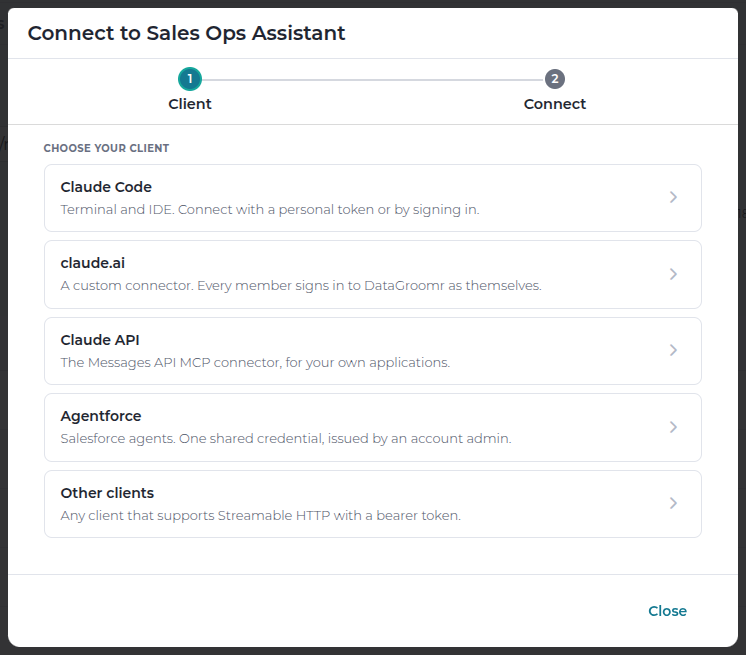
Go to Setup > API > MCP Servers, select the server and click Connect (or open the server and click Connect at the top). Choose your client:
- Claude Code - the terminal and IDE app. Connect with a personal token or by signing in.
- claude.ai - a custom connector. Every member signs in to DataGroomr as themselves.
- Claude API - the Messages API MCP connector, for your own applications.
- Agentforce - Salesforce agents (see the separate article).
- Other clients - any client that supports Streamable HTTP with a bearer token.
The dialog shows the Server URL with a copy button, and under Your connections the tokens and sign-ins you already have on this server.
Claude Code
Claude Code can connect in two ways. Pick one under Sign in.
Option 1 - Sign in with DataGroomr (no token to copy)
Choose Sign in with DataGroomr and copy the Command. It looks like this:
claude mcp add --transport http datagroomr https://<server URL>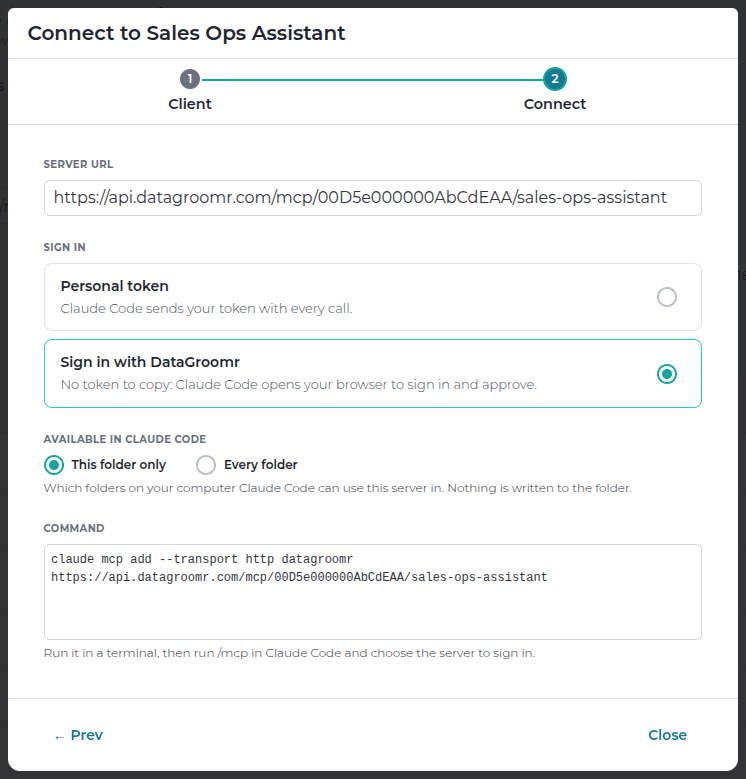
Run it in a terminal, start Claude Code with
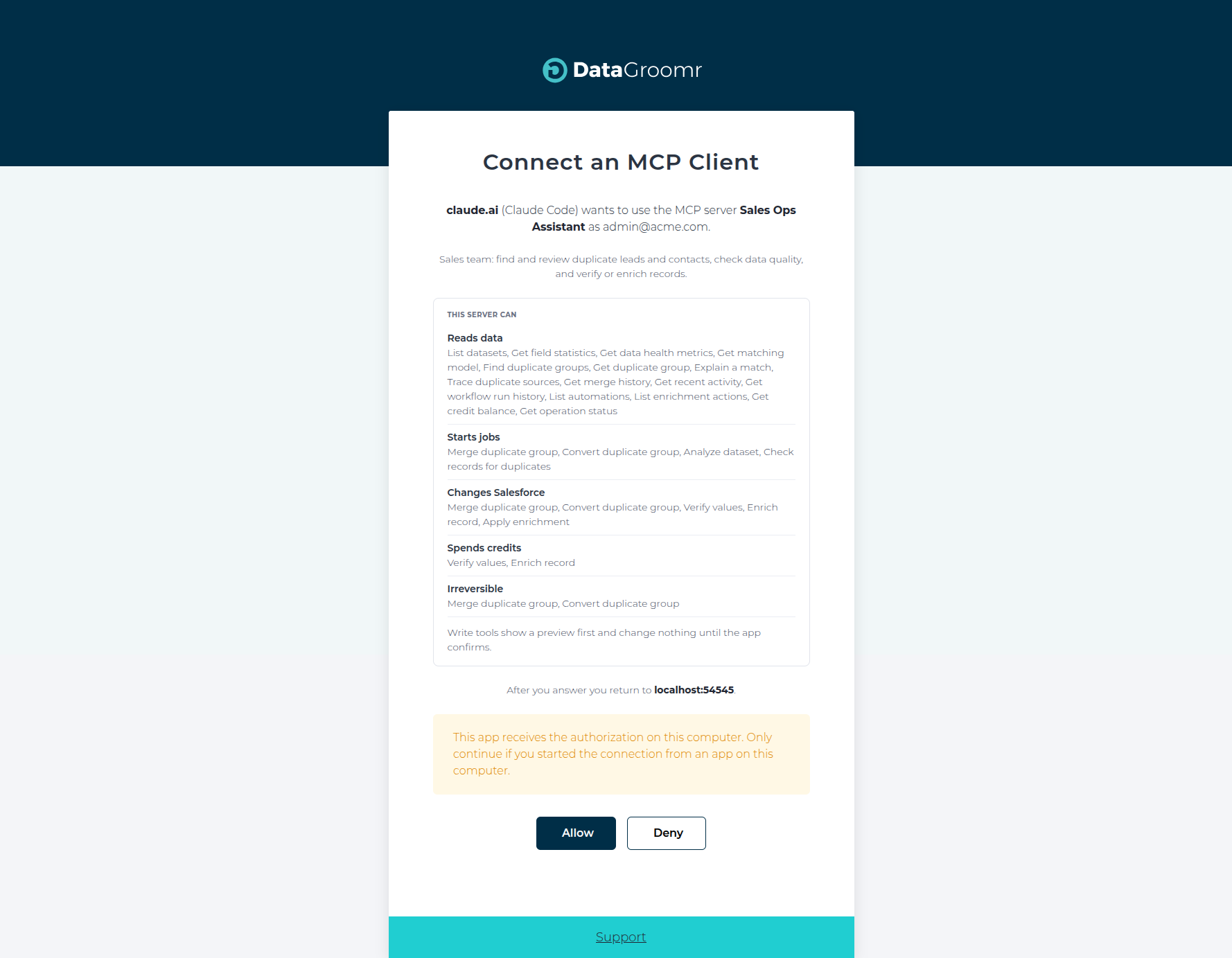
claude, then type/mcp.- Select datagroomr (it shows needs authentication) and choose Authenticate.
- Your browser opens a DataGroomr page asking you to connect Claude Code. It lists what the server can do, grouped by effect. Click Allow.
- Back in Claude Code, the server shows as connected with its tools.
Option 2 - Personal token
- Choose Personal token.
- Pick how long the token lasts (90 days, 180 days or No expiry) and click Create Token.
Copy the Command. It already contains your token:
claude mcp add --transport http datagroomr https://<server URL> --header "Authorization: Bearer <your token>"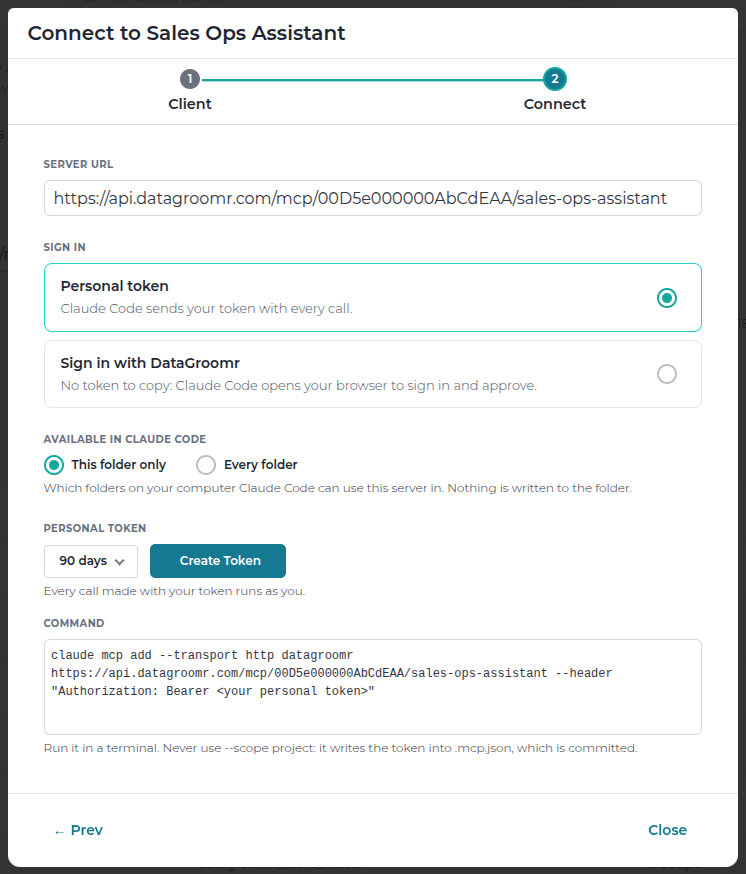
Run it in a terminal and start Claude Code.
The token is shown only once. If you lose it, click Replace token to create a new one. The old token stops working immediately.
Which folders can use the server
Under Available in Claude Code, choose This folder only (the folder you run the command in) or Every folder on your computer. Nothing is written into the folder itself.
Important: never add the server with --scope project. That writes the token into a .mcp.json file, which is usually committed to source control.
Use it
Ask Claude about your data in plain language, for example:
- "Which of my Contact datasets has the most duplicates?"
- "Show me the largest duplicate group in Leads."
- "How many DataGroomr credits do we have left?"
Claude Code asks for your approval before it calls a DataGroomr tool. On a server in Preview first mode, an action that changes data first returns a preview, and Claude asks you to confirm before it runs.
claude.ai
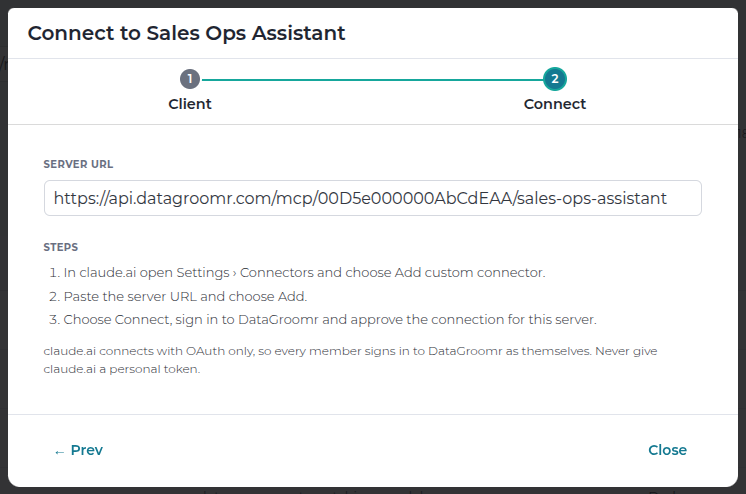
claude.ai, including the Claude desktop and mobile apps, always connects by signing in. You never give it a token.
- In claude.ai open Settings > Connectors and choose Add custom connector.
- Paste the server URL and choose Add.
- Choose Connect, sign in to DataGroomr and click Allow to approve the connection for this server.
Every member of your Claude team who wants to use the server connects with their own DataGroomr sign-in.
Claude API
Developers can use a server from their own applications through the Messages API MCP connector.
- Choose Claude API, pick an expiry and click Create Token.
- Copy the Request. It lists the server under
mcp_serverswith your token asauthorization_token, enables it with anmcp_toolsettool, and sends theanthropic-betaheader the connector needs. - Replace the sample question ("Summarize the duplicates in my Contacts dataset.") with your own messages.
Keep the token in your application's secret store, not in its code.
Other Clients
Any MCP client that supports the Streamable HTTP transport can connect.
- Choose Other clients, pick an expiry and click Create Token.
- Configure your client with the Server URL and the Authorization header shown in the dialog.
Manage Your Connections
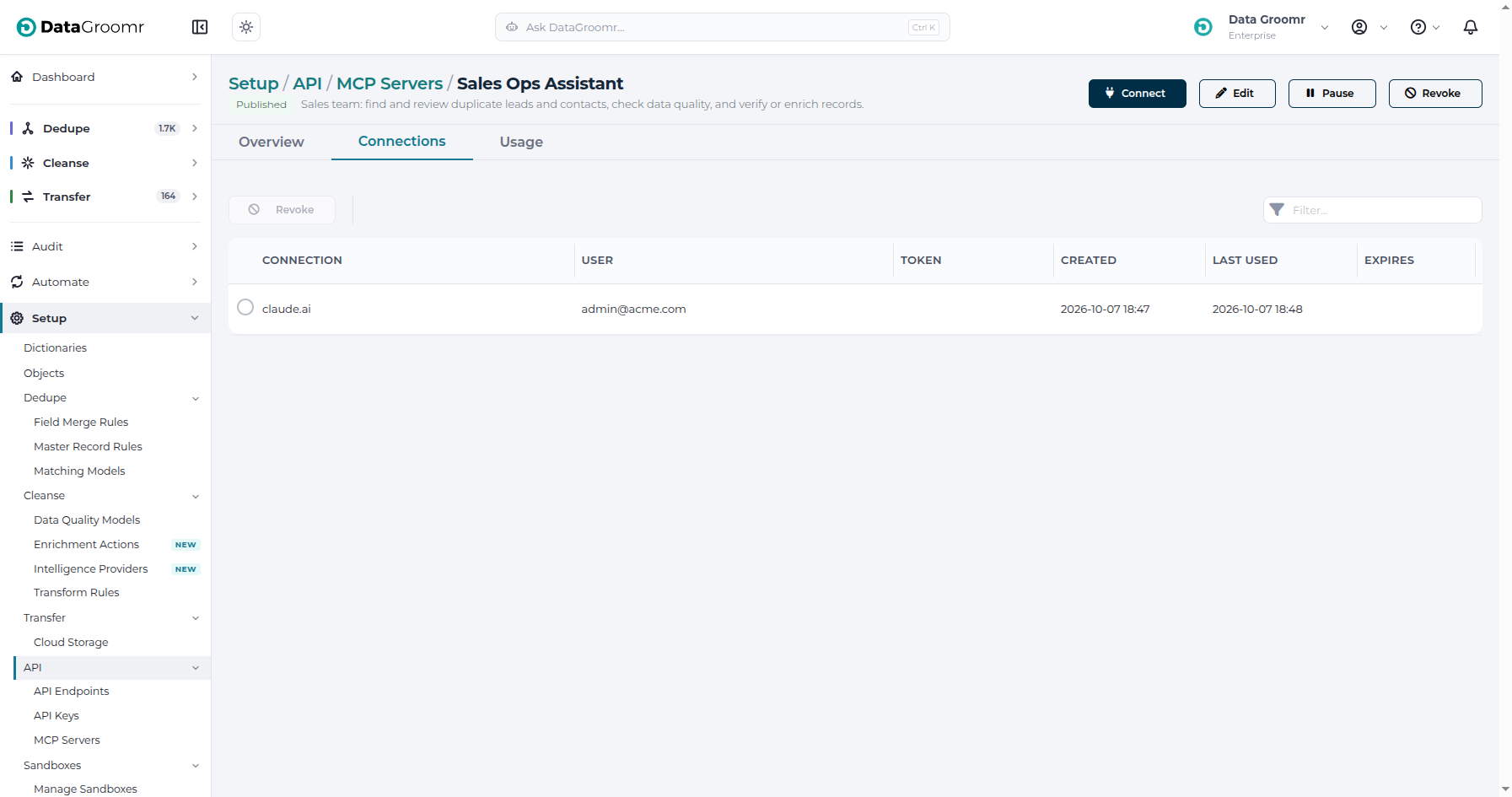
- Your connections in the Connect dialog lists your personal token and the apps you signed in with. Click Revoke to disconnect one immediately.
- An account admin can see and revoke everyone's connections on the server's Connections tab.
- If the server is revoked, every connection stops working and you need to connect to a new server.
Troubleshooting
When a call is refused, the AI client shows DataGroomr's reason. The most common ones:
| Message | What to do |
|---|---|
| This MCP server is paused | Ask your DataGroomr admin to resume it. |
| You do not have access to this MCP server | Ask your DataGroomr admin for Setup access. |
| Your Salesforce connection needs to be renewed | Sign in to DataGroomr once to reconnect Salesforce, then try again. |
| Sign in to DataGroomr and accept the terms of use | Sign in to the DataGroomr app and accept the terms. |
| Preview this action first | The client tried to confirm an action that was not previewed, or whose details changed. Ask it to preview again. |
| Too many tool calls on this server | Wait the number of seconds shown and try again. |
| MCP servers need an active DataGroomr Enterprise or Trial plan | Contact your account admin about your plan. |
If Claude asks you to sign in again, your sign-in was revoked or expired. Run /mcp in Claude Code, or choose Connect again in claude.ai.