
MCP Servers let the AI assistants your team already uses work directly with your DataGroomr data. Claude, Agentforce and any other app that supports the Model Context Protocol (MCP) can connect to a server you publish, ask questions about your datasets, duplicates, data quality and credits, and run the actions you allow, such as analyzing a dataset, merging a duplicate group, or verifying and enriching records.
You decide exactly which tools each server offers. Every call runs as a real DataGroomr user, with that user's own permissions, and is recorded in the Log Browser.
Before You Start
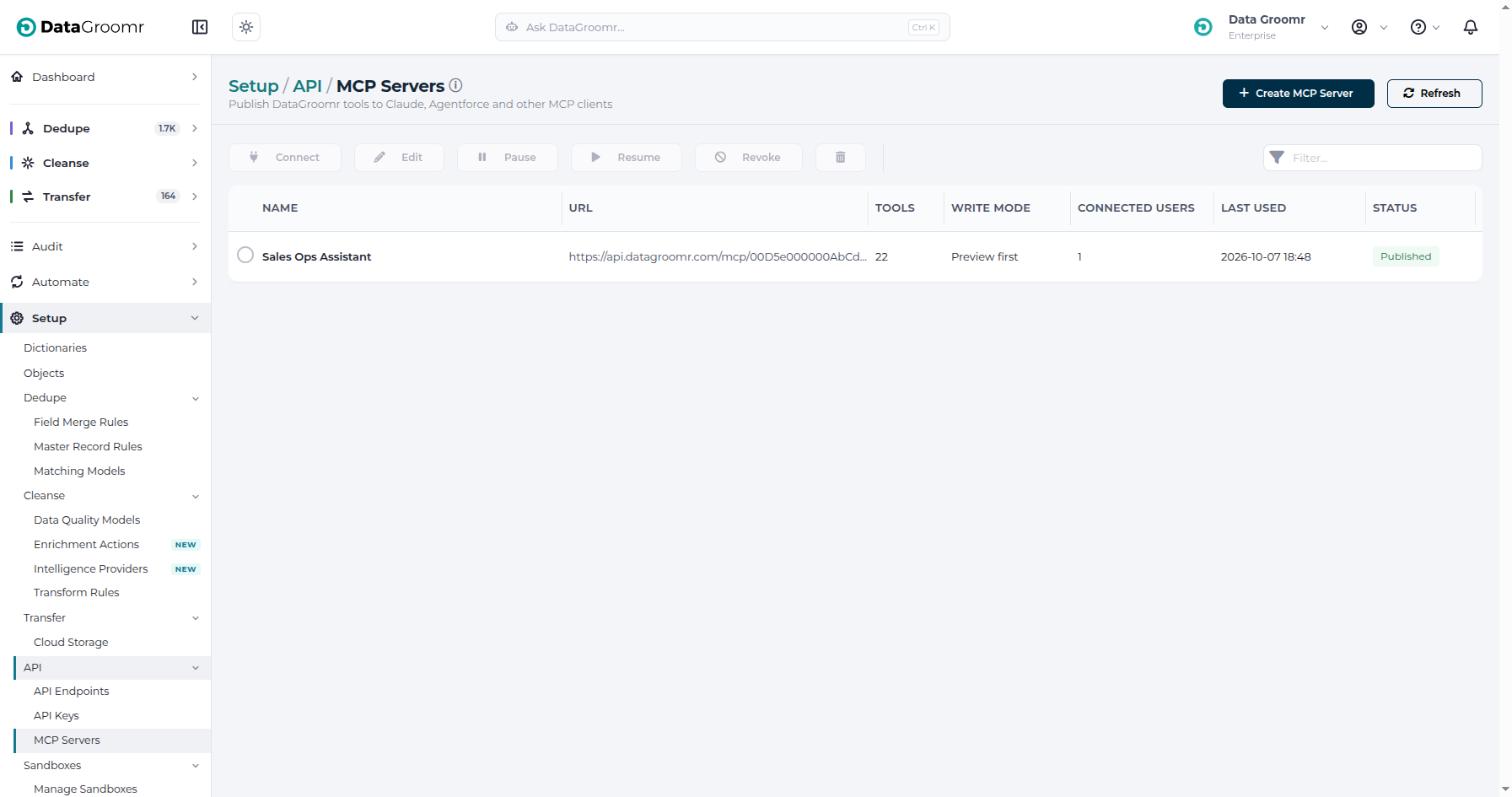
- MCP Servers must be enabled for your organization. If you open Setup > API > MCP Servers and see an "early preview" banner instead of the servers list, choose Contact Support to request access.
- An Enterprise or Trial plan is required.
- Only account admins can create and manage servers. On a Trial plan every user counts as an account admin.
- People who connect need access to Setup. Each person connects with their own credentials and keeps their own permissions.
Create an MCP Server
Go to Setup > API > MCP Servers and click Create MCP Server. A short wizard opens.
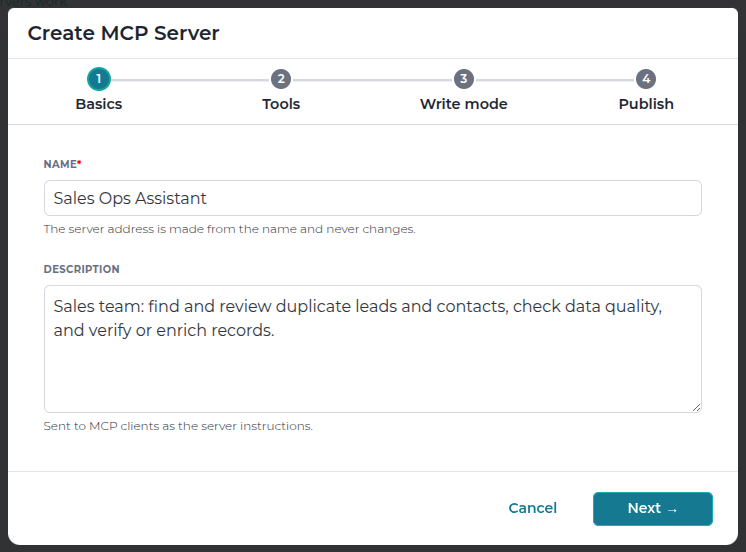
Step 1 - Basics
- Name - the server's name, for example Sales Ops Assistant. The server's address is made from the name when you publish it and never changes, even if you rename the server later.
- Description - what the server is for. It is sent to the AI client as instructions, so a clear description helps the assistant use the tools well, for example "Sales team: find and review duplicate leads and contacts."
Step 2 - Tools
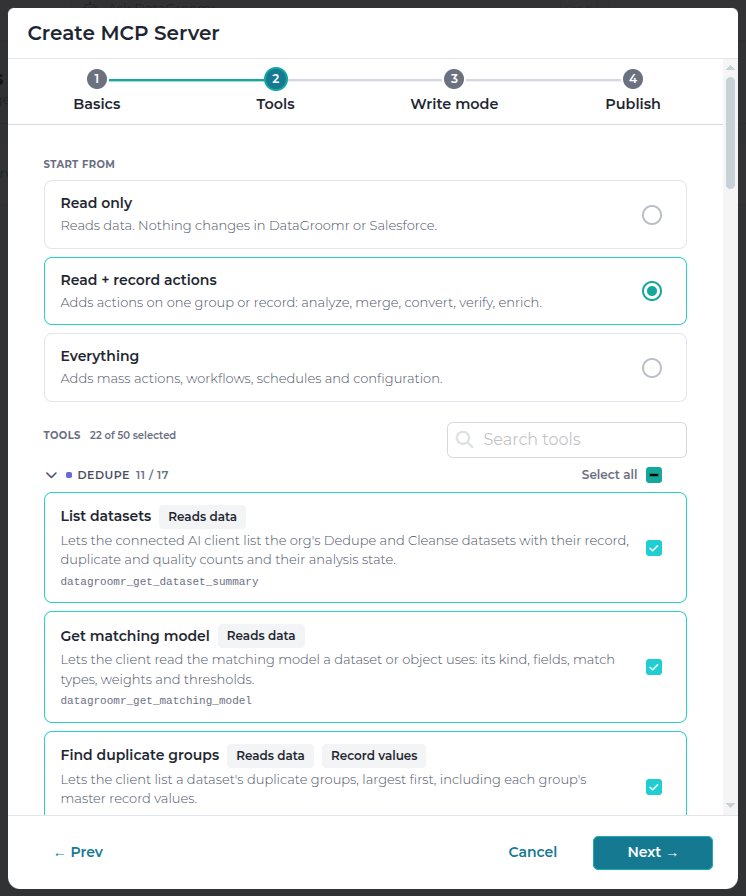
Choose what the AI client may do. Start from a preset and adjust it:
- Read only - reads data. Nothing changes in DataGroomr or Salesforce.
- Read + record actions - adds actions on one group or record: analyze, merge, convert, verify and enrich.
- Everything - adds mass actions, workflows, schedules and configuration.
Tools are grouped by module (Dedupe, Cleanse, Verify, Enrich, Automation, Account, Documentation and Configuration). Each one has badges that tell you what it does:
| Badge | Meaning |
|---|---|
| Reads data | Only reads information. |
| Starts jobs | Starts work that runs in the background, such as an analysis. |
| Changes Salesforce | Writes to your Salesforce records. |
| Changes configuration | Creates or changes DataGroomr configuration, such as a rule or a matching model. |
| Spends credits | Uses DataGroomr credits, the same as in the app. |
| Irreversible | Cannot be directly undone, such as a merge. |
| Record values | Returns record field values, email addresses included, to the AI client. |
Tools in the Configuration group (creating datasets, matching models, rules, data quality models, enrichment actions, scheduled jobs, workflows and triggers) are for account admins only. Other users never see them, even when the server includes them.
Use the search box to find a tool by name. Selected tools always stay visible while you search.
Step 3 - Write Mode
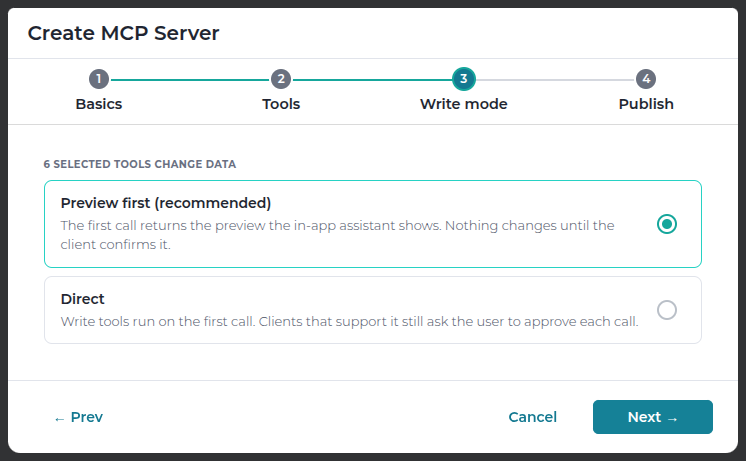
This step appears only when you selected a tool that changes data.
- Preview first (recommended) - the first call returns a preview of exactly what will happen, the same summary the in-app assistant shows. Nothing changes until the AI client calls again to confirm. If anything about the request changes, it has to preview again.
- Direct - write tools run on the first call. Clients that support it, such as Claude, still ask the user to approve each call. Direct mode needs an Enterprise plan and is not available while the server has an Agentforce credential.
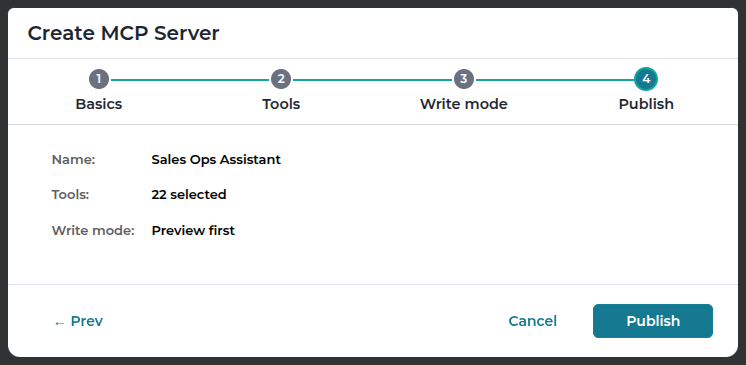
Step 4 - Publish
Review the summary and click Publish. The server's page opens with the Connect dialog, so you can connect your first client right away. See Connect Claude and Other AI Clients to an MCP Server and Connect Agentforce to an MCP Server.
The Server Page
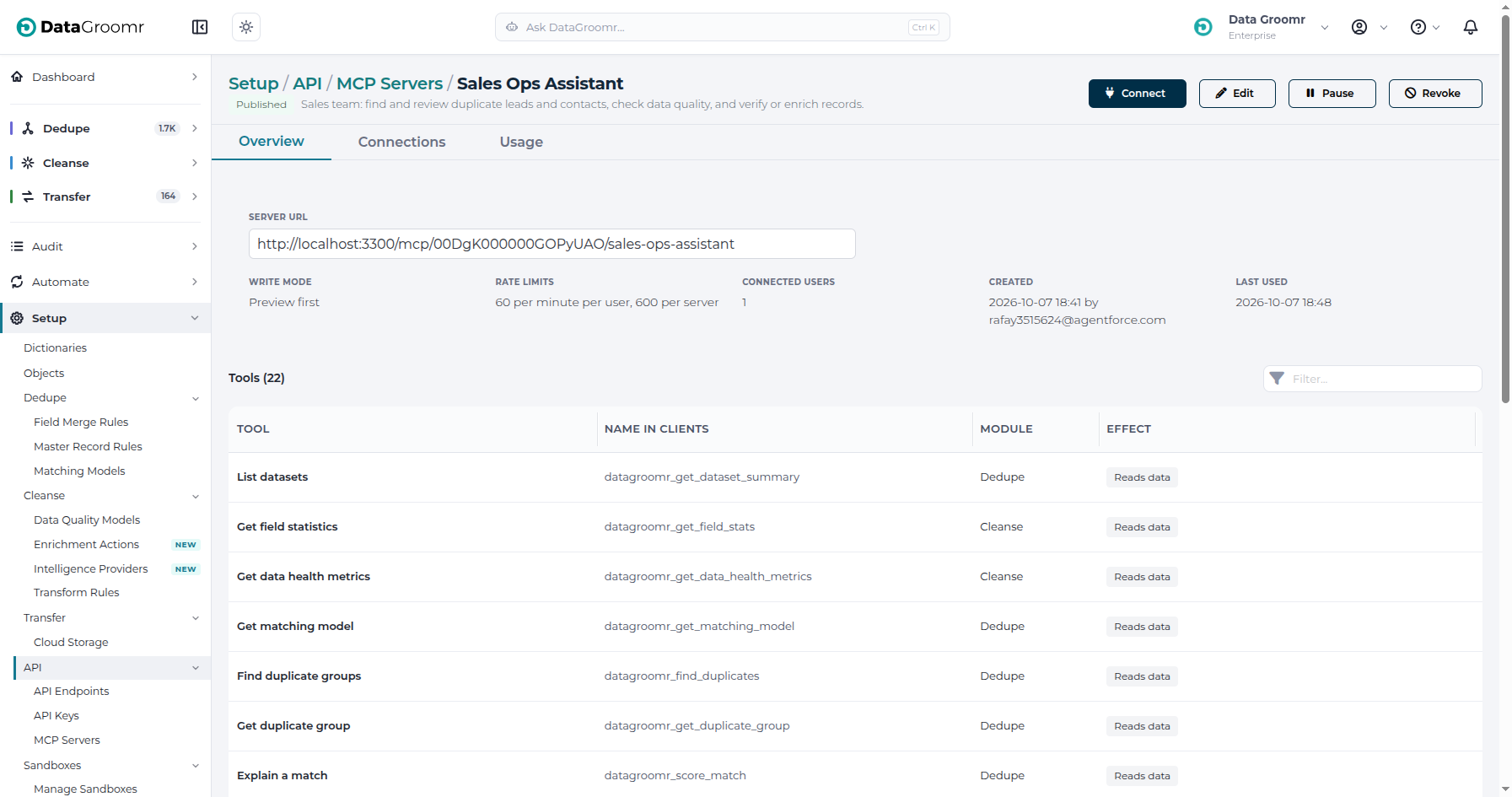
Click a server's name in the list to open it.
- Overview - the server URL to share with your team, its write mode, its rate limits, the number of connected users, when it was created and last used, and the list of tools with their badges.
- Connections (account admins) - every personal token, sign-in and Agentforce credential on the server, with who owns it, when it was created, last used and when it expires. Select one and click Revoke to disconnect it immediately.
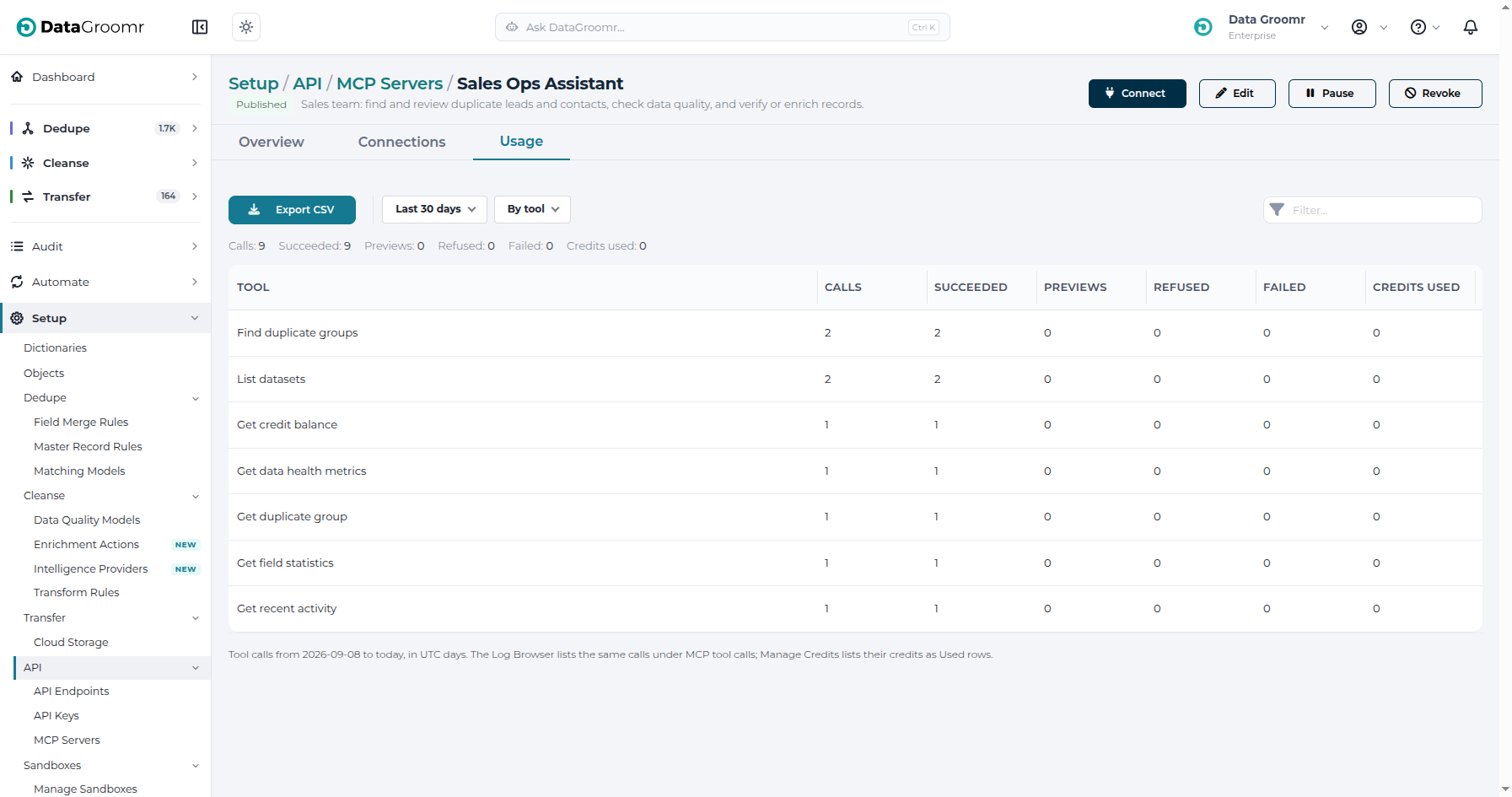
- Usage - how the server is being used over the last 7, 30 or 90 days: calls, succeeded, previews, refused, failed, and the credits the calls used. Break the numbers down by tool, by user or by day, and click Export CSV to download one row per call.
Manage a Server
The buttons at the top of the server page (and in the servers list) let account admins:
- Edit - change the name, description, tools or write mode. Changes apply to the next call; nobody has to reconnect.
- Pause - refuse every tool call until you Resume. Tokens and sign-ins are kept.
- Revoke - permanently disconnect every personal token, sign-in and Agentforce credential on the server. This cannot be undone.
- Delete - remove a revoked server.
Permissions and Security
- Everyone with access to Setup can connect, and every call runs as the person who connected. DataGroomr checks their role, dataset access and plan on every call, exactly as in the app. Tools for a module their role does not allow are not offered to them.
- Record results carry real values. Tools that return records send their field values, email addresses included, to the AI client. The confirmation preview summary masks email addresses, and the Log Browser never stores the records a tool returns.
- A deactivated user is refused, and your account admins receive an email about it.
- Personal tokens are shown only once and cannot be read back. Give them an expiry, and replace a token if it may have been exposed.
- Signing in with DataGroomr (claude.ai and Claude Code) gives the client short-lived access that renews automatically until you revoke it.
Audit Trail and Credits
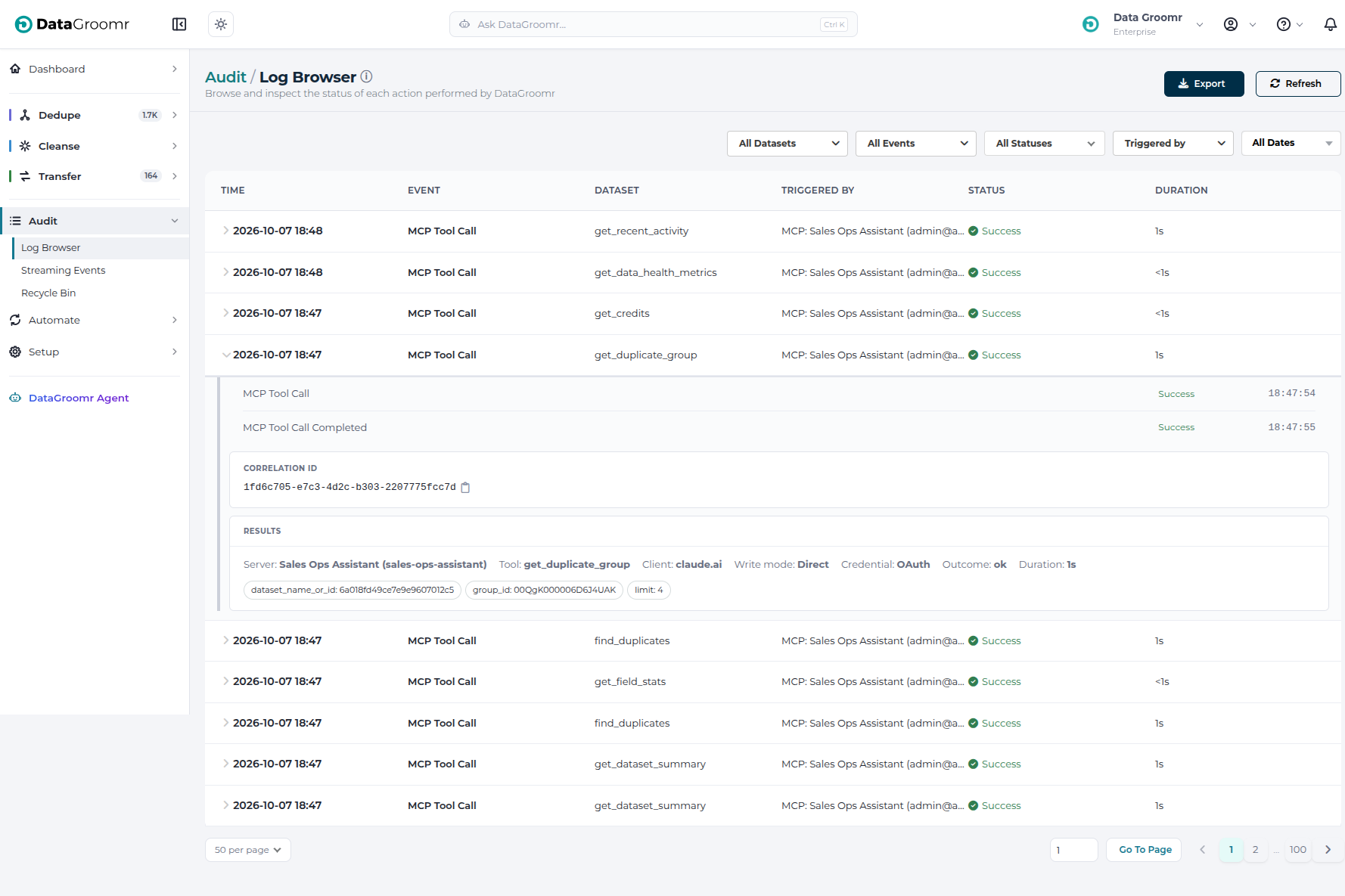
- Every call is recorded in Audit > Log Browser as an MCP Tool Call, with Triggered By set to
MCP: <server name>. The details show the tool, the person, the AI client, the write mode, a summary of the request (never passwords or tokens), the outcome and how long it took. - Credits used by MCP calls, for example by verifying values or enriching a record, appear in Manage Credits as ordinary Used rows.
Limits
- Each person can make up to 60 tool calls per minute on a server, and a server up to 600 per minute in total. Contact support if you need more.
- AI drafting tools (drafting a rule, a data quality model or an enrichment plan) can take up to two minutes.
Tips
- Create separate servers for different teams or purposes, each with only the tools it needs. A narrow server is easier for the AI client to use well.
- Keep Preview first for servers that can change data, so every change is shown before it happens.
- MCP Servers are different from Custom MCP Servers under Setup > Cleanse > Intelligence Providers, which connect DataGroomr to outside data sources for enrichment.