
After a file is imported and staged in Transfer — and before records are pushed to Salesforce — DataGroomr runs a metadata-driven validation pass over the staged rows for the mapped fields, using the destination object’s metadata. The results are summarized in the Data Integrity panel at the top of the import dataset.
The Data Integrity Panel
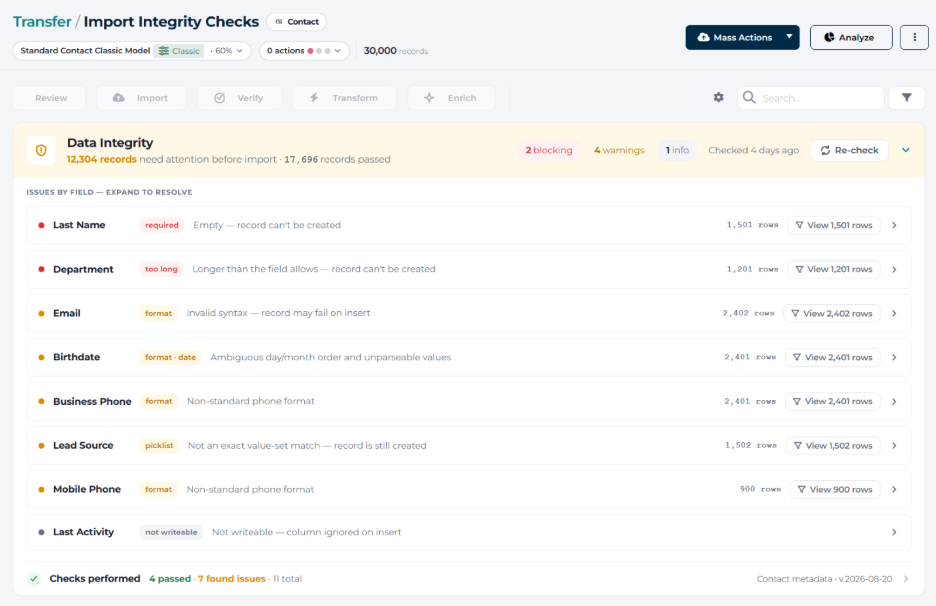
The panel sits above the import rows grid. Its collapsible banner is always visible and shows the overall status, a summary line (“N records need attention before import · M passed”), severity pills for blocking, warning, and info issues, the time of the last check, and a Re-check button. Expanding the panel shows the issues grouped by field, sorted by severity.
For issues that affect specific rows, View rows filters the grid to exactly the affected rows — a filter chip in the grid header shows the issue and row count, and dismissing it restores the full grid. Rows are edited through the existing Review flow or transform rules; press Re-check afterwards to recompute the results.
Note: Integrity reporting is included in all plans; resolving flagged issues from the panel is available on Pro and higher plans. Blocking issues gate the push — they must be resolved before records can be sent to Salesforce.
The Checks
Required Fields
Rows missing a field the object requires for insert are flagged as blocking — such rows cannot be inserted at all. Fill in the values or drop the rows before pushing.
Lookup References
Each distinct value in a mapped reference field is resolved against the target object. Exact matches are mapped automatically. Values with no exact match enter a resolution queue with similarity-ranked candidates: accept the top candidate, pick from all options, create a new record, or skip (imports blank). Accept all ≥ 85% resolves confident matches in bulk, and the list can be exported to CSV.
Picklist Values
Source values not in the picklist’s active value set enter the same resolution pattern, with candidates suggested from the value set by similarity. For unrestricted picklists you can also add the source value to the picklist; restricted picklists only allow valid values or blank.
Multi-Select Picklist Entries
Compound values are split on the semicolon delimiter and each entry is validated individually. Resolving an entry rewrites just that entry inside each row’s compound value; skipping removes the entry while the remaining entries import normally.
Boolean Values
Checkbox fields accept true/false/1/0. Any other value enters the queue with a suggested mapping when one is confident (for example yes → True); choose True, False, or Blank once per value and it applies to all rows carrying it.
Data Type and Precision
Values in number, currency, and percent fields that do not parse as the field’s type, or that exceed its scale or precision, are flagged. Invalid values can be cleared in bulk (imported blank), with Undo available.
Maximum Length
Values longer than a text field’s maximum length are flagged with character counts. Truncate shortens them to the limit in bulk, with Undo available.
Field Formats
Email addresses are validated for syntax. Phone values that don’t match accepted formats are flagged, and ten-digit values can be auto-formatted to the org format in bulk. Dates written as NN/NN/NNNN where both segments could be a month are flagged as ambiguous — a single column-level choice between DD/MM/YYYY and MM/DD/YYYY (each previewing a sample interpretation) applies to every ambiguous value in the column.
Uniqueness
For fields marked unique (including external IDs), duplicate value groups in the staged file are listed with row numbers. Keep first keeps the first occurrence and excludes the rest. The push is disabled while any duplicate group remains.
Writability
Mapped fields that cannot be written for this import — not createable, blocked by field-level security, or system audit fields — are listed as informational: the column will be ignored at push. For audit fields the panel names the “Set Audit Fields upon Record Creation” org setting; enable it and Re-check to clear the flag.
Checks Performed
At the bottom of the panel, the collapsible Checks performed section lists every check that ran — passed or not — with the metadata each check is based on and a passed / found-issues summary.
Learn more: Working with Imported CSV Records