
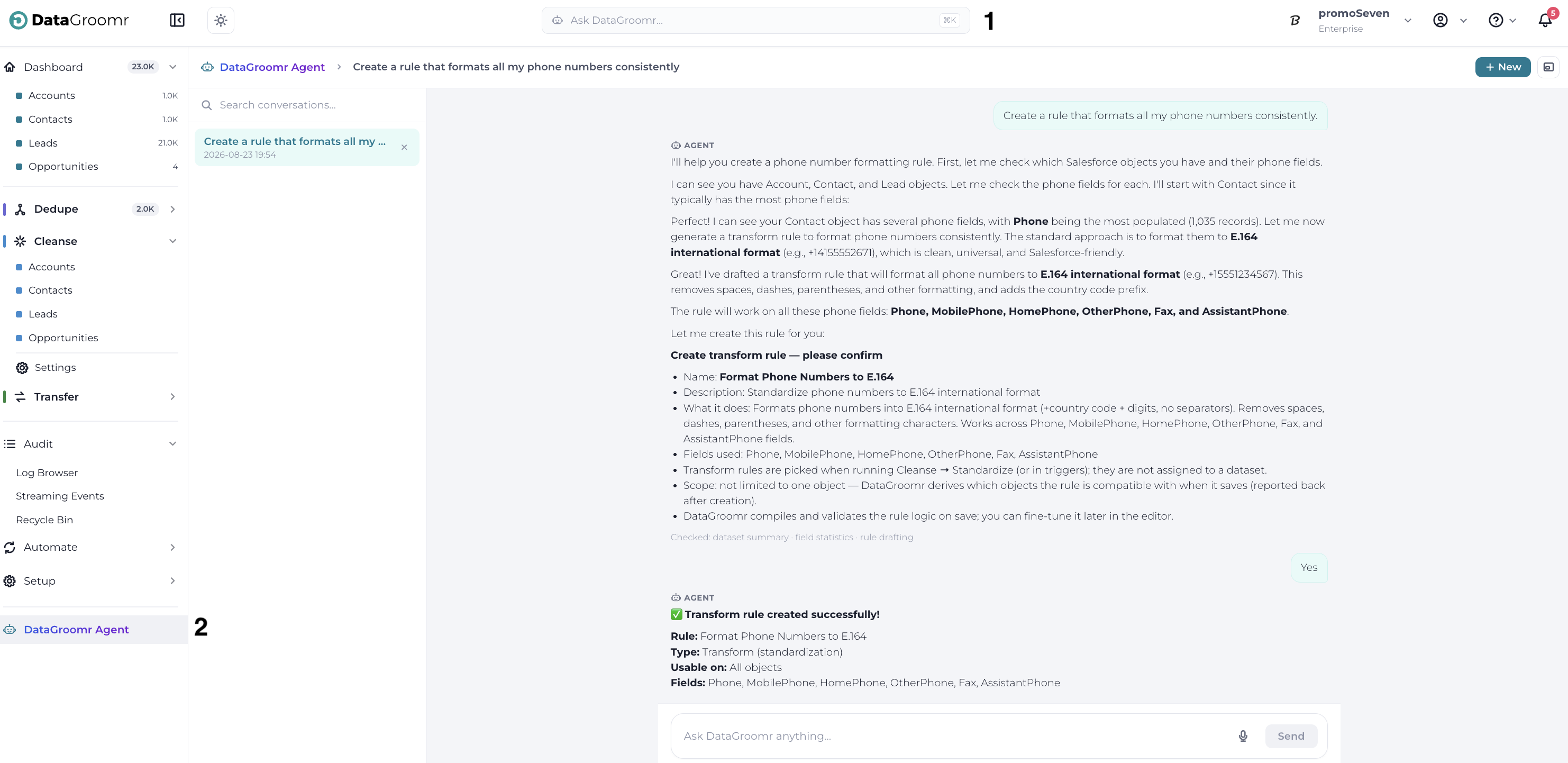
The DataGroomr Agent is an AI data steward built into the app. Ask anything about your data — beyond answering questions, the Agent can investigate, explain, and configure DataGroomr for you, with your approval.
Opening the Agent
The Agent is available from three places:
- The DataGroomr Agent entry in the sidebar, which opens the full-screen Agent page.
- The Agent button in the top header, which opens the Agent as a floating panel over the page you are on.
- The ⌘K keyboard shortcut.
Full Screen and Floating Panel
The Agent works in two views: the full-screen page for longer conversations, and the floating panel that keeps the Agent alongside your current page. Switch between them at any time — use Continue in floating panel from the full-screen view, or Switch view from the panel.
What the Agent Can Do
The home screen offers quick-start suggestions grouped by capability:
- Set up — configure DataGroomr for you, for example “Automate a nightly check.”
- Investigate — dig into your data, for example “Trace my duplicate sources.”
- Learn — answer questions about DataGroomr, for example “Can I undo a merge?”
Capabilities are labeled as read-only or as actions that ask before writing. Smart type-ahead completes your request as you type, and a voice mode lets you speak instead of typing. Ask “What can you do?” at any time for a full overview of the Agent’s capabilities.
Page Context
The Agent is aware of the page you are on. When you open it from a dataset page or a rules page, that context is passed along automatically, so you can ask questions about what is in front of you — for example, about the dataset you are currently reviewing.
Approving Actions
When the Agent needs your confirmation before making a change, it presents Approve and Dismiss buttons instead of asking you to type a response. Nothing is written without your explicit approval.
Conversations and History
Press New to start a new conversation. Past chats are hidden by default — press the Conversation history button to slide in the history panel, with a search box at the top for finding past conversations.
Note: The Agent uses AI — verify results before acting on them.