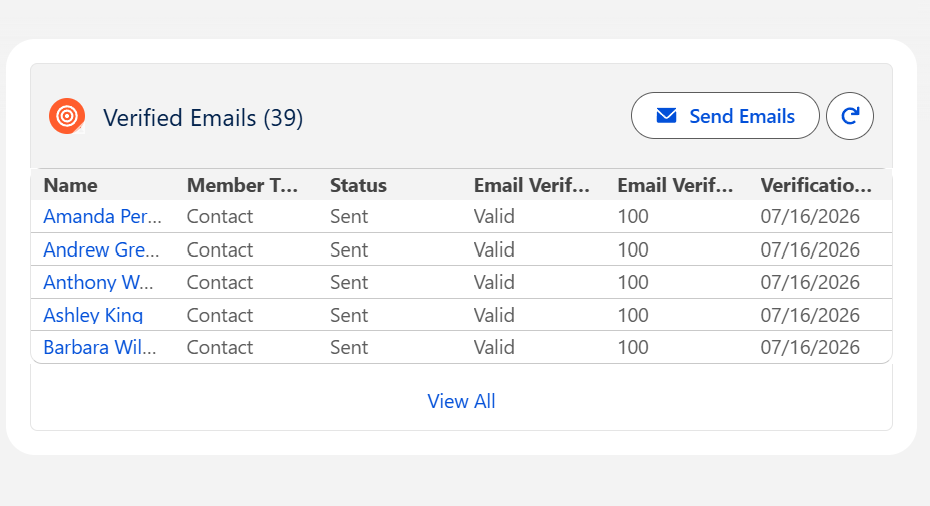
This article walks you through using the Campaign Email Verification Flow of the DataGroomr Verify package. This allows you to verify email addresses for all Campaign members before sending. Invalid members are flagged via the Campaign Verification Status so they can be easily excluded from the send.
Overview
Using DataGroomr’s verification actions inside Salesforce Campaign, you can:
Automatically verify email addresses of all campaign members
Store verification results back on the campaign member record including updating Campaign Verification Status for invalid emails
See a lighning component wth overall information of all members (e.g., how many are valid, invalid, or not verified)
Optionally opt out invalid members (using the HasOptedOutOfEmail flag) to ensure Salesforce automatically excludes them from all future emails, not just those related to this specific campaign.
By default, re-running the verification on the same campaign only processes unverified members; you can optionally include previously verified members to refresh stale results.
Prerequisites
Before starting, ensure:
Enable Mass Email Verification of Salesforce Campaigns is done in your Salesforce org
Using Campaign component
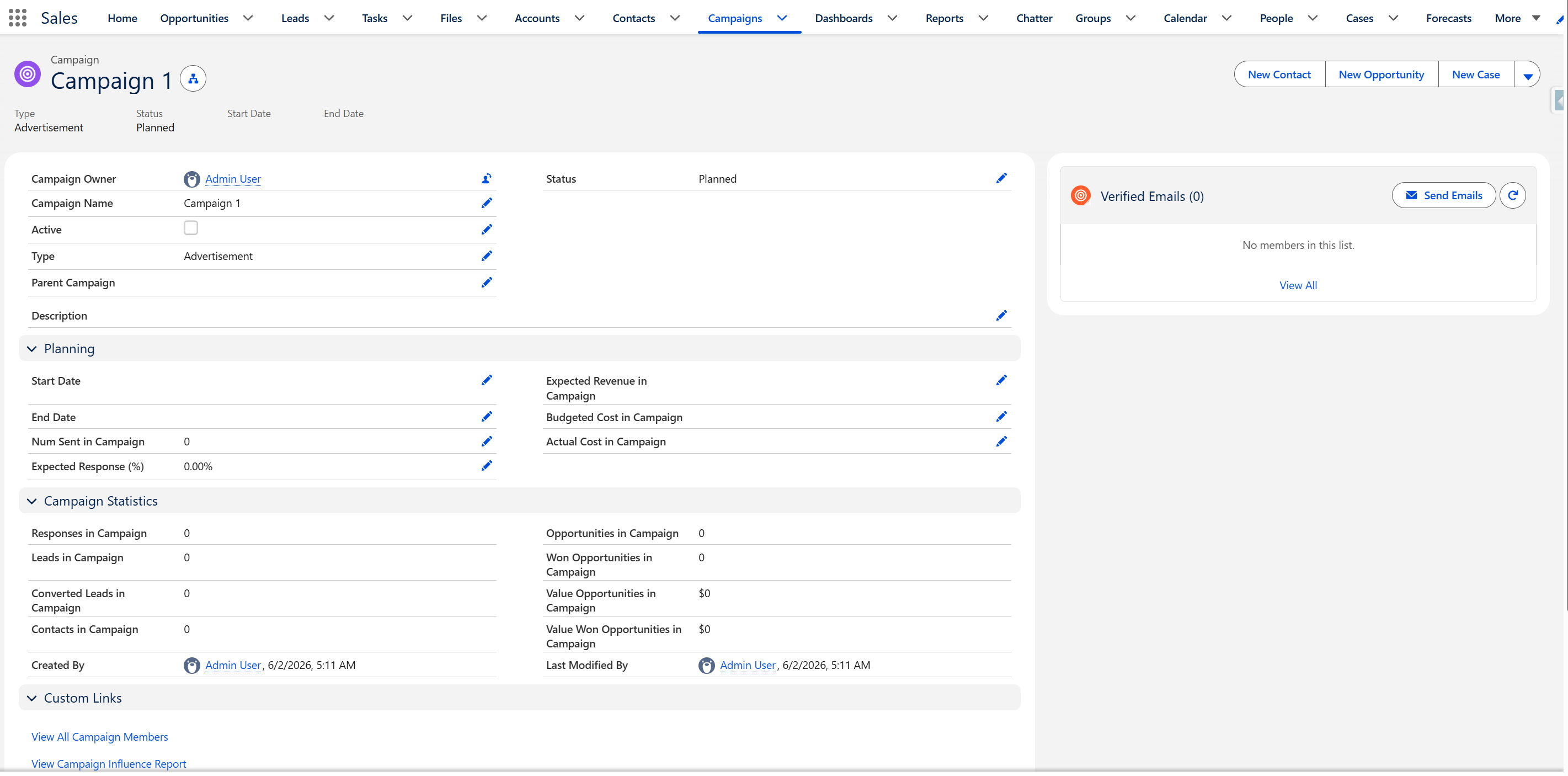
After installation and configuration, users will see the Campaign Lightning page provided out-of-the-box by the DataGroomr package:
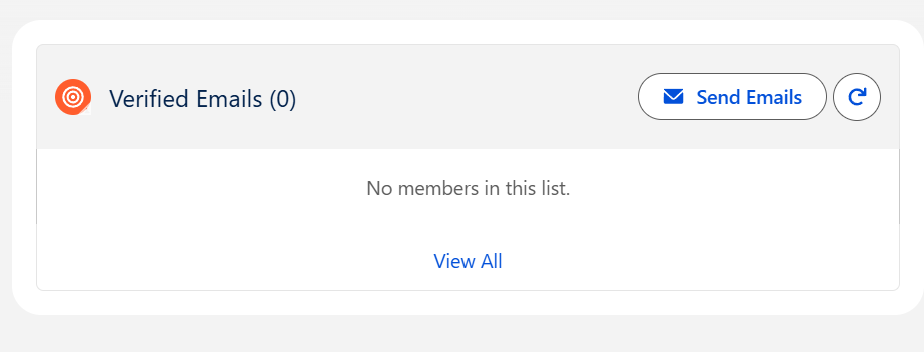
While campaign members remain unverified within DataGroomr, the "Verified Emails" component will appear empty:
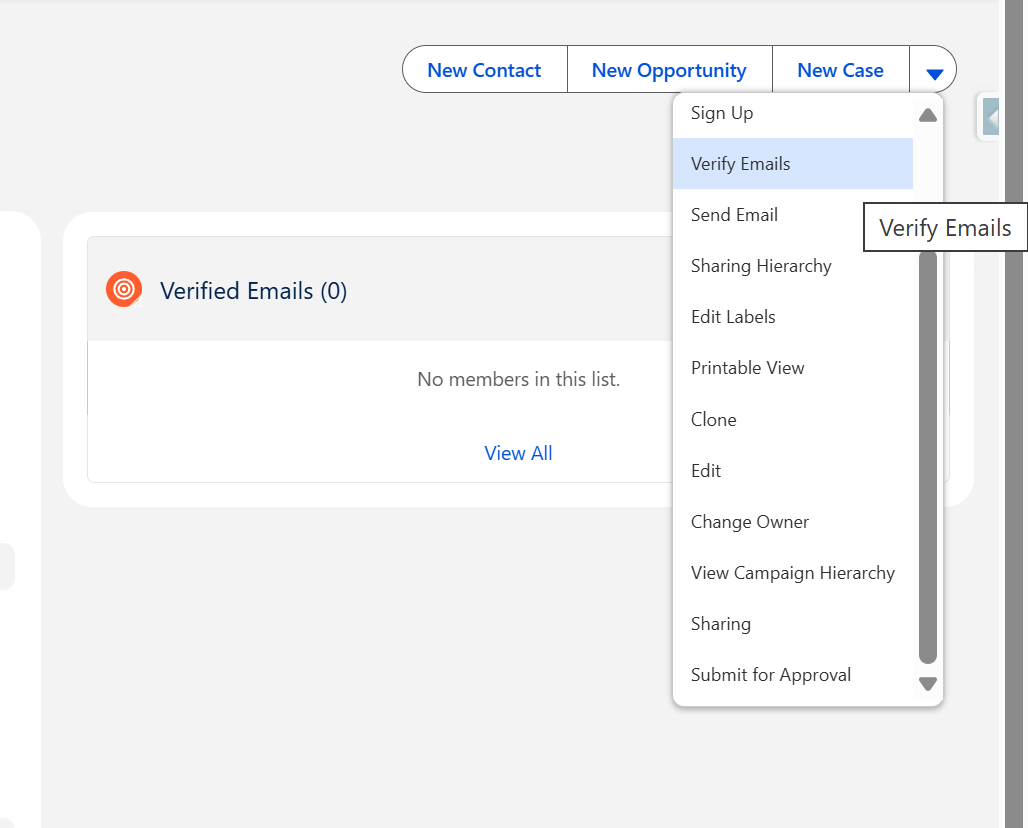
There are two options to verify all campaign members directly from the Campaign page:
- Use the "Verify Emails" quick action in the top menu :
- Click the "Verify Emails" button located above the Campaign Members table :
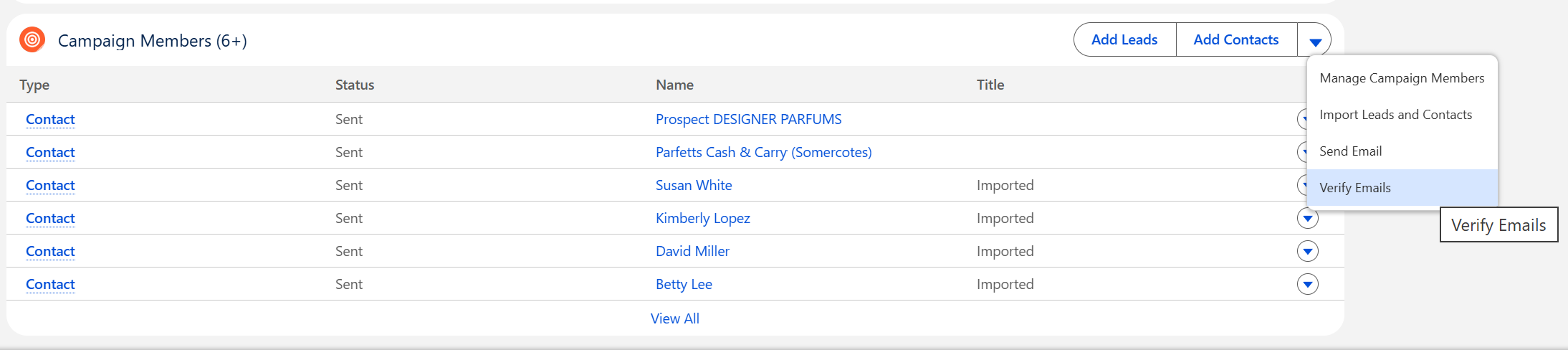
Both methods will initiate the verification process for all campaign members. Before proceeding, you will see an informational window detailing the required credits and member information:
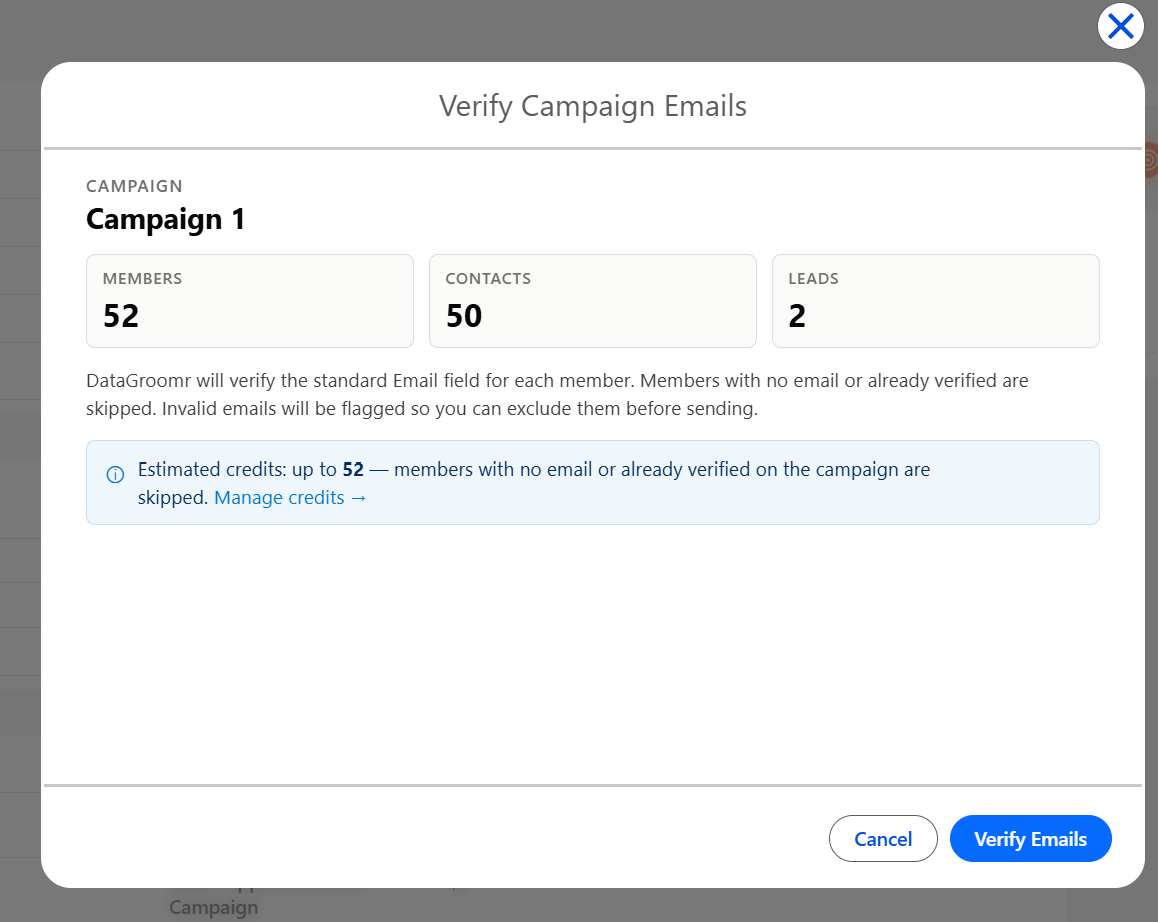
The confirm screen includes an Include previously verified members checkbox, unchecked by default. Leave it unchecked to skip members that already have a verification status, so no credits are spent on them. Check it to re-verify every member with an email address; previous results (status, score and date) are overwritten and credits are consumed for all of them. Use this to refresh stale verification results.

Once verification is complete, the results for all valid and invalid emails in the campaign will be displayed.
If you wish to set an "Email Opt Out" for all invalid emails, you can click the corresponding setting to update the specified Contacts/Leads, excluding them from future communications:
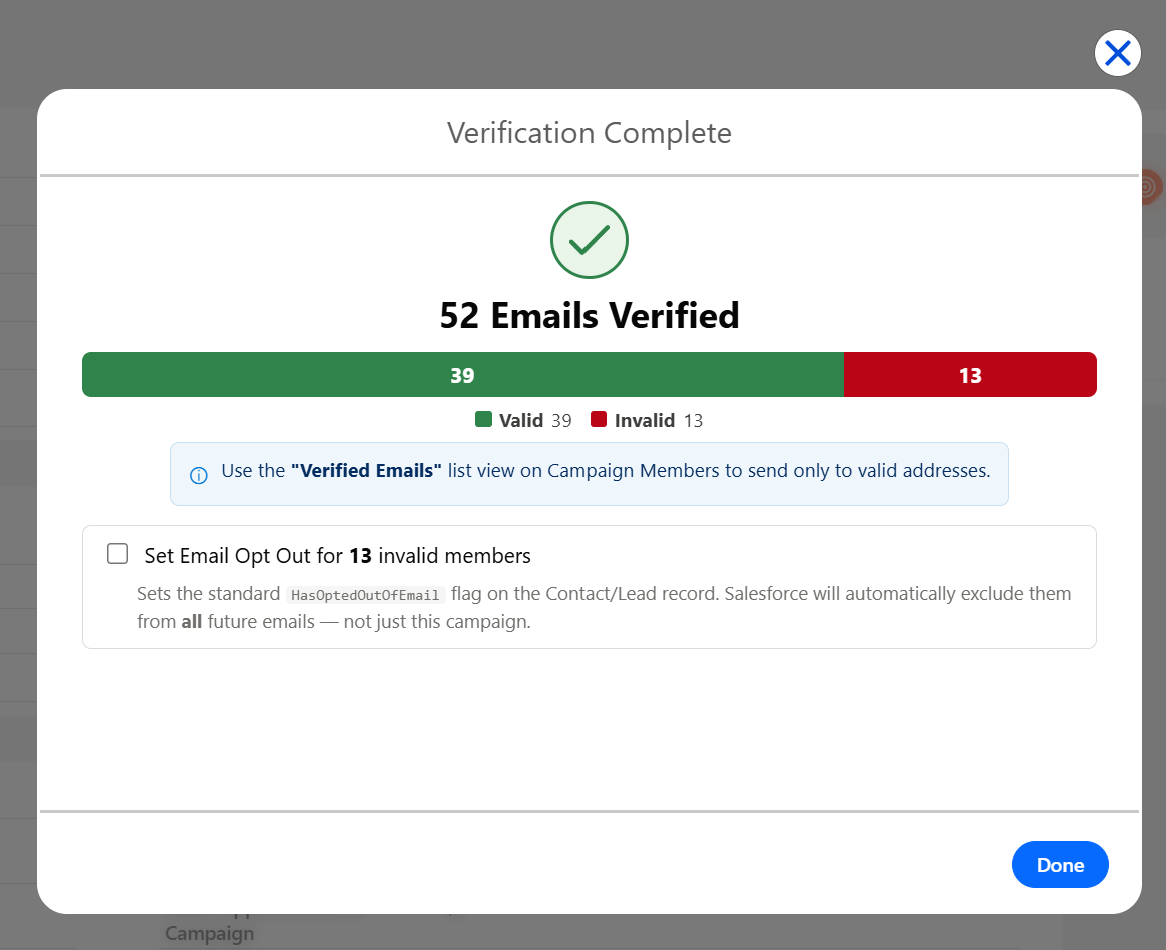
After verification, all valid emails will be displayed in the "Verified Emails" component, allowing you to send emails specifically to those valid members: