
If DataGroomr is not detecting your Salesforce sandbox, there are two common causes: the sandbox may not be fully provisioned yet, or the connected user may be missing the required Salesforce permissions. Follow the steps below to diagnose and resolve the issue.
Step 1: Check the Sandbox Status in Salesforce Setup
Before looking at DataGroomr, confirm that your sandbox has finished provisioning in Salesforce.
Navigation: Salesforce Setup › Search "Sandbox" › Environments › Sandboxes
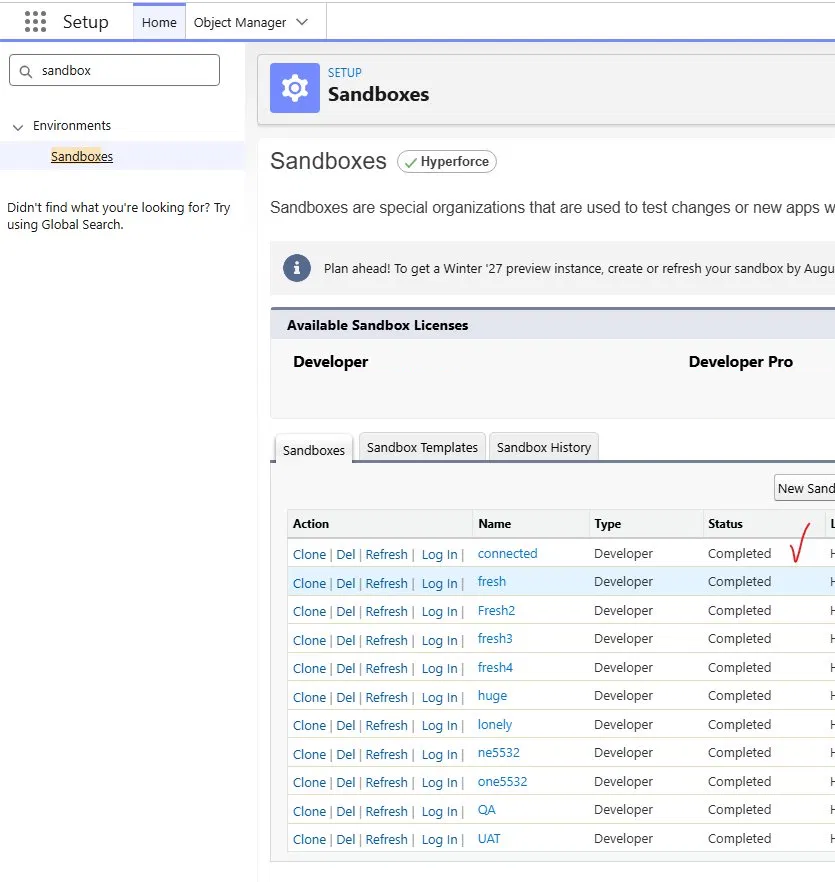
Find your sandbox in the list and check the Status column:
- Completed — The sandbox is fully provisioned. Proceed to Step 2.
- Pending / In Progress — The sandbox is still being created or refreshed. Wait for provisioning to finish before trying to connect DataGroomr. Status typically updates within a few minutes to a few hours depending on sandbox type.
- Error / Failed — The sandbox encountered a provisioning error. Contact Salesforce Support to resolve this before attempting to connect DataGroomr.
Good to know: A sandbox that is not yet in "Completed" status cannot be used with DataGroomr. This is the first thing to rule out when a new sandbox is not being detected.
Step 2: Confirm the User Can Log In to the Sandbox
If the sandbox shows Completed status, verify that the connected user can actually log in to that sandbox org.
- Log in at https://test.salesforce.com
- Confirm you are in the correct sandbox org (check the org name in Setup › Company Information)
- Verify the user account is Active in the sandbox — users are not always automatically active after a sandbox refresh
Note: If the user cannot log in to the sandbox, DataGroomr will not be able to connect to it. Resolve login access first before continuing.Step 3: Verify the Required Salesforce Permissions
DataGroomr retrieves sandbox information using the Salesforce Tooling API. The connected user must have specific permissions assigned to their profile or via a Permission Set. System Administrators already have all of these by default.
For non-admin users, the following permissions are required:
- API Enabled — Allows the user to connect via any Salesforce API, including the Tooling API
- View Setup and Configuration — Minimum permission needed to access Tooling API setup metadata
- View All Data — Required for DataGroomr to retrieve sandbox org metadata
How to Assign the Required Permissions
If the connected user is not a System Administrator, assign the required permissions via a Permission Set:
- Go to Salesforce Setup and search for Permission Sets
- Create a new Permission Set (e.g., DataGroomr Integration Access) or select an existing one
- Under System Permissions, enable API Enabled
- Under System Permissions, enable View Setup and Configuration
- Under System Permissions, enable View All Data
- Click Manage Assignments › Add Assignments and select the DataGroomr connected user
Good to know: Changes to Permission Sets take effect immediately. After assigning, try reconnecting DataGroomr to the sandbox.