
Intelligence Providers are the external data sources that power Enrichment. DataGroomr connects to each provider through provider's own MCP server, using your subscription. This article covers how to manage and connect to providers and what a healthy connection looks like.
Before You Start
- Enrichment must be enabled for your organization. If the Intelligence Providers page shows an "early preview" banner instead of the provider list, contact support to have it enabled for your organization.
- You need an active subscription with the provider you want to connect as you will need to authorize your own account.
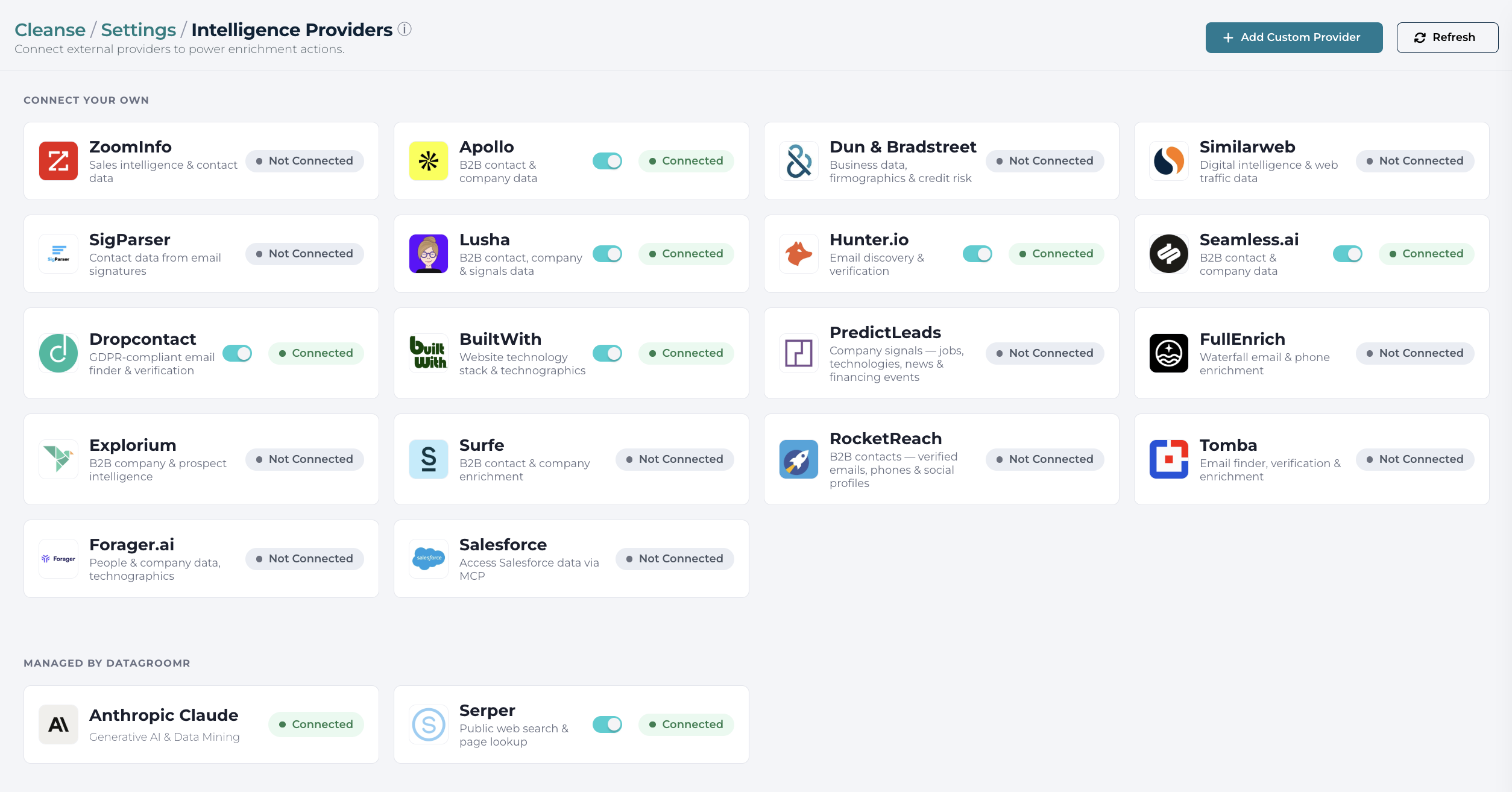
As a first step in configuring enrichment actions Navigate to Setup > Cleanse > Intelligence Providers which list all available providers currently supported by DataGroomr. Two types of provider are avaiable for usage:
- User managed providers - Providers where you bring your own account (ZoomInfo, Apollo, D&B, etc.). These need to be connected before they can be used in Enrichment Actions.
- System providers - These are the providers managed by DataGroomr and can be used directly without needing any setup / configuration from your end. Anthropic's Claude is the current system provider which powers all the AI related steps in every Enrichment Action. Serper is also available as a DataGroomr-managed connection, bringing web search and web page reading to enrichment prompts.
Each provider is shown as a card with its logo, name, a short descriptor, and a status badge. Clicking a configurable card opens the connection dialog.
DataGroomr currently supports following providers:
| Provider | Type | What it's good for | Status |
|---|---|---|---|
| Anthropic Claude | System | AI-generated insights, reasoning over records, structuring or rewriting data | Always available |
| ZoomInfo | User | Sales intelligence & enrichment company firmographics, employee count, revenue, industry | Available |
| Apollo | User | B2B contact & company data people search, mixed company/people search, contact enrichment | Available |
| D&B | User | Global business data & insights | Available |
| Hunter.io | User / System | Email finder and email verification; domain search for company contacts | Available |
| Seamless.ai | User / System | Real-time B2B contact and company search; verified emails and direct dials | Available |
| Lusha | User | B2B contact enrichment; verified business emails, direct phone numbers and firmographics | Available |
| Dropcontact | User | GDPR-compliant B2B email and contact enrichment; company data and SIREN/SIRET legal data | Available |
| Similarweb | User | Website traffic, digital market intelligence and company web metrics | Available |
| SigParser | User | Contact and relationship intelligence extracted from email and calendar signals | Available |
| Serper | System | Web search and web page reading; finds and reads relevant public web pages to bring web data into enrichment | Available |
| BuiltWith | User | Technographics — the technology stack detected on a domain (CMS, frameworks, analytics, e-commerce and more), plus available company meta data | Available |
| LeadMagic | User | B2B contact enrichment; email and phone finding and validation | Available |
| RocketReach | User | Person and company search with verified emails, phones and social profiles | Available |
| FullEnrich | User | Waterfall enrichment — aggregates emails and phone numbers across 15+ underlying vendors in a single call | Available |
| Forager | User | Verified mobile numbers and personal emails resolved from LinkedIn profiles; people, company and job data | Available |
| Explorium | User | Multi-source B2B data — firmographics, technographics, financials, contacts and event signals (funding, job changes) | Available |
| Surfe | User | B2B contact enrichment, email and mobile lookup, people and company search | Available |
| Tomba.io | User | Email discovery and verification; domain search, email finder and phone lookup | Available |
| PredictLeads | User | Company intelligence signals — technographics, hiring activity, news and funding events | Available |
Connecting to a Provider
Click a user-provider card that shows Not Connected. The connection dialog opens.
- Click Login to ZoomInfo / Apollo. An OAuth popup window opens, pointing at the provider's sign-in page.
- Sign in with the account you want DataGroomr to use. Approve the permissions the provider asks for.
- The popup closes automatically. DataGroomr exchanges the login information and immediately runs a connection test.
- A green banner appears showing "Connection verified. N tools discovered." along with your subscription tier if the provider reports it.
Once the provider is connect, the card on the enrichment actions page will update to Connected showing connection status.
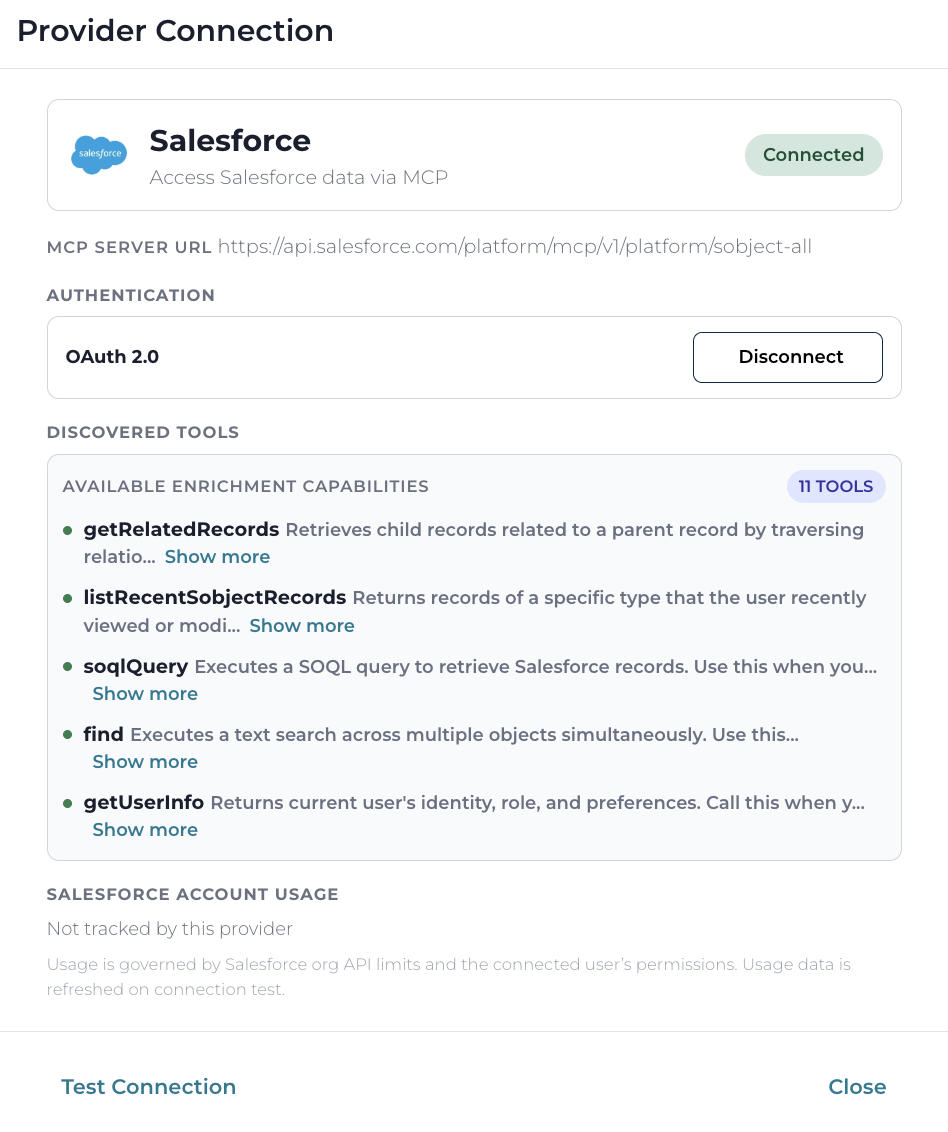
Opening a connected provider's card brings up a more detailed dialog:
1. Discovered Tools
After a successful connection test, DataGroomr asks the provider's MCP server what capabilities (tools) it exposes and lists them here. Each tool row shows its name and a one-line description. The count badge at the top right shows how many are available.
Discovered tools are for display, you don't need to pick which ones to use at this level. When you create an Enrichment Action, DataGroomt looks at the tool list alongside your prompt and chooses which tools to call, step by step, in the execution plan.
2. Account Usage
If the provider reports usage limits, you'll see up to three tiles showing how much of each quota is remaining (e.g. monthly contact lookups, company enrichments, API request remaining). Each tile includes a "Used X / Total Y" line underneath.
Usage is refreshed whenever you click Test Connection.
3. Test Connection
The Test Connection button in the footer makes DataGroomr re-verify the stored credentials, re-discover tools, and re-fetch usage. Run this if:
- You're not sure the connection is still working.
- The provider announced new tools and you want them to appear.
- You changed your subscription tier and want updated usage limits.
4. Enabling and Disabling Providers
Each connected user-provider card has a toggle on the right side. Flip it off to Disable the provider without disconnecting.
A disabled provider:
- Shows a grey Disabled badge on the card.
- Keeps its stored login information and discovered tools.
- Does not participate in any new Enrichment Actions. Plan generation skips its tools, and runtime refuses to call them.
Flip the toggle back on to resume. This is useful for short-term pauses e.g. if you're approaching your monthly quota or want to stop accidental spend without going through the reconnect flow afterwards.
All of the providers added above are user providers — you bring your own account, and credits and rate limits are governed by your own plan with the provider. Depending on the provider, the connection uses a browser OAuth sign-in (for example RocketReach or FullEnrich) or one or two API credentials entered on the connect card (for example Tomba.io needs an API key and secret, and Forager needs an API key and account ID) — the card shows exactly which fields are required.
Serper Web Search (DataGroomr-managed)
Serper is available as a DataGroomr-managed connection, so enrichment prompts can use public web data as part of their execution plans without any setup on your side. There are two levels of integration:
- Web fetch — reads the content of a web page directly when the record already has a usable link (for example, the account's website), at no extra search cost.
- Web search — searches the web to find the relevant pages when the record has no usable link, and then reads them.
Enrichment steps that use the Serper connection are charged at the DataGroomr-managed provider rate of 15 credits per record.
BuiltWith (bring your own key)
BuiltWith is available as a user provider only — you bring your own BuiltWith API key, and credits and rate limits are governed by your own BuiltWith plan. BuiltWith returns technographics: the technology stack detected on a domain (CMS, frameworks, analytics, tag managers, ad networks, e-commerce, widgets and technology versions), plus available company meta data. To connect, open the BuiltWith card and supply your BuiltWith API key.
Custom MCP Servers
Administrators can register their own MCP server as an intelligence provider so Enrichment Actions can call proprietary or internal tools the same way they call the built-in providers. Use the Add custom provider button on the Intelligence Providers page and supply a display name, the server URL, and an authentication method (OAuth 2.1 or a static header with a bearer token / API key). Only remote HTTPS servers are supported. After connecting, the server appears as a card with the same statuses as other providers, and each discovered tool can be enabled or disabled individually — only enabled tools are exposed to Enrichment Actions. See the Connect a Custom MCP Server as an Intelligence Provider article for the full setup guide.
Disconnecting a Provider
Open the card and click Disconnect in the Authentication section. A confirmation warns you that active Enrichment Actions that reference this provider will stop working.
After disconnecting:
- The stored OAuth tokens are removed. DataGroomr no longer holds any credentials for the provider.
- Enrichment Actions that chain through this provider will fail at the step that calls it. You'll need to reconnect or edit the action.
- The card returns to Not Connected status, ready for a fresh sign-in.
Provider Status Reference
The badge on each card summarizes the provider's current state:
| Badge | Meaning |
|---|---|
| Connected | Login information is stored, the last connection test succeeded, the provider is enabled and will be used in enrichment actions. |
| Not Connected | No credentials yet. Click the card to start the provider configuration flow. |
| Disabled | Connected, but the toggle is off. Will not used by any Enrichment Action until re-enabled. |
| Coming Soon | The provider is planned but not yet available. |