
Enrichment Actions enable you to bring in new data points, fill in missing or outdated data for your salesforce entities & objects using AI and external intelligence providers like ZoomInfo and Apollo. You start by describing what data points you want, DataGroomr builds a step-by-step execution plan based on the providers you have connected and gives you an intuitive interface to map each output field to your desired Salesforce fields. Once an enrichment action is set up, you can run it across an entire dataset, on a single record from the record detail view, or automate it with a trigger.
Before You Start
- Enrichment must be enabled for your organization. If you open Setup > Cleanse > Enrichment Actions and see an "early preview" banner instead of the actions library, reach out to support to have it enabled for your organization.
- External providers must be connected first. Anything that uses ZoomInfo, Apollo, or another third-party source needs a working connection under Setup > Cleanse > Intelligence Providers. See the Intelligence Providers article for connection steps.
- Datagroomr credits are required. Each step in an action consumes credits per record. DataGroomr runs a pre-flight check before any enrichment job so you won't start a run you can't finish.
To create an Enrichment Action go to Setup > Cleanse > Enrichment Actions and click Create Enrichment Action. The full-screen prompt editor opens with three numbered sections down the middle (Write, Execution Plan, Target Mappings) and a context sidebar on the right listing the Salesforce object and its fields.
Step 1 - Write Your Prompt
Describe, in plain language, the data you want to enrich. DataGroomr supports two prompting styles, use whichever fits the task or you can also use them together in the same prompt as per your needs.
1. Goal driven prompts (simplest)
State what data points and information you need to be populated and optionally mention the provider. No explicit field references are needed, DataGroomr intelligently decides which fields to send to the enrichment tool based on what that tool expects as input. For example:
Enrich the given account with company description, employee count, annual revenue and DUNS number using D&B.
or
For the given contact, find the primary contact information we can reach them on including phone and email. Use Apollo.
This is the fastest way to get started and works well for standard fields that providers already know how to look up (company name, website, contact email, etc.).
2. Field reference based prompts (precise)
Use {{Object.Field}} tokens to reference Salesforce fields as inputs. Use this prompting style when the provider needs to match on a particular field, especially custom fields or when the right identifier isn't obvious from the standard ones. For example:
Use {{Account.Trade_Name__c}} as the search term on ZoomInfo and return the industry classification.
or
Look up{{Account.Name}}on ZoomInfo using{{Account.Website}}. Return the company's annual revenue, employee count, and industry classification.
A few things happen automatically as you type:
- Source object auto-detects from the first complete token you type. Once the prompt contains a token like
{{Account.Name}}, the editor locks the action to that object. To switch objects, remove any tokens first. For goal-driven prompts with no explicit tokens, pick the object manually from the sidebar before generating the plan. - Invalid tokens are flagged inline. If you reference a field that doesn't exist on the object, or mix objects in the same prompt, a warning appears above the editor explaining what to fix.
- Relationship tokens are supported up to one level deep - e.g.
{{Contact.Account.Industry}}. - The sidebar lists every field on the source object. Click a field to insert it into the prompt at the cursor position. You can also search the field list or change the source object manually before any tokens are typed.
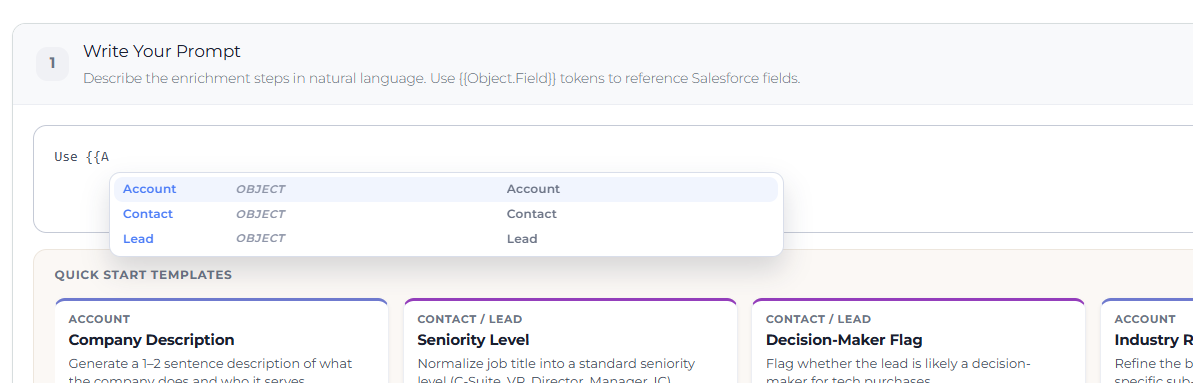
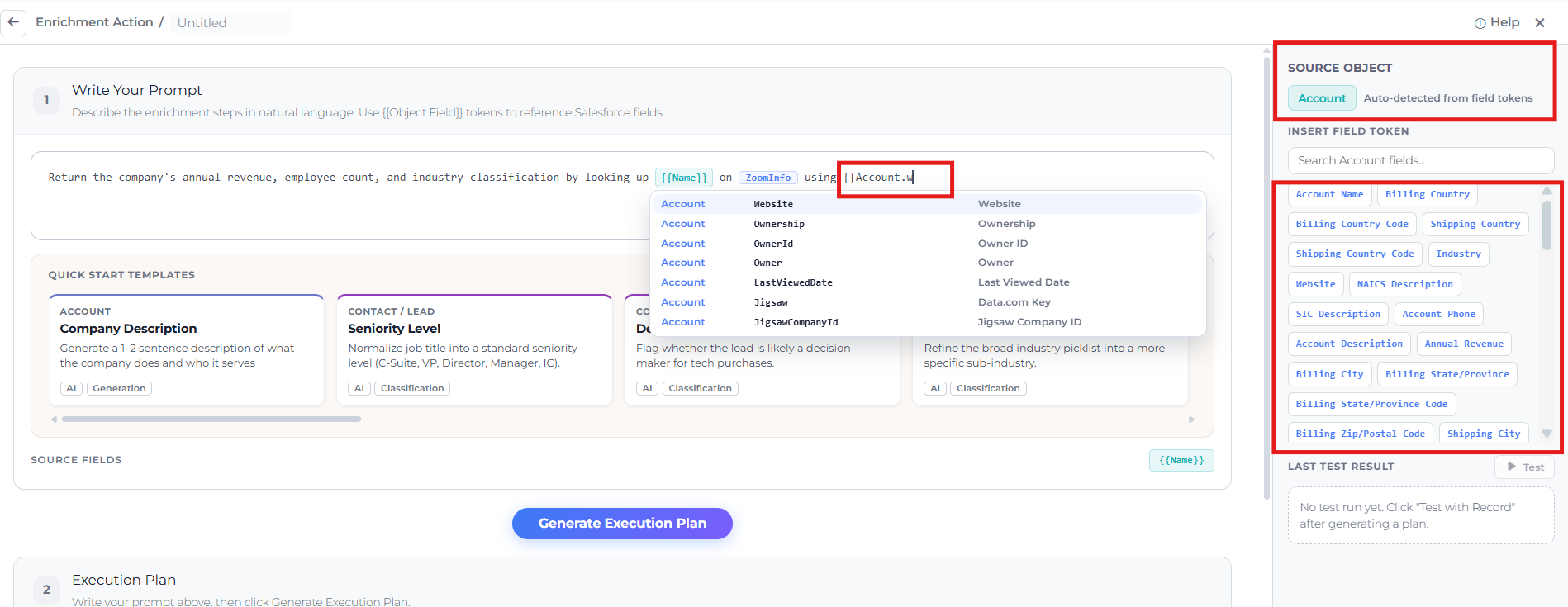
Quick Start Templates can be accessed from Enrichment Actions page directly or from area below the prompt editor section while creating a brand-new action. Click a template card to pre-fill the prompt, the object, and a starter name with a common enrichment pattern. Templates disappear once an execution plan is generated, so pick one before you click Generate.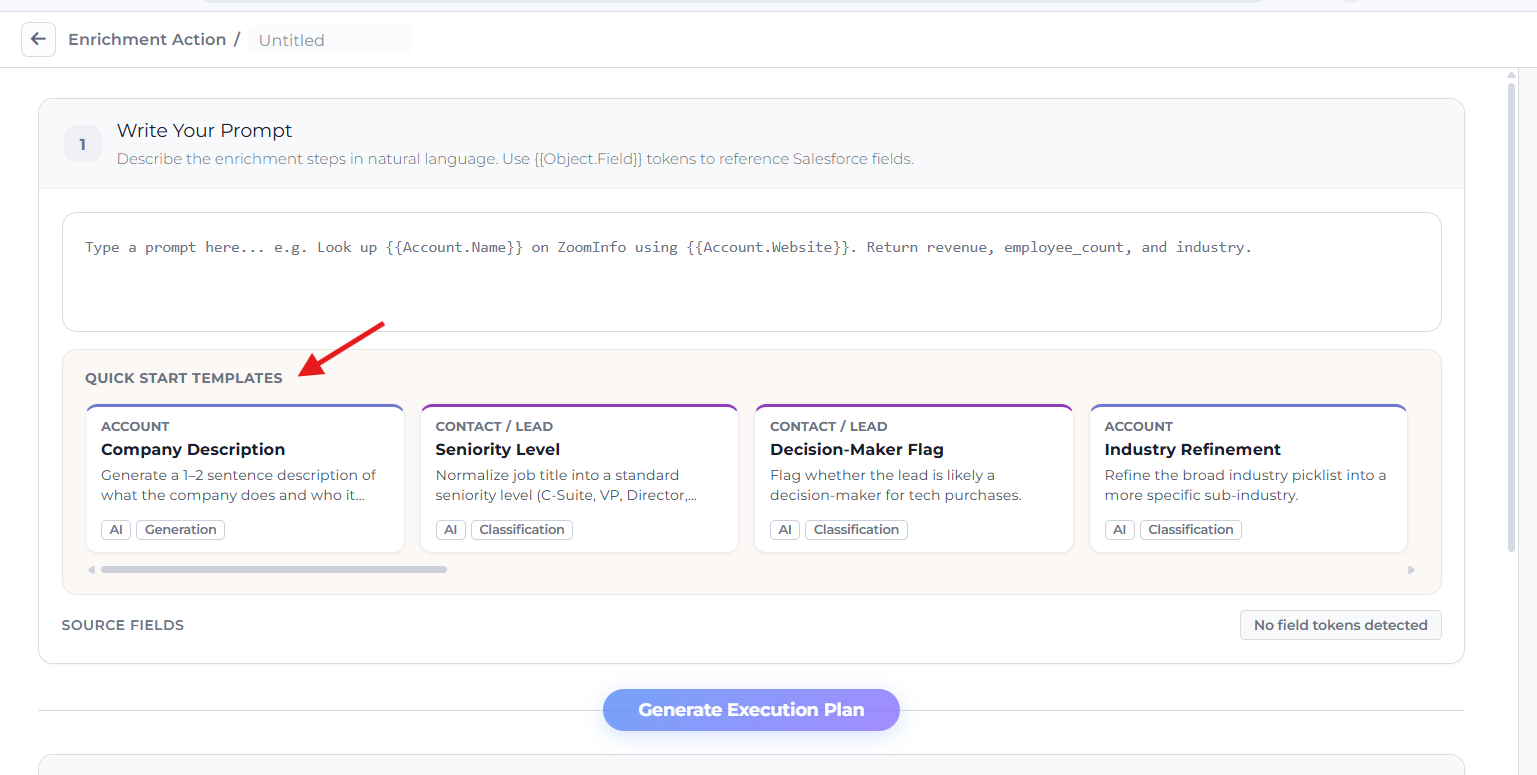
Tip: The clearer your prompt, the higher the plan confidence score. Mention each field you want by name, and name the provider if you have a preference ("using ZoomInfo", "using Apollo"). A prompt that just says "enrich this account" will still work, but the plan will be vaguer.
Step 2- Generate Execution Plan
Click Generate Execution Plan underneath the prompt editor. DataGroomr sends your prompt to AI, which decides which provider handles which part of the request, which tools to leverage, how to stich them together and breaks the work into discrete steps. Plan generation usually takes 10-20 seconds.
Each step in the plan shows:
- Provider - which provider handles this step (AI, ZoomInfo, Apollo, etc.). Steps are color-coded: amber for AI, blue for external providers.
- Tool - the specific provider capability the step will use (e.g., search_companies, enrich_contact).
- Output Fields - the data fields this step will return, with their type and a short description.
- Credit Cost - credits this step consumes per record.
- Estimated Latency - approximate time per record for this step.
A confidence bar at the bottom of the plan indicates how reliably it will produce the requested fields based on prompt clarity and provider coverage. If confidence is low, sharpen the prompt and regenerate.
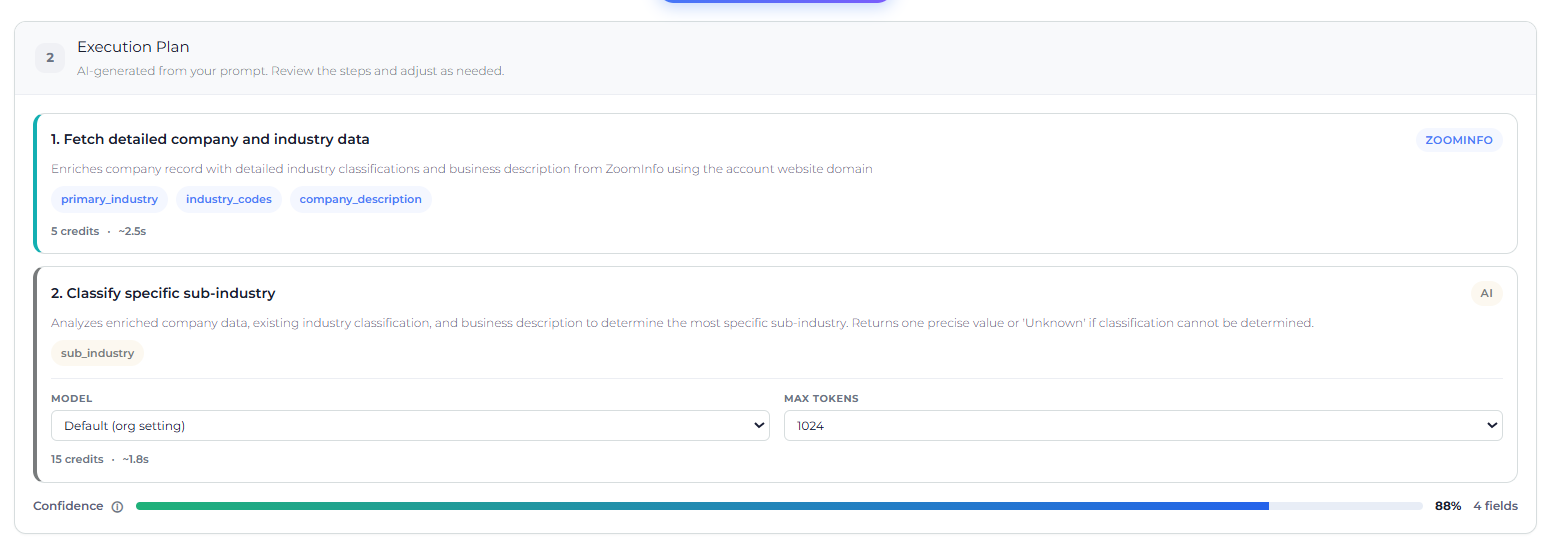
Good to Know: The plan becomes stale if you edit the prompt afterward. A yellow banner appears and you'll need to click Generate Execution Plan again before saving. This is intentional, it prevents saving a prompt/plan pair that no longer match. Additonaly a single plan can use multiple providers and can be comprised of multiple steps, opening up possibility for more powerful enrichment scenarios.
Step 3 - Target Mappings
Once the plan is generated, DataGroomr suggests a Salesforce field for each output and displays the mappings grouped by step. A banner at the top tells you how many outputs auto-matched and how many still need review.
For each row, pick a Salesforce target and a write mode:
- Auto-matched - DataGroomr found a confident match. Review to confirm.
- Needs Match - Pick a Salesforce field from the dropdown. Incompatible field types (reference fields, address compound fields, etc.) are hidden automatically. A yellow warning appears if the type is close but not exact.
- None (skip) - Use this when you want the plan to return the output but not write it to Salesforce. Useful for values used only by later steps in the chain.
Then choose how the value is written:
- Overwrite always - Replace the existing Salesforce value, regardless of what's there.
- If empty only - Only write the value when the target field is currently blank. This is the safer option when you don't want to clobber manually curated data.
The summary bar at the bottom of the Target Mappings section shows the total credits per record, expected latency, the number of fields that will be written, and how many mappings still need attention.
Apply results
The Target Mappings section header includes an Apply results control that decides whether the results of this action are written to Salesforce right away or held for a person to review first:
- Automatic (default) - Results are written to Salesforce as soon as they're returned.
- Manual - Results are held for review. Nothing is written to Salesforce until someone approves it in the enrichment review queue.
The setting is saved with the action and applies wherever the action is assigned. Write mode stays per field and governs what is written; Apply results is per action and governs whether someone sees the results before they are written. See Reviewing Pending Changes: Enrichment and Verification Queues for how to work through held results.

Testing Before You Save
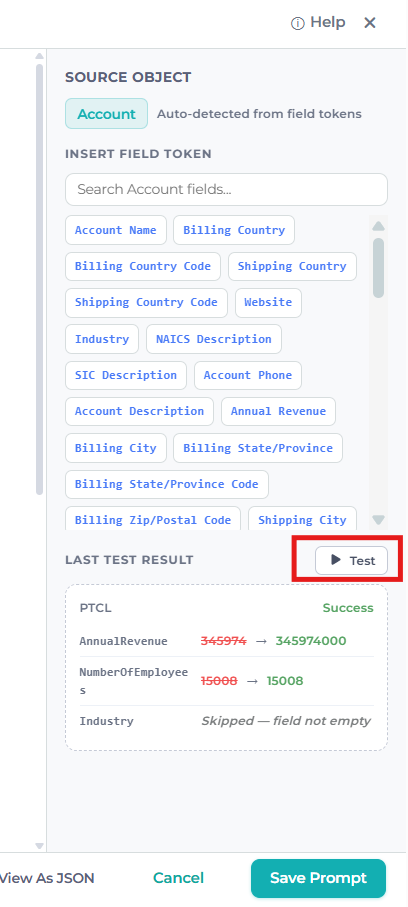
Before saving, try the action against a real record. In the sidebar , click Test with Record, search for a record by name or paste a Salesforce ID, and run the test.
Test runs are dry runs - nothing is written to Salesforce and no credits are deducted. The result panel lists each mapped field side-by-side with its current Salesforce value, the value the action proposes to write, the write mode that would apply, and any skip reason.
Tip: Testing is the fastest way to confirm your prompt asks for the right things and your mappings point to the right fields. Test on at least one record from each realistic segment (e.g. a customer with good data, one with sparse data) before running mass enrichment.
Saving
When validations pass(prompt and generated plan is valid, at least one active field mapping), the Save button becomes active. New actions are saved in Draft status by default. Set them to Active from the library to make them usable on datasets.
Managing Enrichment Actions
The Enrichment Actions library shows every action in your organization. From here you can:
- Edit - Click the action name to reopen the editor.
- Clone - Duplicate an action as a starting point for a similar one. Handy when you want to build a series of variations (e.g. one per object).
- Enable / Disable - Toggle the library-wide status. A 'Disabled' or 'Draft' action cannot be used in enrichment on any dataset or trigger, even if it's assigned.
- Delete - Permanently remove the action. Any dataset assignments are removed at the same time.
- Folders - Click New Folder to create a folder, then use an action's menu to move it into a folder. Folder rows in the library can be expanded and collapsed to keep a large set of actions organized.

Assigning Actions to a Dataset
To enrich records in a specific dataset, click Create Dataset or Edit an existing dataset and go to the Enrich tab in Cleanse module. If the dataset has no actions assigned yet, you'll see an empty state with an Add Enrichment button. Otherwise you'll see a compact dashboard with the assigned actions, a count of how many actions are enabled, and the total credits per record.
To assign enrichment actions click Add Action to open the picker. Only Active actions whose source object matches the dataset and are in enabled/active state are shown. Select the ones you want and click Assign.
Once assigned:
- Actions run top-to-bottom during mass enrichment. Drag the grip handle on the left of each card to reorder. Later actions can use field values written by earlier ones.
- The per-dataset toggle lets you turn individual actions on or off for this dataset without removing them.
- Actions disabled in the library show a "Disabled in Library" tag and are skipped automatically, regardless of the per-dataset toggle. Click the Enable in Library link on the card to jump to the library and re-enable it.
- Remove from Dataset unassigns the action from this dataset only. The action itself stays in the library.
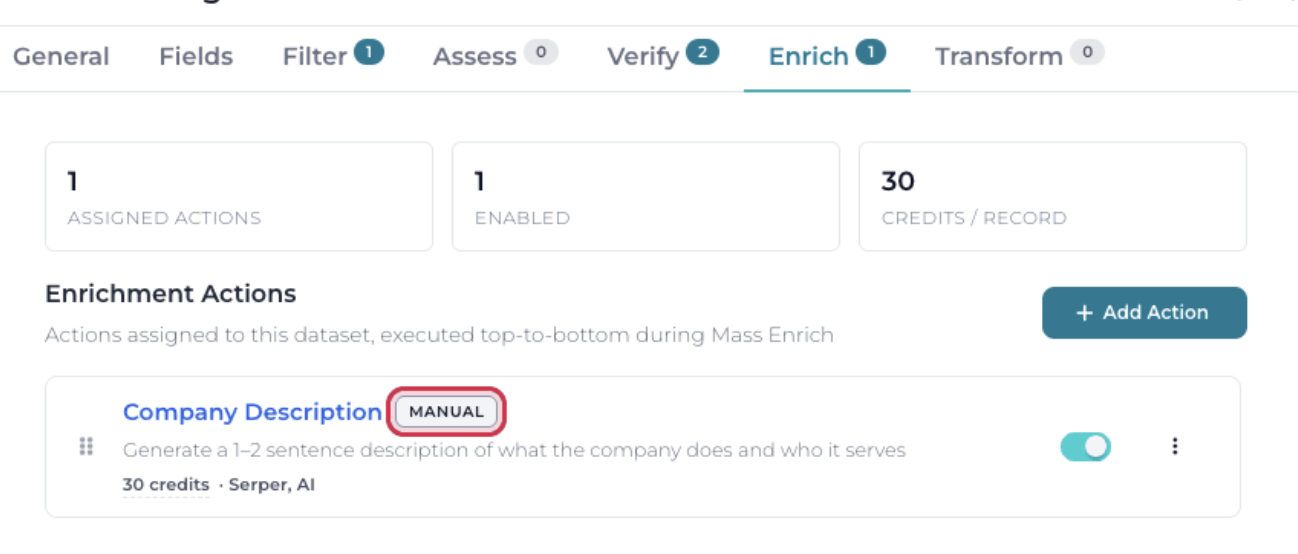
- Apply mode tag - Each card shows a Manual or Automatic tag next to the action name, so you can see whether the action writes to Salesforce silently or holds its results for review. The tag is read-only here: apply mode is set on the action itself. If a dataset needs different behaviour, clone the action.
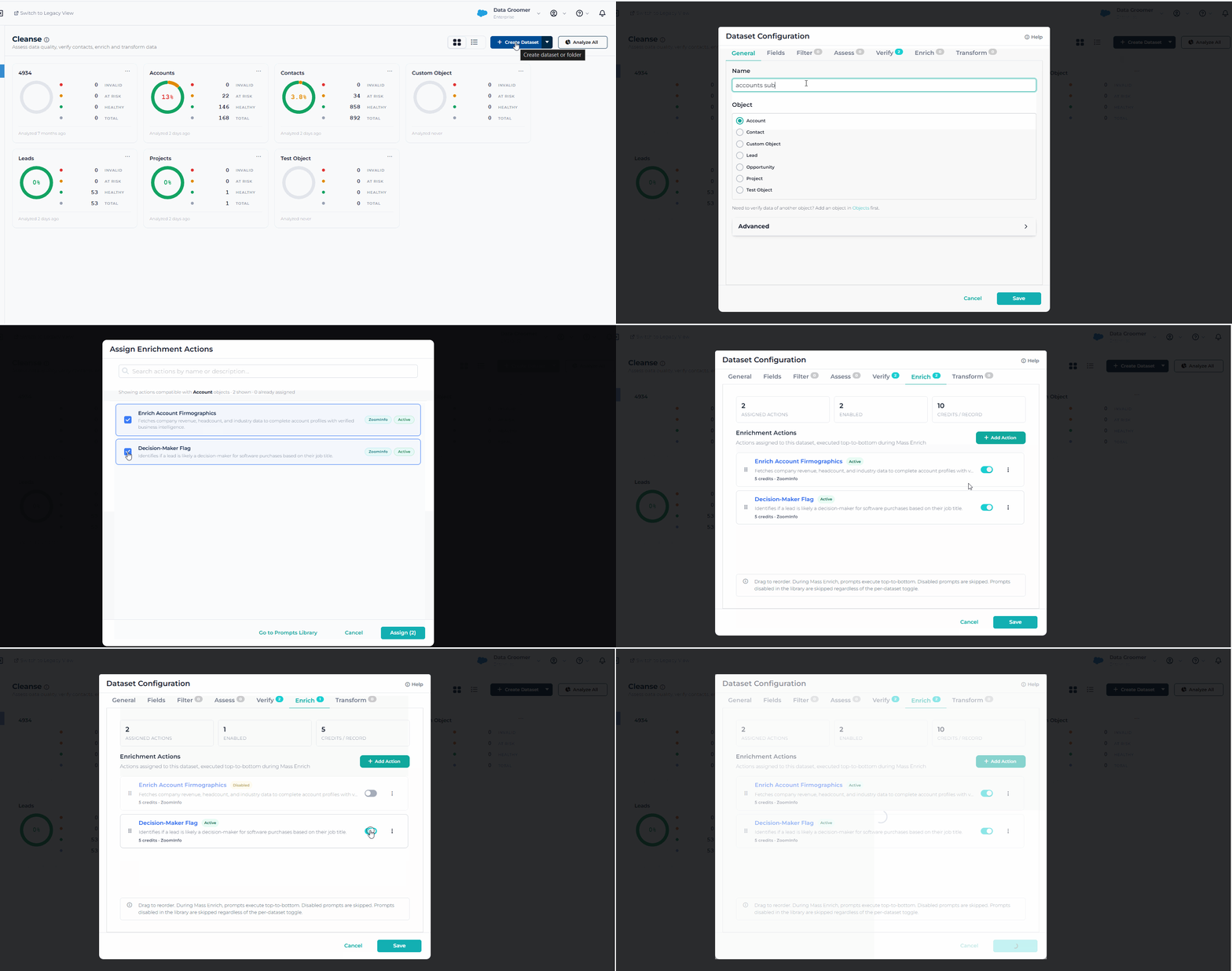
Once assisgned Enrichment Actions can be executed three ways.
1. Mass Enrich
From the dataset view, open the Mass Actions menu and select Mass Enrich. The dialog lists the actions assigned to the dataset - check the ones you want to run this time. You can also narrow which records are processed by data quality score. Actions set to Manual apply mode are marked Manual in the list; their results are held for review instead of being written.


2. Single-Record Enrichment
On any dataset record in Cleanse, open the row action menu and choose Enrich. This is the quickest way to enrich a single account or contact without kicking off a full mass run. Enrich follows each action's apply mode: Automatic actions write immediately, while Manual actions stage their results and open the enrichment review queue on the record when the run completes. The completion message states how many fields were written and how many are waiting for review.

3. Automation via Triggers
You can also run Enrichment Actions automatically on schedule or on record change. Go to Automate > Real-Time Triggers, create a trigger of type Enrich, pick the object and choose which enrichment actions to include.
Credit Costs
| Cost component | Credits per record |
|---|---|
| Base enrichment fee | 10 credits |
| Processing - Light (up to 5 output fields) | +5 credits |
| Processing - Moderate (6 to 15 output fields, or any long-text input field) | +15 credits |
| Processing - Heavy (16 or more output fields) | +30 credits |
| Web search step (when the plan includes one) | +15 credits |
Every action starts from a base fee of 10 credits per record. A processing charge is added based on how much the plan returns and reads, and a flat web search charge applies when the plan includes a web search step. The per-record cost is capped at 100 credits. Click the credits number (in the execution plan, in the Target Mappings summary bar, or on an assigned action card) to see how the cost was calculated, line by line.

Good to Know:
- A pre-flight credit check runs before any mass enrichment starts. If your org doesn't have enough credits for the full run, the job fails fast without spending any.
- Generating an execution plan costs flat 3 Credits.
- Credits are consumed when results are retrieved from the provider, regardless of the apply mode. Retrying a failed Salesforce write does not call the provider again and does not consume additional credits.
Every enrichment run writes entries to the event log. Open Audit > Log Browser to see the run status, and drill into an individual run to see per-record results, field-by-field value changes, any errors, and the exact credits consumed.
Tips & Best Practices for Getting Better Results
- Be specific in your prompt. Mentioning exact field names ("return revenue, employee count, and industry") raises plan confidence and reduces rework in the mappings section.
- Pick the right prompting style. Goal-driven prompts are quicker for standard fields. Switch to token-based prompts ({{Object.Field}}) when you need the provider to match on a specific field typically custom fields or non-obvious identifiers.
- Use If empty only write mode when the target field might already hold curated data. Reserve Overwrite always for fields you trust the provider on more than your own records.
- Test before you mass-enrich. A dry-run test on one record takes seconds and costs nothing. Running blind on a 10,000 record dataset can waste credits if a mapping is wrong.
- Order your chained steps deliberately. Assigned actions run top-to-bottom per dataset, and later prompts re-read fresh values from Salesforce. So an AI formatting action can consume values written by a ZoomInfo action that ran before it.
- Keep actions focused. One action per goal is easier to manage than one giant action that does everything. It also means you can disable a single goal without turning off the rest.