
The DataGroomr provides a next way to review duplicates identified by DataGroomr directly from Salesforce, enabling the merging of only those records that have been reviewed and approved by the reviewer.
This article will help you set up an automated process using the following approaches:
- Guaranteeing that the merge occurs only on duplicate records previously reviewed and approved by a specific user;
- Giving the reviewer the ability to review and approve/decline records for the merge directly from SF, without needing access to DG;
- Enabling the SF reviewer to review and approve/decline records in bulk;
- Automating this process while guaranteeing that a fresh portion of duplicates is identified and reviewed each day (or hour/week);
To achieve this, we recommend following these steps:
Step 1. Setting up Dedupe dataset
First, you must establish the Dedupe dataset that identifies all potential duplicates based on your business rules. You can refer to this article for additional information: Configuring Dedupe (Trimmr) Datasets.
Step 2. Exporting duplicates into Salesforce Duplicate Record Sets:
To automate the export process, you have the option to use a Sync to Salesforce job within the Automate module.
For detailed instructions on how to export to SF Duplicate Record Set, please review the following article: Exporting records in Dedupe.
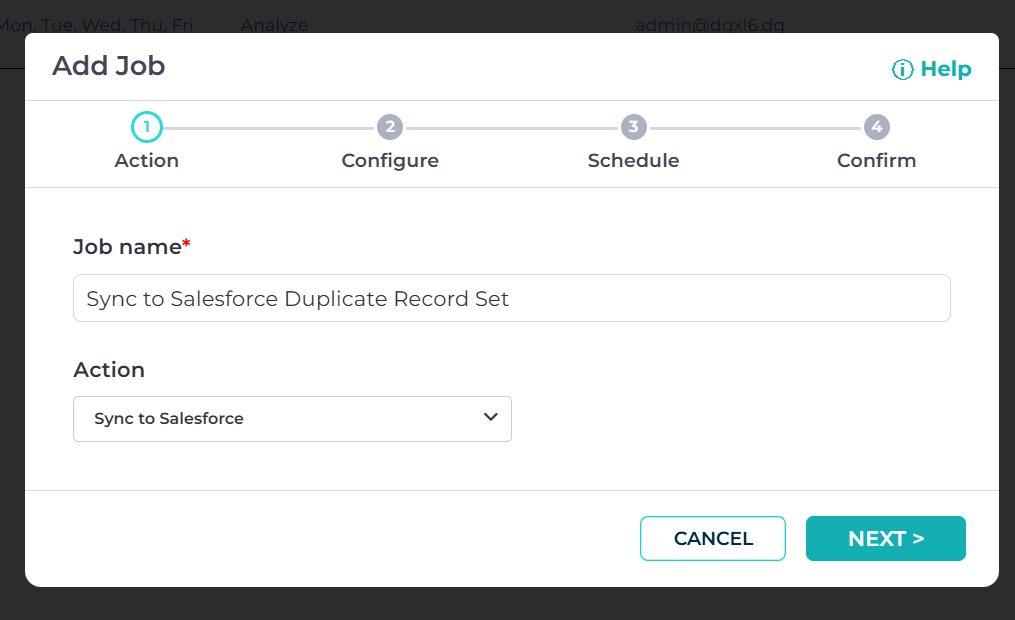
From the Automate-Jobs screen, create a new job:
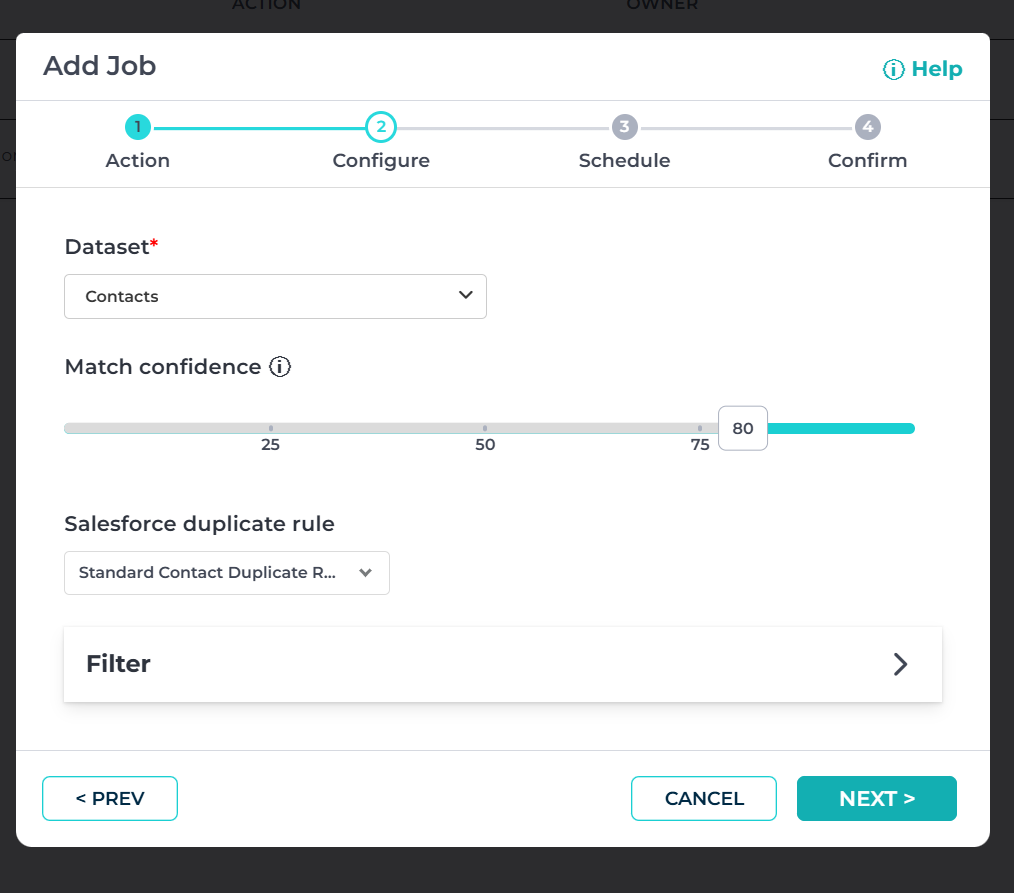
Choose the required dataset, Salesforce Duplicate Record Set, matching score, and tags:
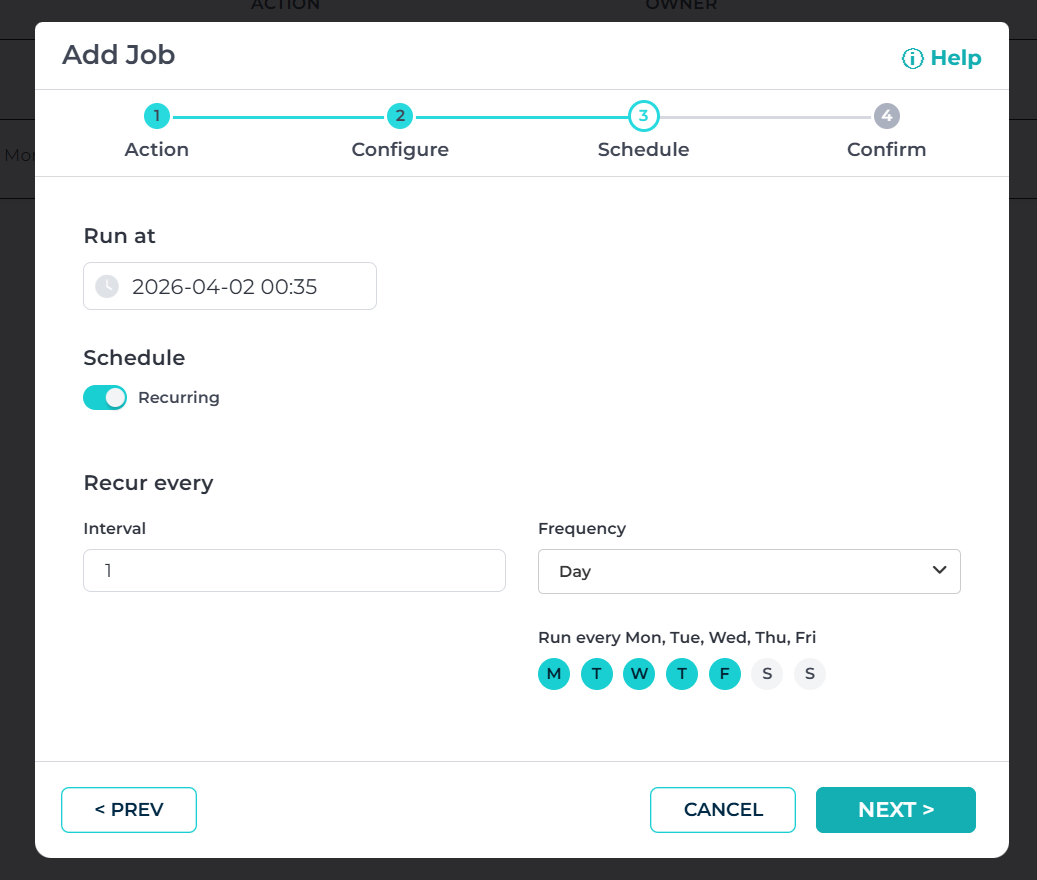
 Specify the frequency and save the job.
Step 3. Create Report on duplicate records:
Once the records are exported, you can construct a comprehensive report using Salesforce reporting capabilities. Additional information on generating reports on duplicate records can be found here: Create Reports on Duplicate Records.
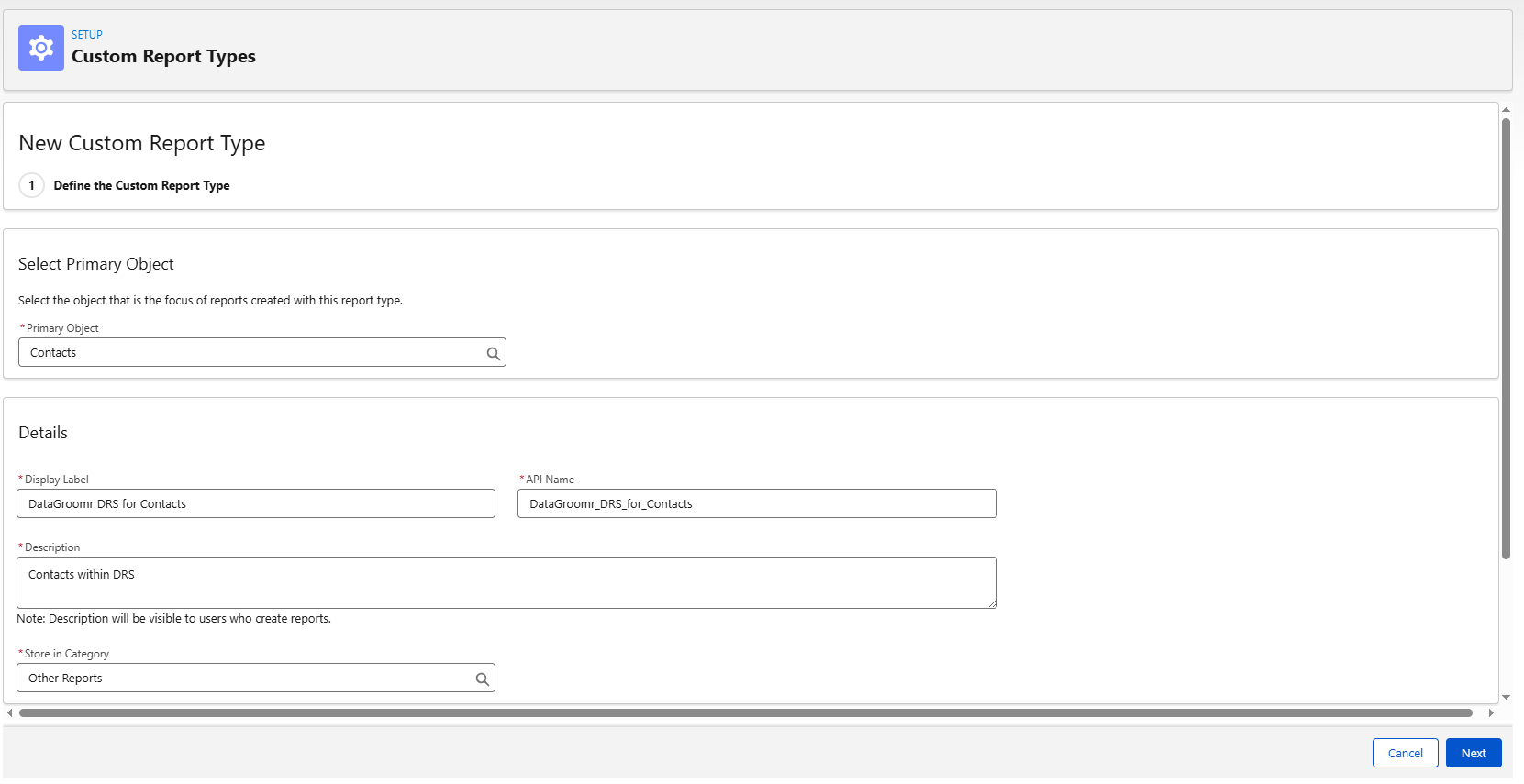
To do this, you will need to create a new SF Report Type from the Setup-Report Types page. Select the object you are working on as the primary object (for example, Contacts):
Add a relation to Duplicate Record Items:
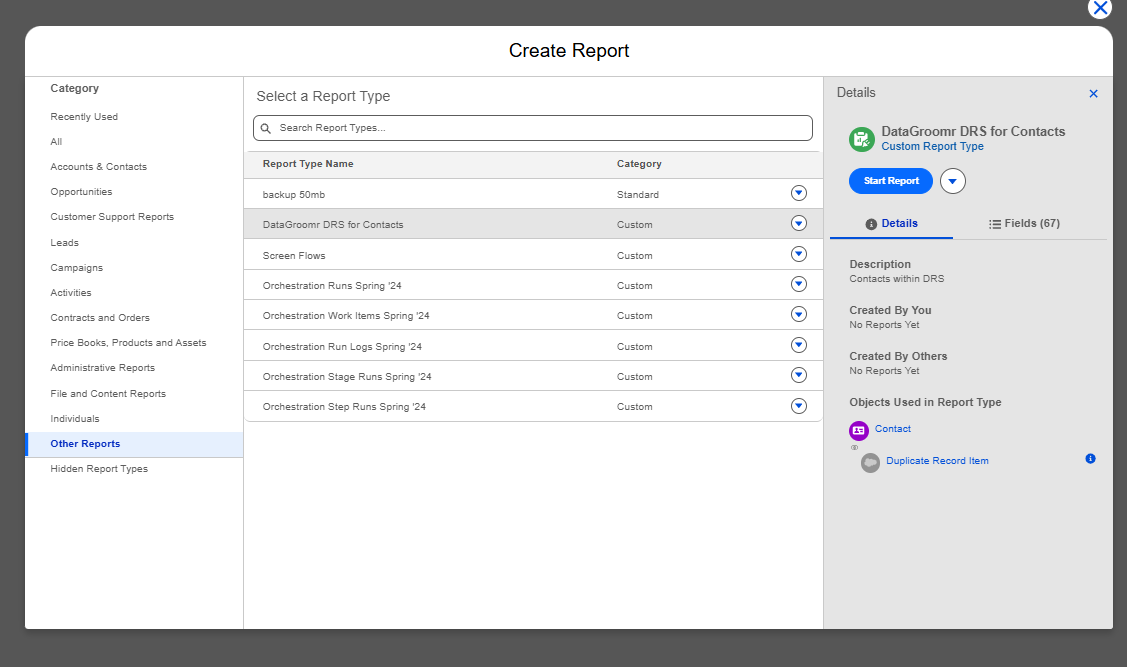
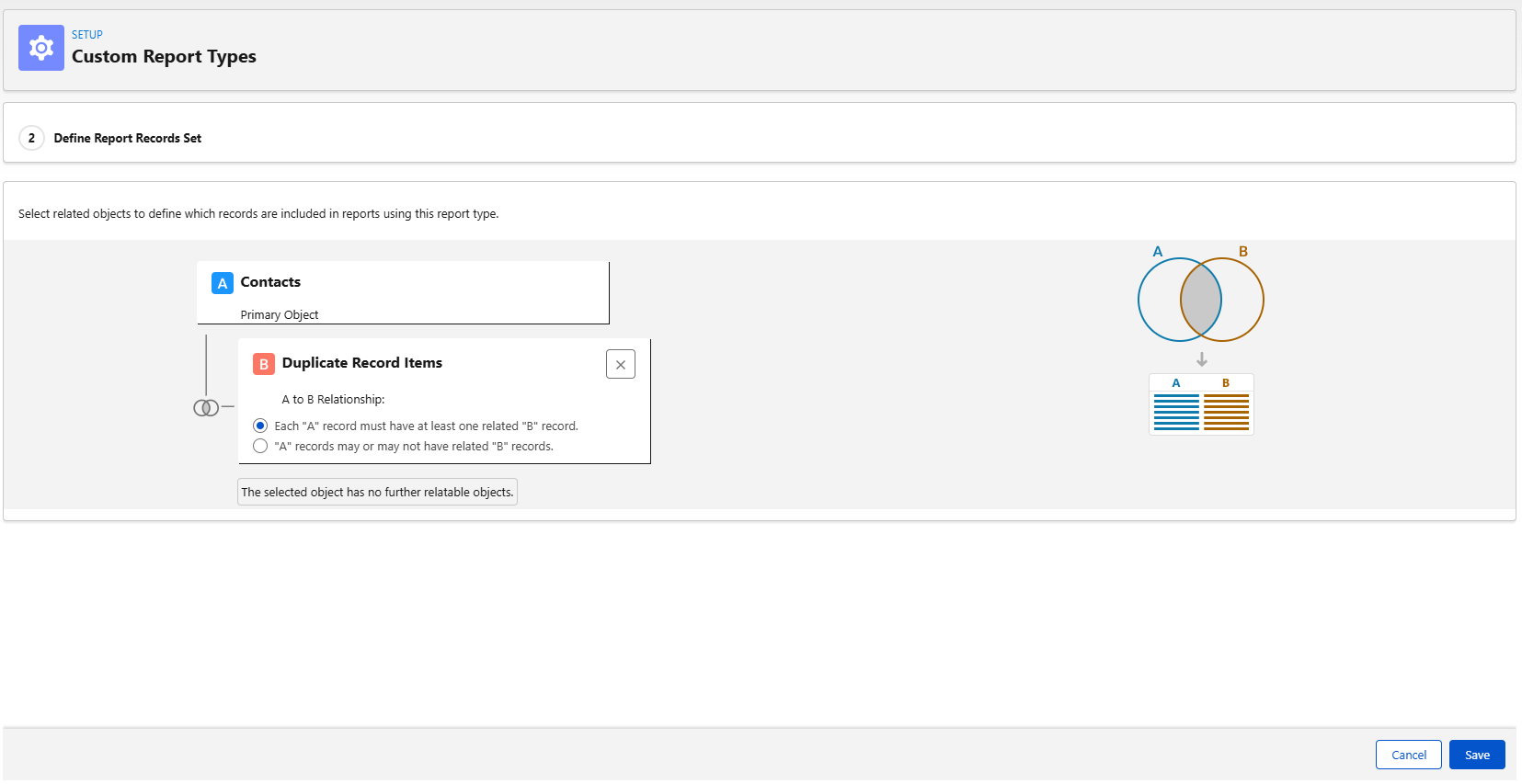 Then you can proceed to build the report itself by navigating to Reports and creating a new report based on the recently created report type:
 In the newly opened report, click "Run" and "Edit":

Incorporate all fields that are beneficial for the review process, including the field that will hold the approval decision (Approved, Declined). It is advisable to add an additional picklist field (e.g., "Duplicates Approval") to the Contact object with two available options: "Approved" and "Declined":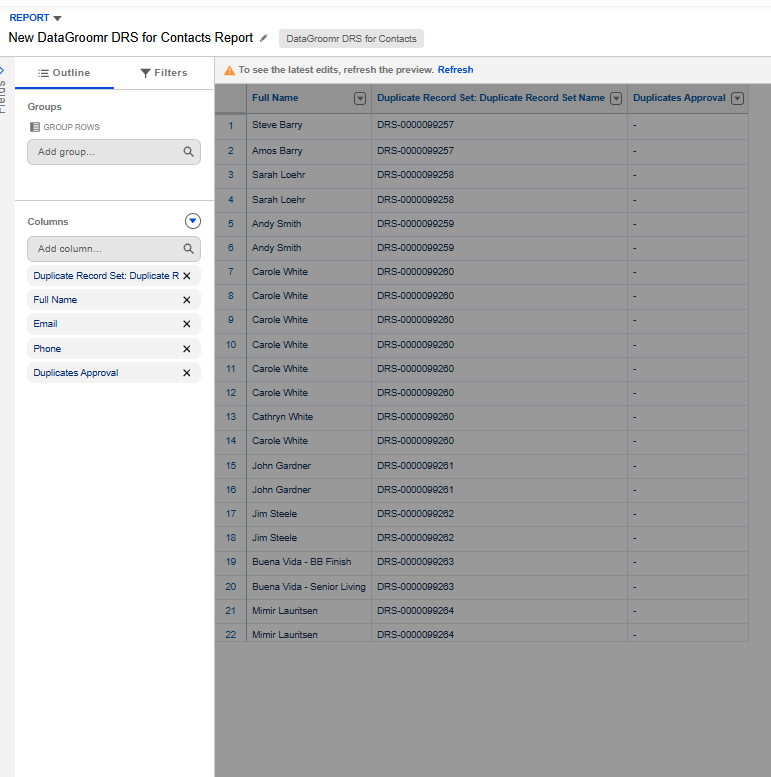
Click "Save & Run" and group the rows by Duplicate Record Set Name:
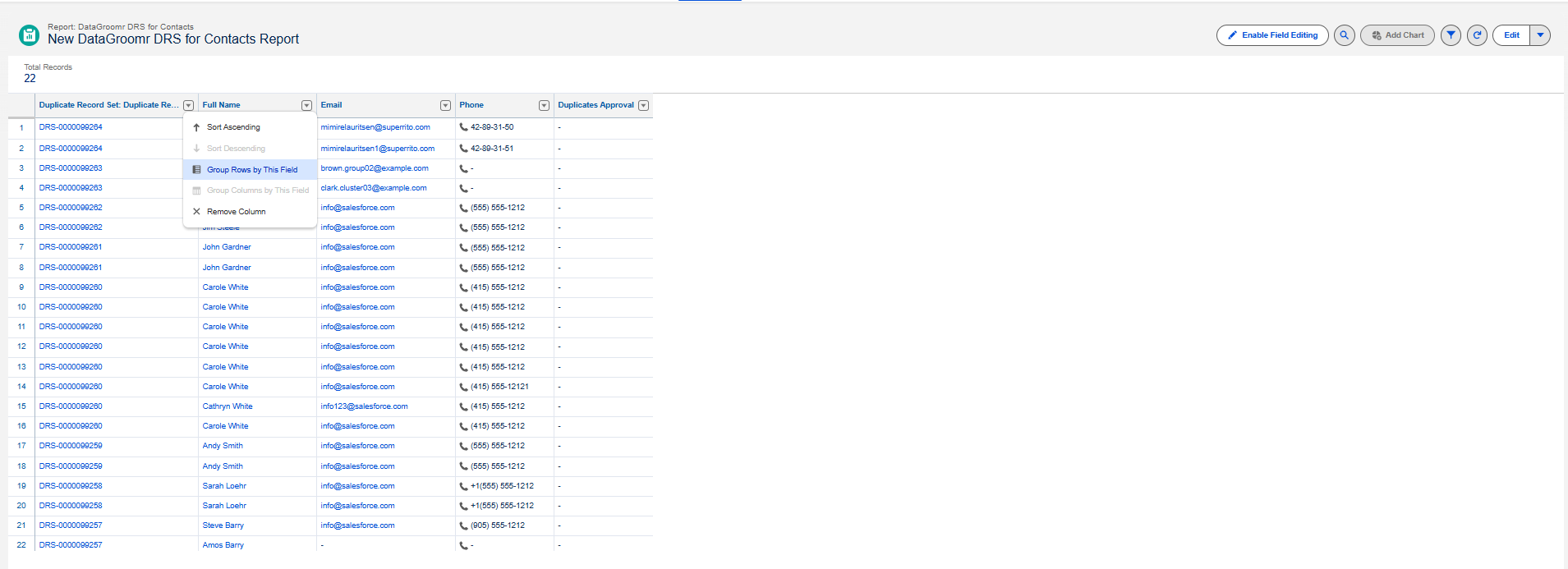
Click "Enable Field Editing" to be able to mark all duplicates as required or not for the upcoming merge right from the report page:
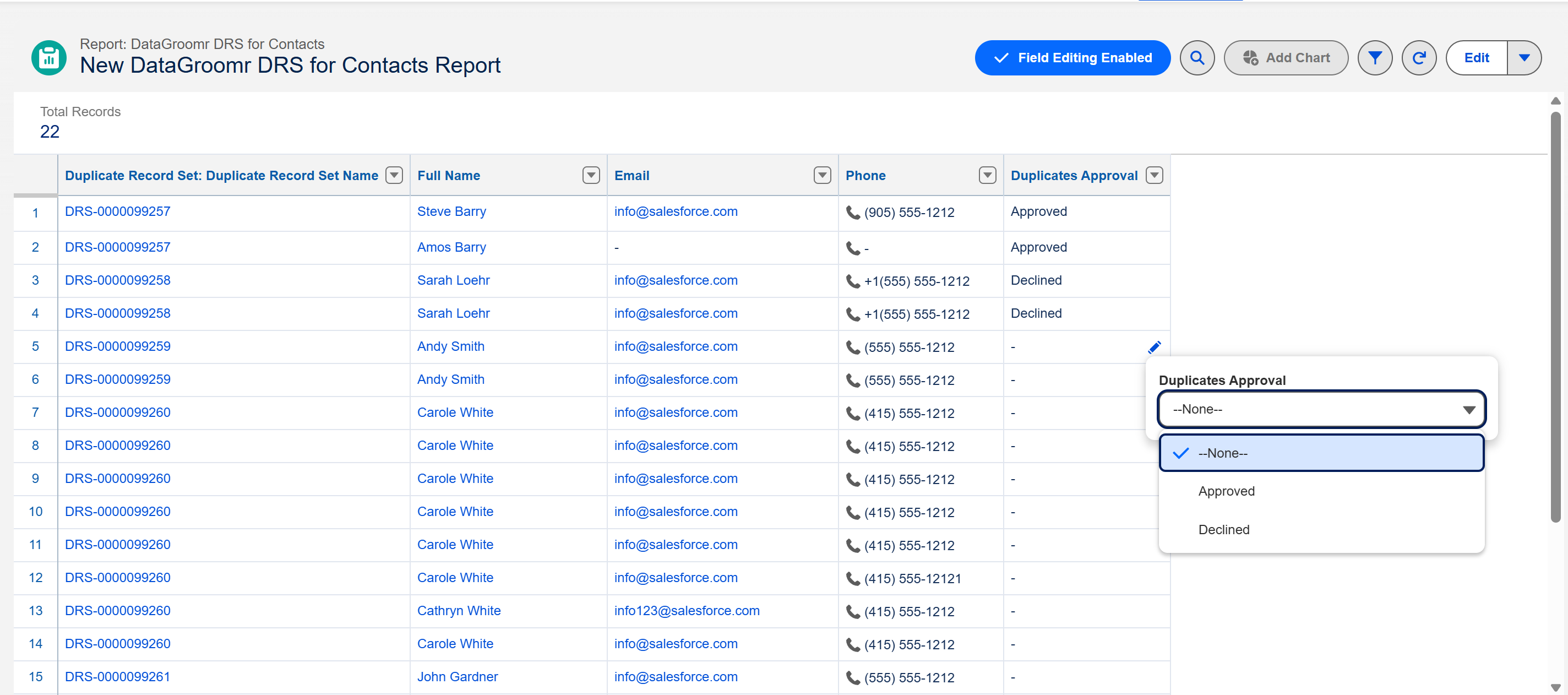
In the end, the report will showcase all records along with the corresponding approval mark:
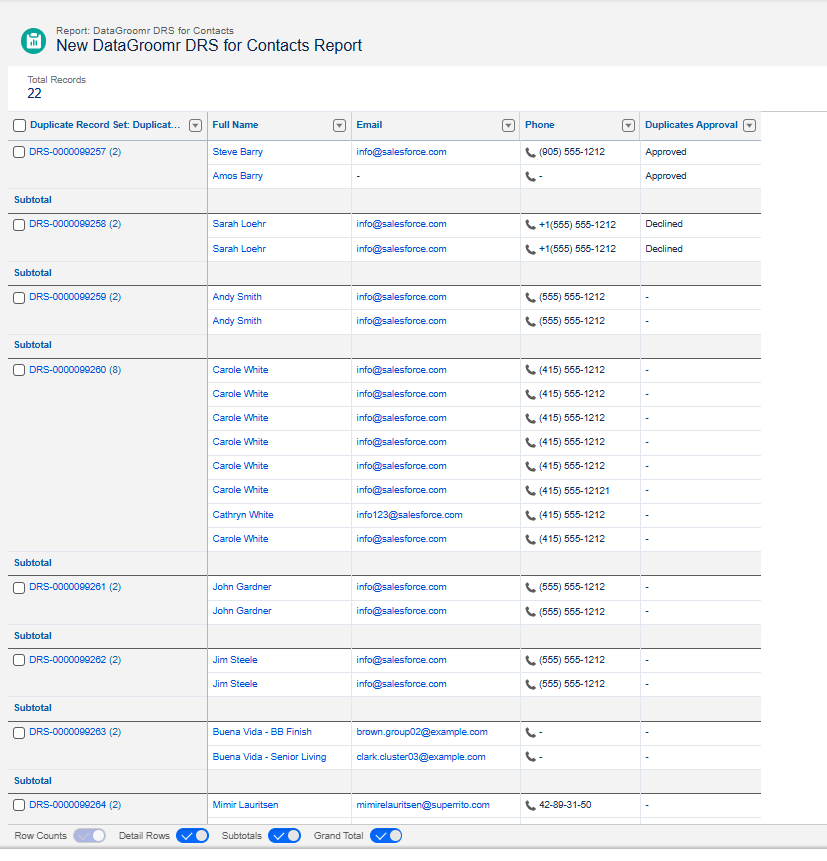
Step 4. Setting up an automerge process for approved records:
In DataGroomr, clone the dataset used in Step 1 and apply a filter that will select only approved duplicates:
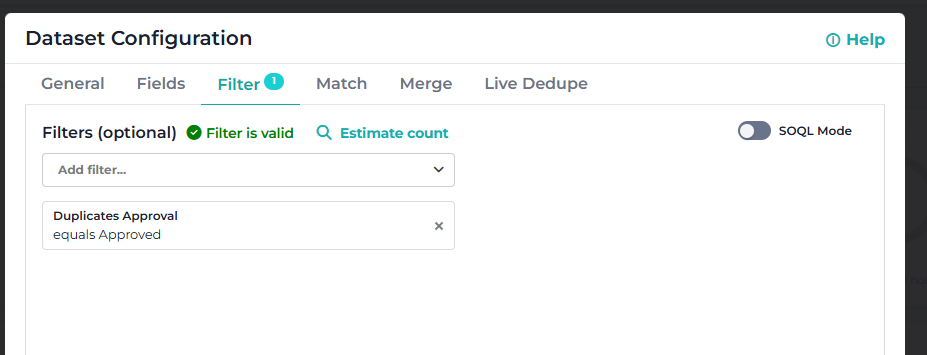
Using this newly created dataset (for example, "Contacts - approved for Merge") you are able to safely merge all duplicates as it contains only previously reviewed and approved records.
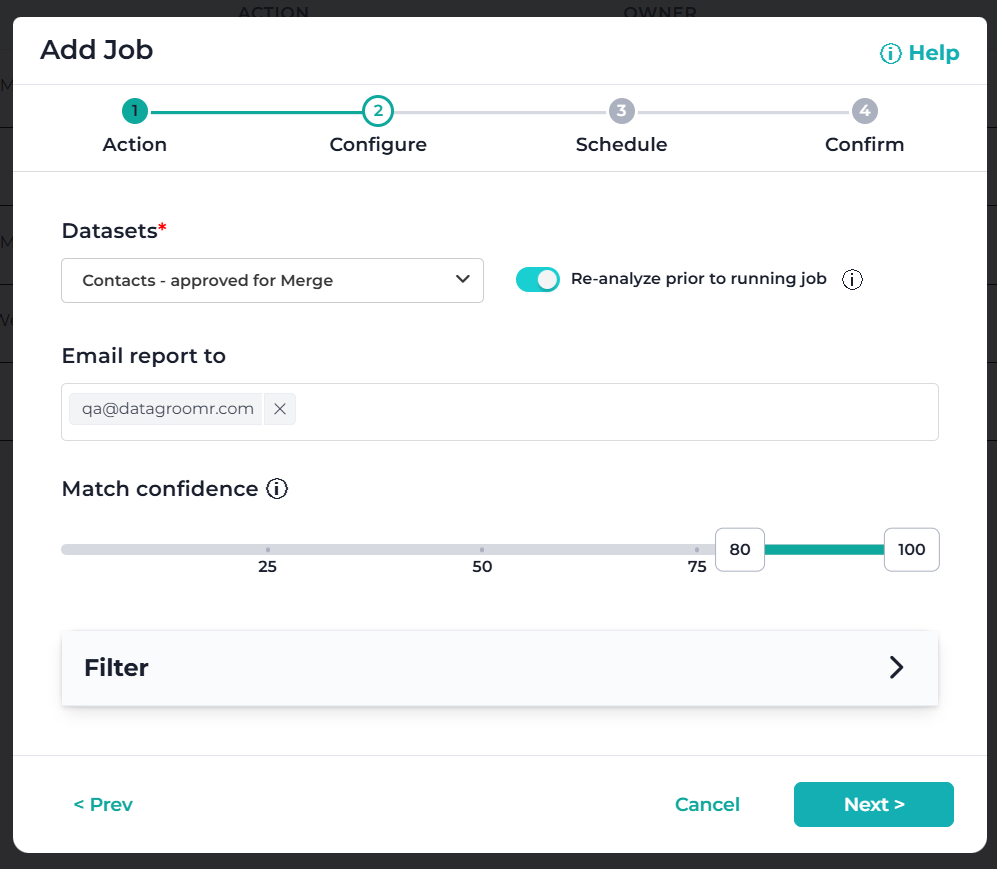
Now you are able to automate this process by scheduling a new job from the Automate module, for that click "Add Job" on the Jobs page and choose "Mass Merge" action, click "Next":
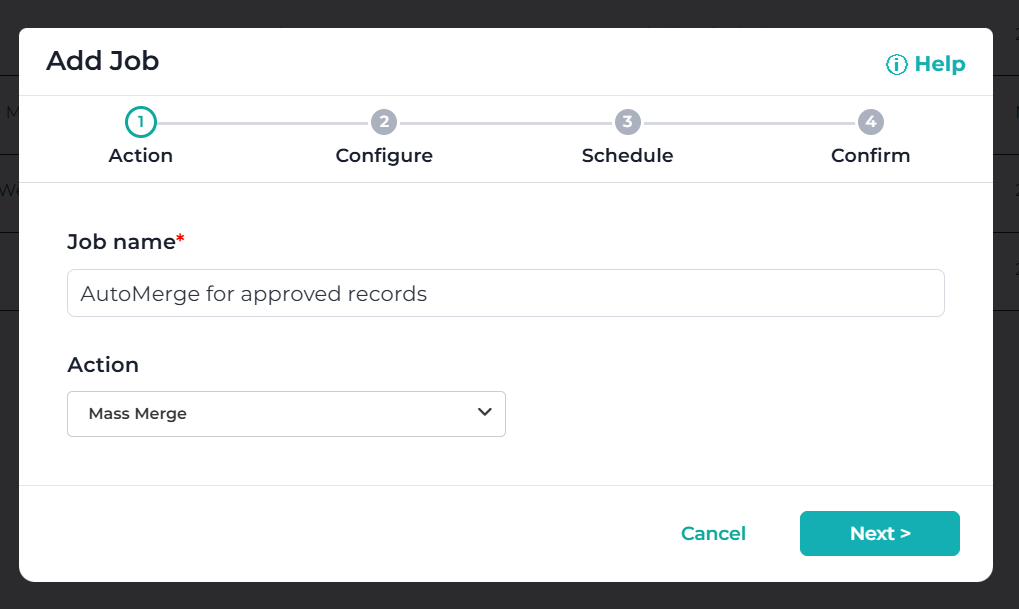
Choose new cloned dataset:
Set up needed frequency, save and activate the job:
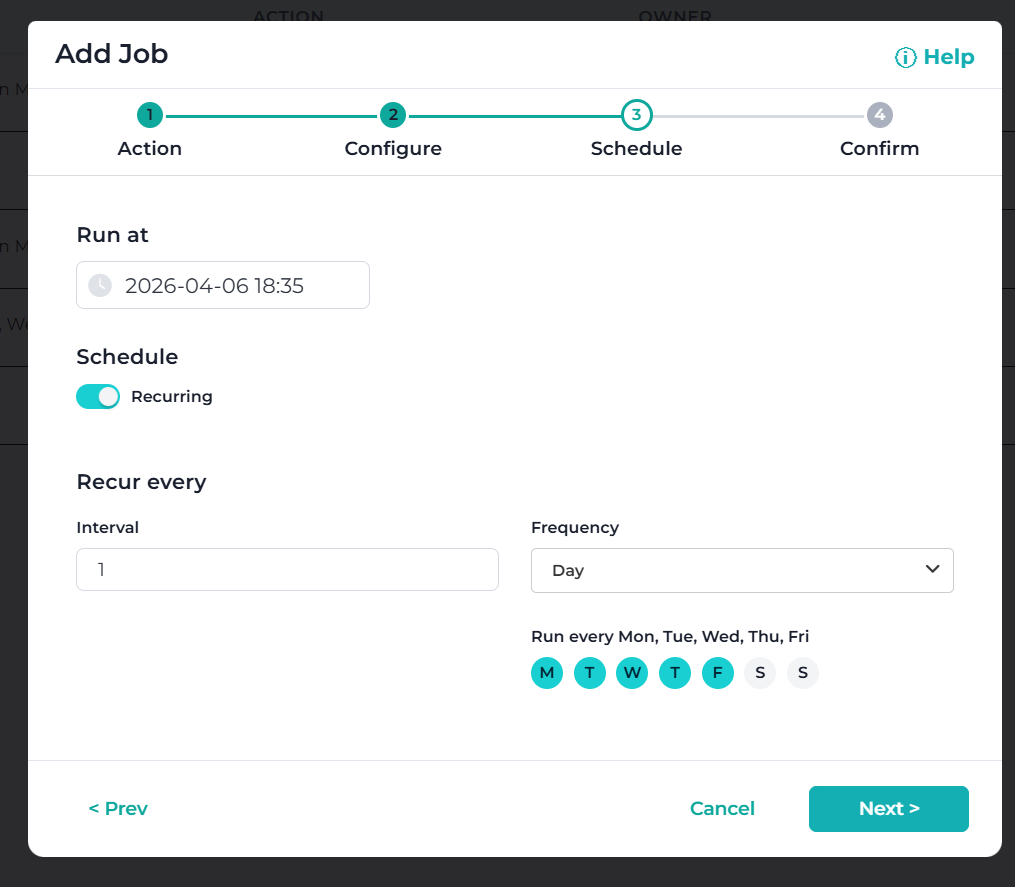
This job will regularly merge all records that were previously approved for Merge from the Salesforce.