
Live Dedupe checks Salesforce records for duplicates as soon as they are saved. When a record is created or changed, DataGroomr compares it with the rest of the dataset and updates the duplicate groups, so you no longer wait for the next analysis. It works for records from any source: users, imports, API loads and integrations.
Live Dedupe finds duplicates after they are saved. To check new data before a record is created, see How to Prevent Duplicate Records in Salesforce. For a comparison of all the real-time options, see Real-Time Duplicate Management: Which Option to Use.
Requirements
- A Dedupe dataset based on a Salesforce object. It can be a single-object or a cross-object dataset. A dataset created from a file can't use Live Dedupe.
- A Classic model selected as the dataset's primary Matching model on the Match tab. Live Dedupe can be enabled only for a primary Classic model.
- A free Live Dedupe dataset on your plan. The number used is shown on the Limits tab of Manage Subscription. When the limit is reached, use Add more on the Live Dedupe tab to buy more.
- DataGroomr installed as a Connected App in Salesforce. Without it, real-time processing can fail. See Preparing for Salesforce Connected App Usage Restrictions.
Turn on Live Dedupe
- Open the dataset and choose Edit Dataset from its actions menu (⋮).
- Go to the Live Dedupe tab.
- Turn on Live duplicate detection.
- Optionally, set the automation options described below.
- Click Save. DataGroomr shows "Live Dedupe has been enabled." and starts a full analysis of the dataset.

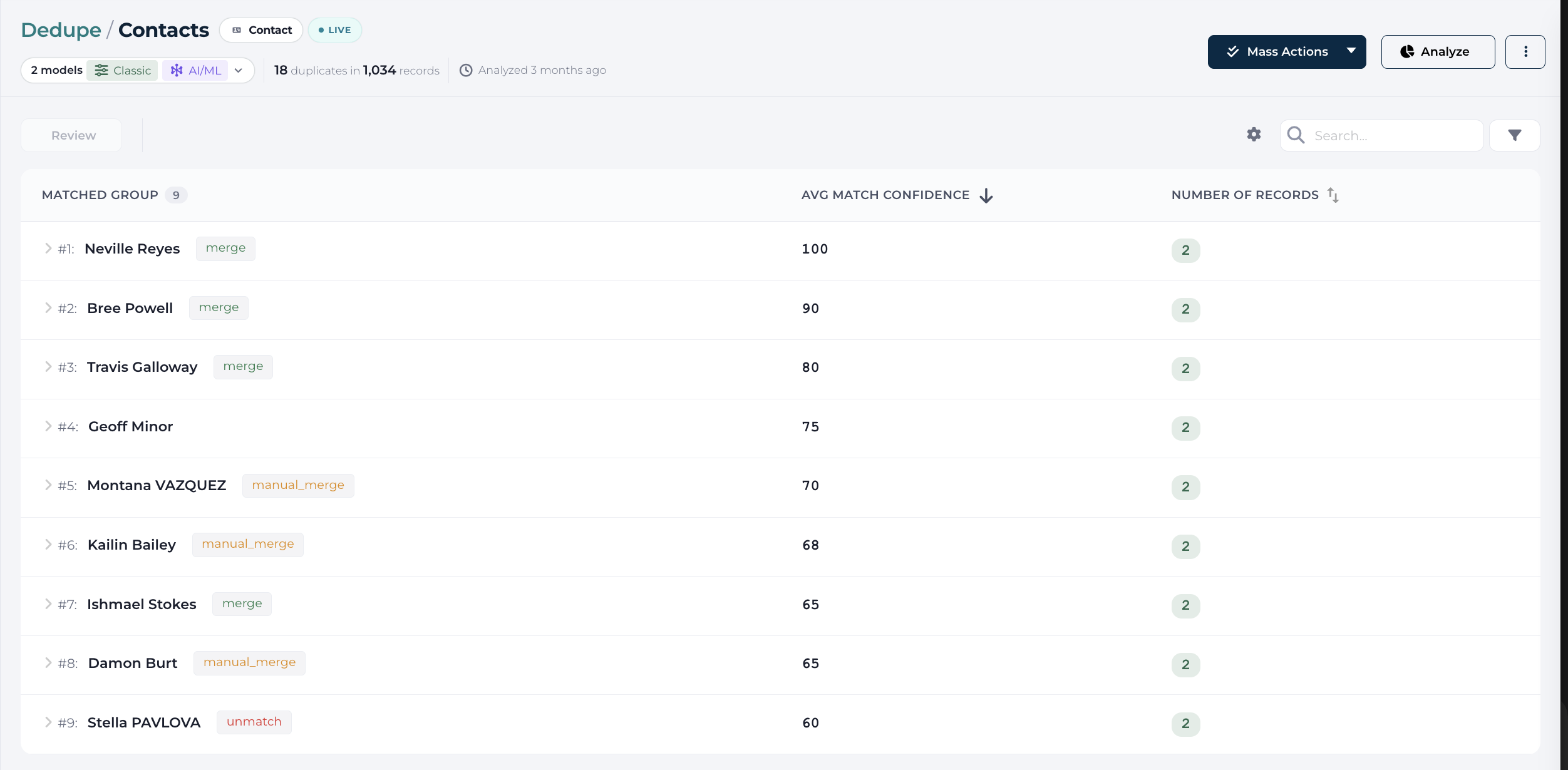
A teal LIVE label appears next to the dataset name. Click it to go straight to the Live Dedupe tab.
Options on the Live Dedupe tab
- Get AI recommendations: DataGroomr's AI reviews each new duplicate group and tags it, for example merge, manual_merge or unmatch.
- Auto merge (or Auto convert on a dataset that matches Leads to Contacts): merges or converts new duplicates that meet the filters you set, without review.
- Trigger Salesforce flow: starts a Salesforce Flow when new duplicates are found, for example to send an email or a Slack alert.
For details, see Live Dedupe: AI Recommendations, Auto Merge and Auto Convert and Live Dedupe: Alert Users with Salesforce Flow.
How Live Dedupe works
- DataGroomr receives Salesforce record changes (create, update, delete and undelete) through the Salesforce Change Data Capture API.
- Only new and changed records are checked, so results appear quickly. You can still run a full analysis of the dataset at any time.
- Custom transformations can be applied before matching to improve accuracy.
- The duplicates list updates only the groups that were added, changed or removed. Your scroll position, filters, sorting and open review stay in place.
- Records created or edited while a full analysis is running are also grouped.
- If streaming from Salesforce is interrupted for up to about three days, the changes made during the interruption are replayed once it resumes.
- Analysis events in the Log Browser show which model matched the records and the match confidence.
Live Dedupe and other triggers
A dataset with Live Dedupe on appears automatically on the Automate > Real-time Triggers page under its object, with a purple Dedupe badge. A cross-object dataset also shows a Parent or Child tag. Its on/off switch can't be changed on that page: Live Dedupe is turned on and off in the dataset settings. Triggers on the same object run one after another, in the order shown on that page. The Live Dedupe tab shows where the dataset runs in that order, for example "This trigger runs as step 2 of 3 on the Contact object", with a link to the Real-time Triggers page. A cross-object dataset shows one line for each object.
When you change the matching model
Live Dedupe uses an index built from the matching model. When you change the model, for example a tolerance or a comparison setting, the index is rebuilt automatically. Renaming the model alone does not require a rebuild. If you click Analyze after the model has changed, DataGroomr asks you to run a full analysis so that results stay accurate.
Where to see new duplicates
- In DataGroomr: the dataset's duplicates list.
- In Salesforce: the DataGroomr Duplicates component on record pages shows new duplicates as soon as records are created or updated. See Using Duplicates Lightning Component.
- Live activity: Audit > Streaming Events lists record changes and Dedupe events as they happen.
- History: the Log Browser.