
A Master Record rule determines which record will be retained after a merge.
Good to know: Losing records will be deleted from Salesforce as part of the merge process.
Master Record rules work based on the creation of ranking criteria that sorts duplicate records. You can also create exception through the "prioritize record if" option.
Our recommended approach to create Master Record Rules using the AI Assitant.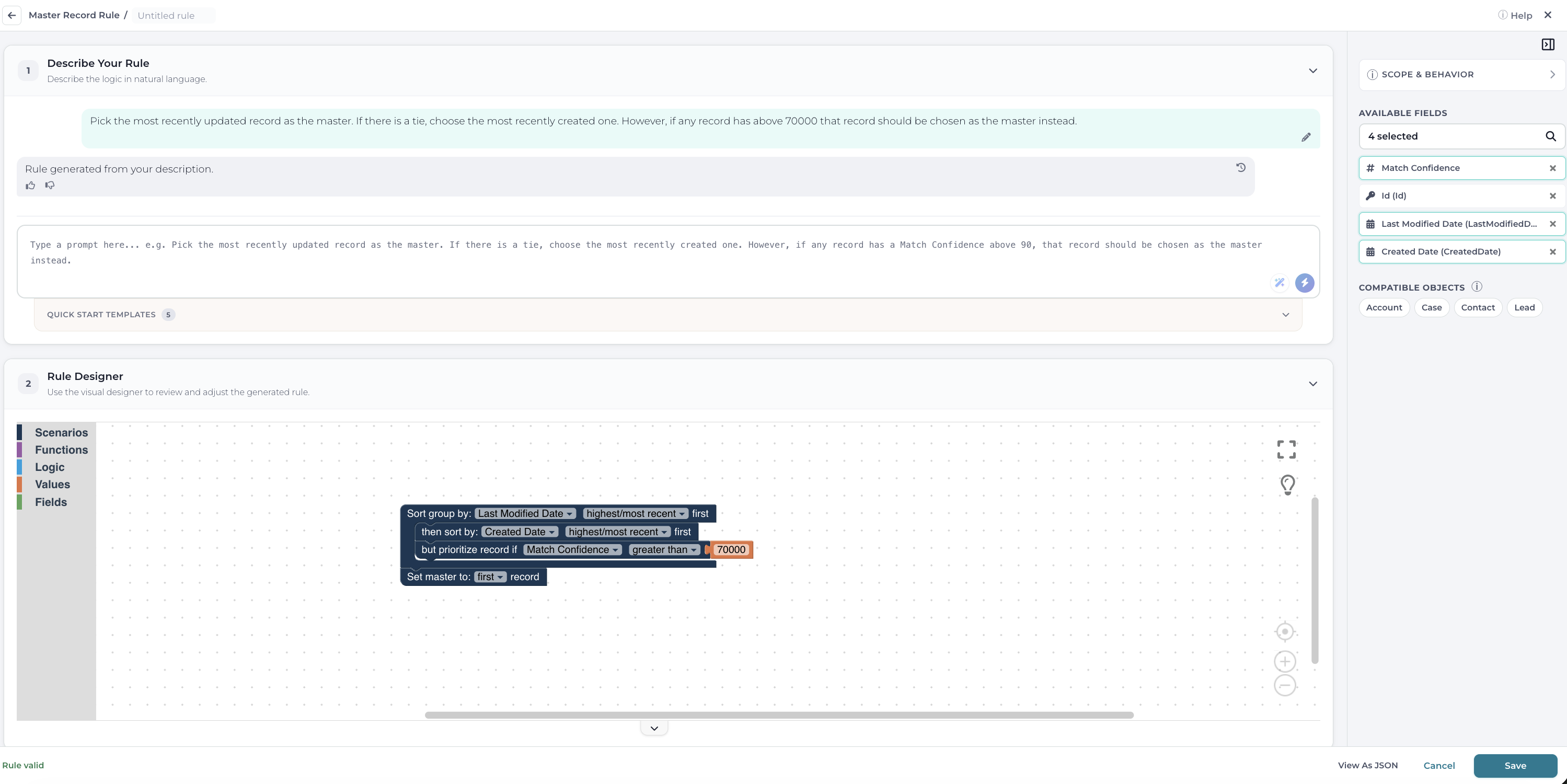
Users can type in their business rules using natural language. The AI Assistant will process these instructions and generate a rule.
You can also request an AI recommended rule for master record selection. The AI Assistant analyzes all fields in your object and generates a recommended master record rule tailored to your org, which you can review and adjust before saving.
For manual operation, navigate to the Rule Designer section, drag the Sort group by, then sort by, prioritize record if and Set master to objects into the rules work area.

- Each rule must start with the Sort group by object, which determines the initial sort criteria. Users can select the field name and sort order (Ascending/Descending). There must only be one of these blocks
- Additional sort criteria can be added using the then sort by block. Users must also select a field and sort criteria for this block. This block is optional, but multiple of these blocks may be added.
- Finally, a rule must be completed by adding the Set master to block. Users must select first or last record for this block.
TIP: The Preview area will display a the results of the created rule using sample data.
Good to know: A flag next to the Rule Preview label will automatically display the validity of the current rule.
Let's take a closer look on each of available options:
Functions
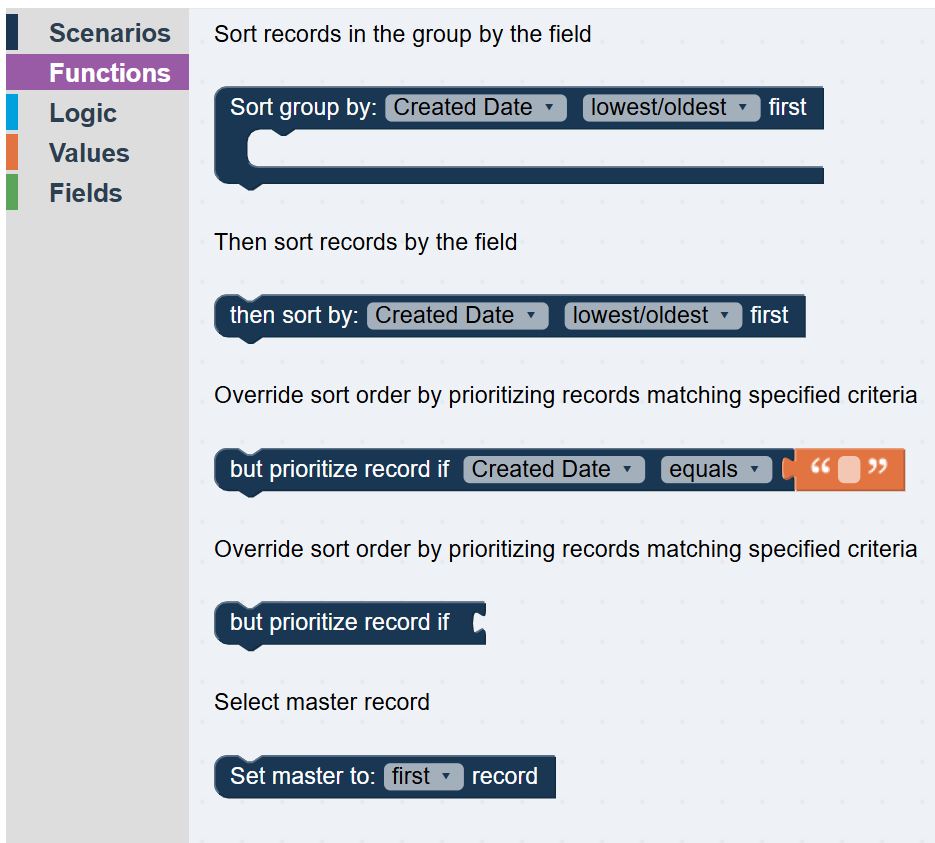
SORT GROUP BY [FIELD] [ORDER] - each rule must start with this block, it determines the initial sort order, you can choose a field that you want to use for sorting and the order (descending, ascending).
THEN SORT BY [FIELD] [ORDER] - the secondary sort order that will be apply to the group after the first one, you can use as many sort blocks as you need. For example:

BUT PRIORITIZE RECORD IF [FIELD] [CONDITION] - it allows to prioritize the record from the matched group by some specific condition regardless of the main sort order. For example, mainly you want to sort the matched group by Last Modified, Created dates but if there is a record with Match Confidence greater than 90- you want to set this record as a master record:

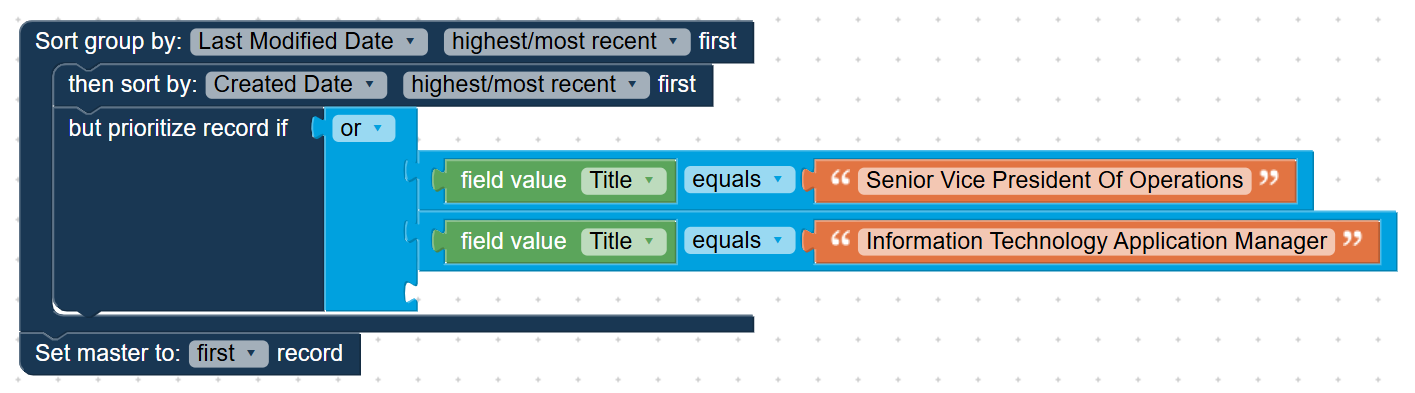
BUT PRIORITIZE RECORD IF - it allows to prioritize record by logic condition using quite complicated scenarios and combining different functions together. For example, mainly you want to sort the matched group by Last Modified, Created dates but if there is a record with Title from the list - you want to set this record as a master record:
SET MASTER TO [FIRST/LAST] RECORD - it can be used to determine which record (first or last one) from the sorted group will be chosen as a master record.
Logic
Logic section contains logical functions that returns True/False as a result.
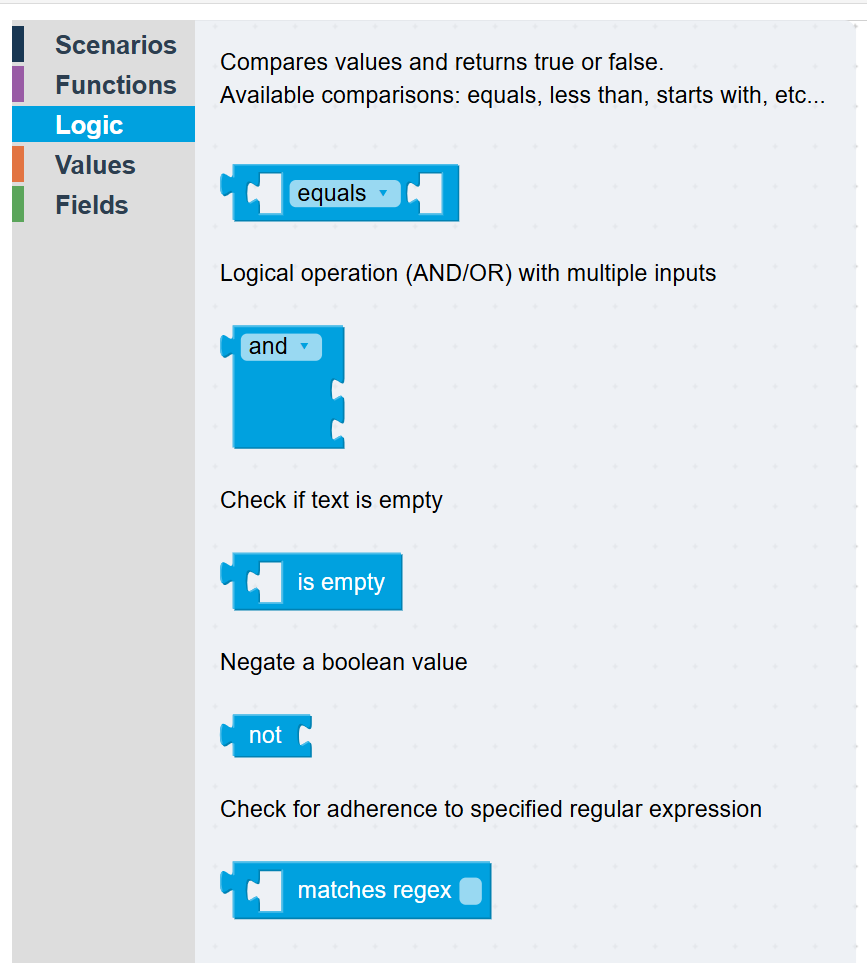
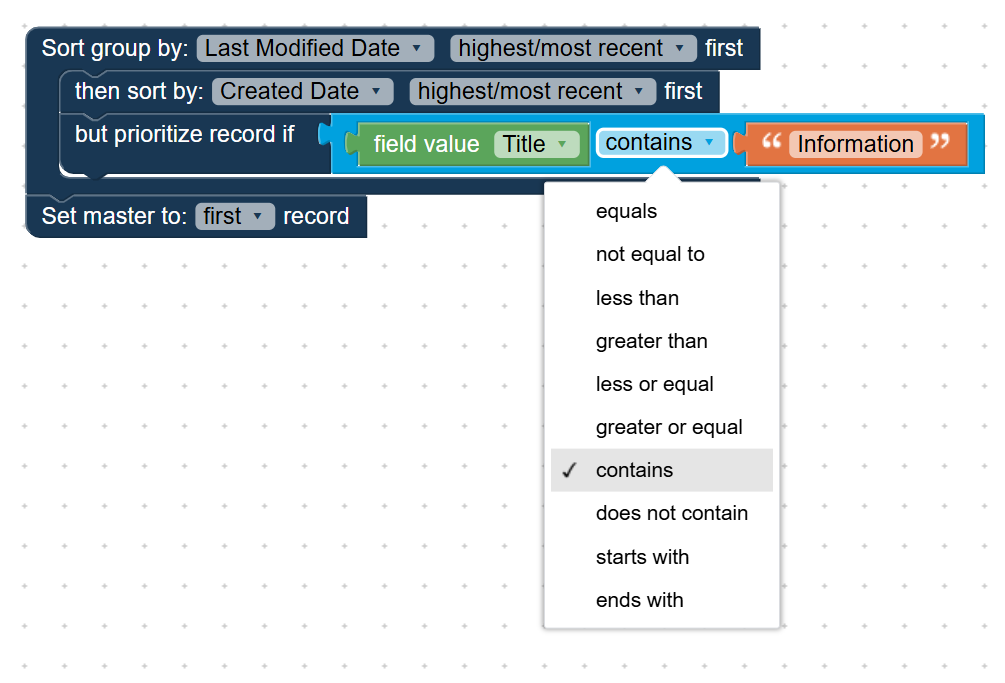
EQUALS/ NOT EQUALS/LESS THEN/... - this feature enables the comparison of two values by utilizing a group of permitted functions {equals/not equal to/ less than/ greater than/ less or equal/ greater or equal/ contains/ does not contain/ starts with/ ends with}.
In the example below, the rule guarantees that if there is a duplicate record that contains "Information" word in its title - it will be chosen as a surviving record:
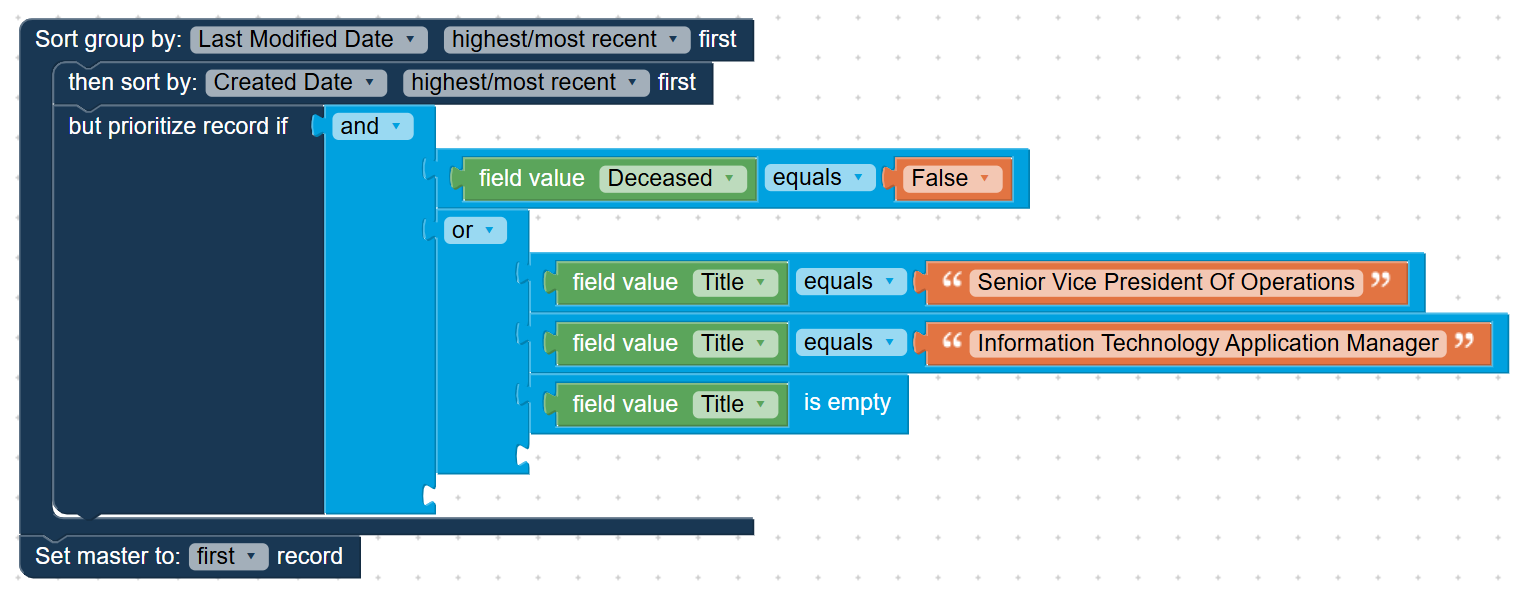
AND/OR - it allows you to logically combine set of conditions. Additional AND/OR blocks can be nested at bottom slot or within IF blocks to create complex logical expressions.
In the example below, the rule will prioritize the record if it has False in Deceased field and Title has one of the values specified:
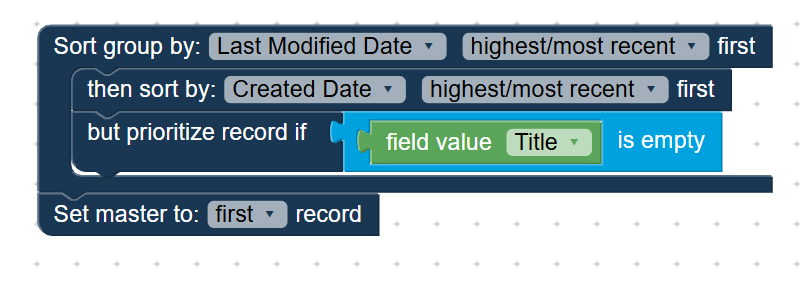
IS EMPTY - this allows for a comparison of the value to empty/null.
In the example below, the rule will give preference to the record if it contains a blank Title field value:
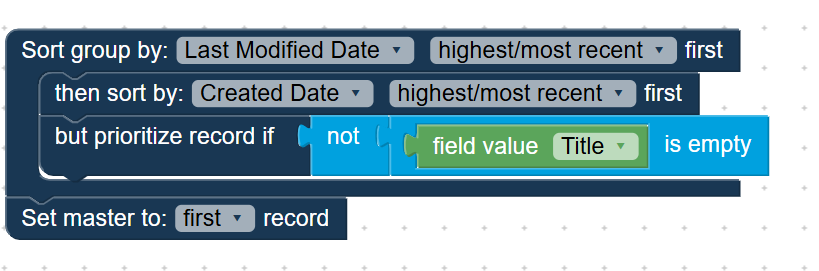
NOT - inverts boolean value connected to the right, i.e. returns true if provided value is false and false if true.
In the example below, the rule will give preference to the record if it Title is not blank:
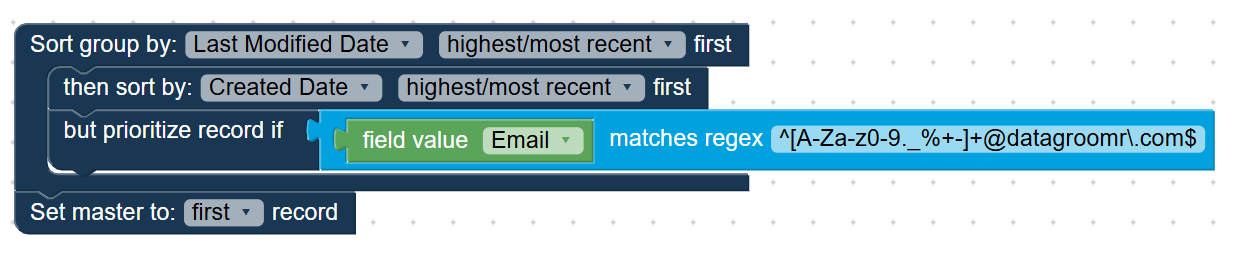
MATCHES REGEX - it returns true if a field value matches to the regular expression (RegEx).
In the example below, the rule guarantees that if there is a duplicate record with email address from datagroomr.com domain - it will be chosen as a surviving record:
Values
Values section contains blocks with plain values of Text, True/False, Empty(Null), Number, Current DateTime. These blocks can be used in connection with other blocks.
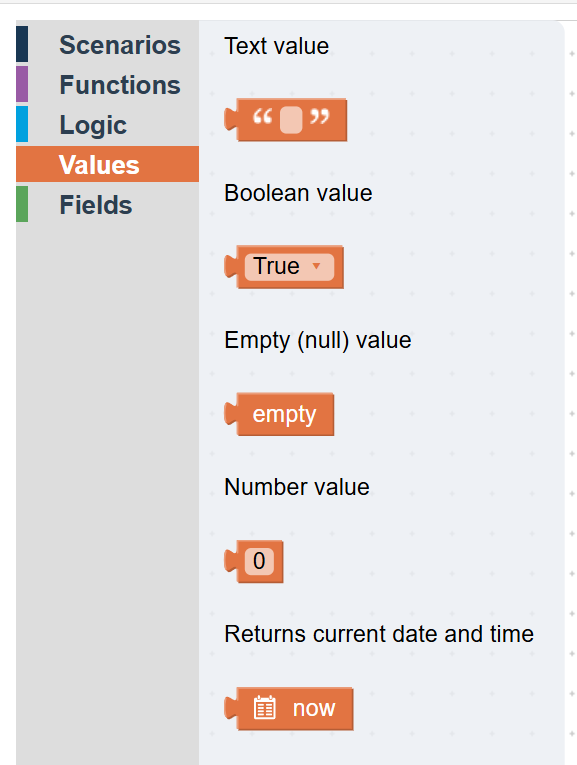
TEXT - a text value
BOOLEAN - a boolean (true/false) value
EMPTY - an empty/null value
NUMBER - a number value
NOW- a current datetime value
Fields
The section contains blocks to manipulate field values and field names.
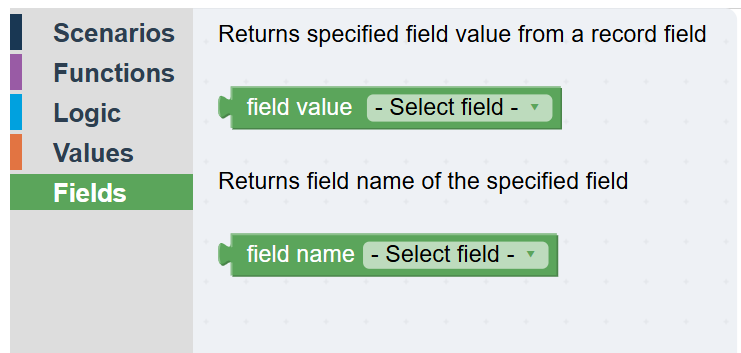
FIELD VALUE [FIELD] - returns specified field value from a record field.
FIELD NAME [FIELD] - returns field name of the specified field.