
Getting started with DataGroomr is quick and simple. Just follow the steps below to connect your Salesforce org.
Step 1: Go to DataGroomr
Navigate to https://app.datagroomr.com
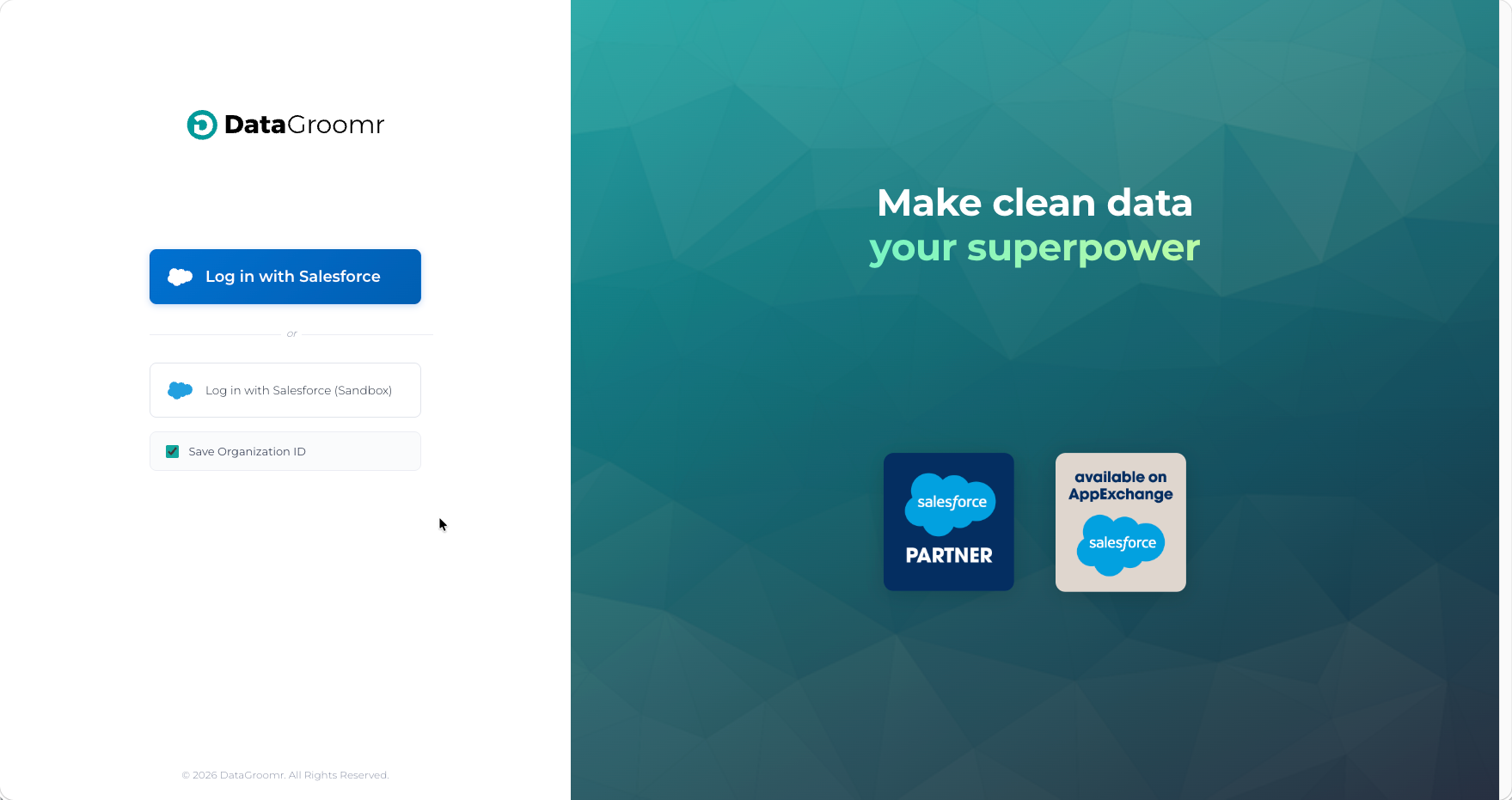
Step 2: Choose your environment
Select the Salesforce environment you want to connect to:
Using this option will log you into your production org

Using this option will log you into your Sandbox.
Step 3: Log in with Salesforce
Sign in using your Salesforce credentials. DataGroomr uses Salesforce’s secure authentication, so your login and data remain fully protected.
Good to know: DataGroomr never stores your Salesforce password. Authentication is handled entirely by Salesforce.
Accessing DataGroomr from Salesforce
If you installed DataGroomr from the Salesforce AppExchange, you can launch it directly from within Salesforce. Simply open the App Launcher (waffle icon) and search for DataGroomr to access the app, or add DataGroomr as a navigation tab for one-click access. This allows you to move seamlessly between Salesforce and DataGroomr without needing to log in separately, making it easy to include DataGroomr in your daily Salesforce workflow.
Save Organization ID
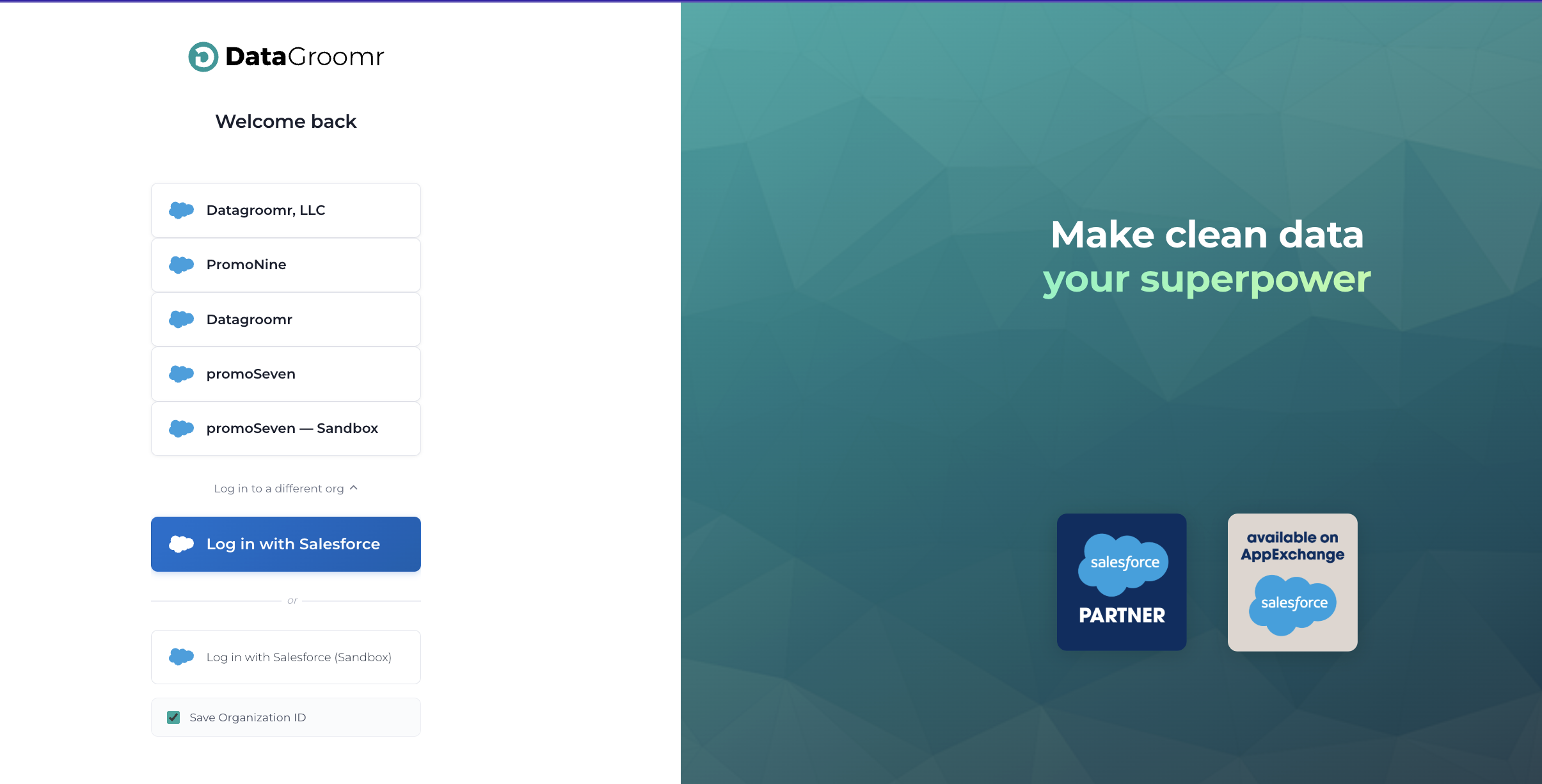
DataGroomr provides an enhanced login experience, especially useful for Salesforce orgs that use SSO or custom domains., which can be enabled by setting the Save Organization ID checkbox.
When returning from a previously used device, you’ll see a Welcome Back screen showing your recently accessed orgs, including their branding logos. Simply select an org to be taken directly to the correct Salesforce login page, no need to type in Salesforce URL or manually choose the environment.
Especially helpful for:
Consultants managing multiple Salesforce orgs
Admins switching between Production and Sandbox
Teams using Salesforce SSO or custom domains